> ## Documentation Index
> Fetch the complete documentation index at: https://docs.runalloy.com/llms.txt
> Use this file to discover all available pages before exploring further.
# Step 4: Setup Best Buy Fulfillment and Order Routing
### Shipping and Delivery
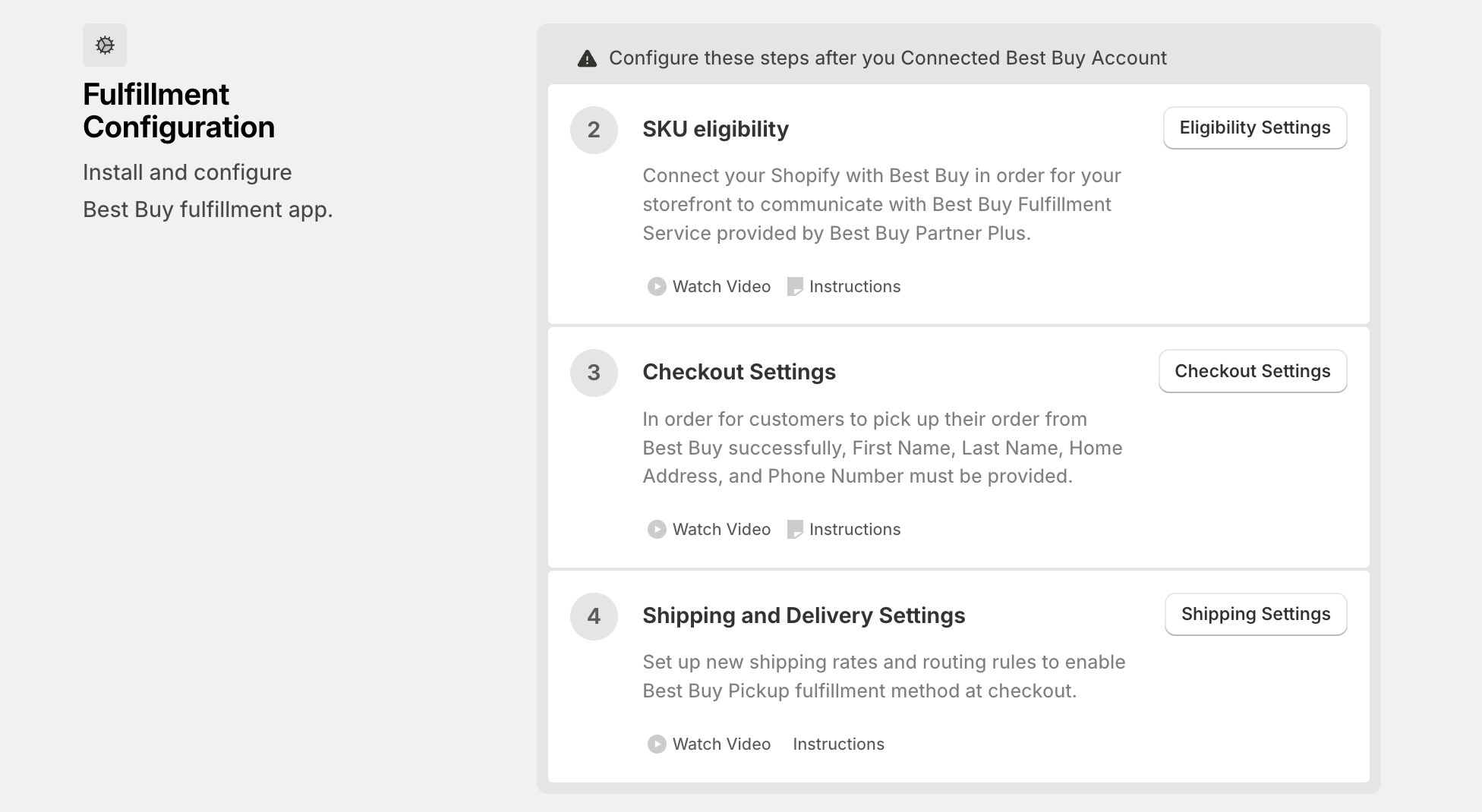
From the Best Buy Fulfillment App homepage, click on **Shipping Settings**
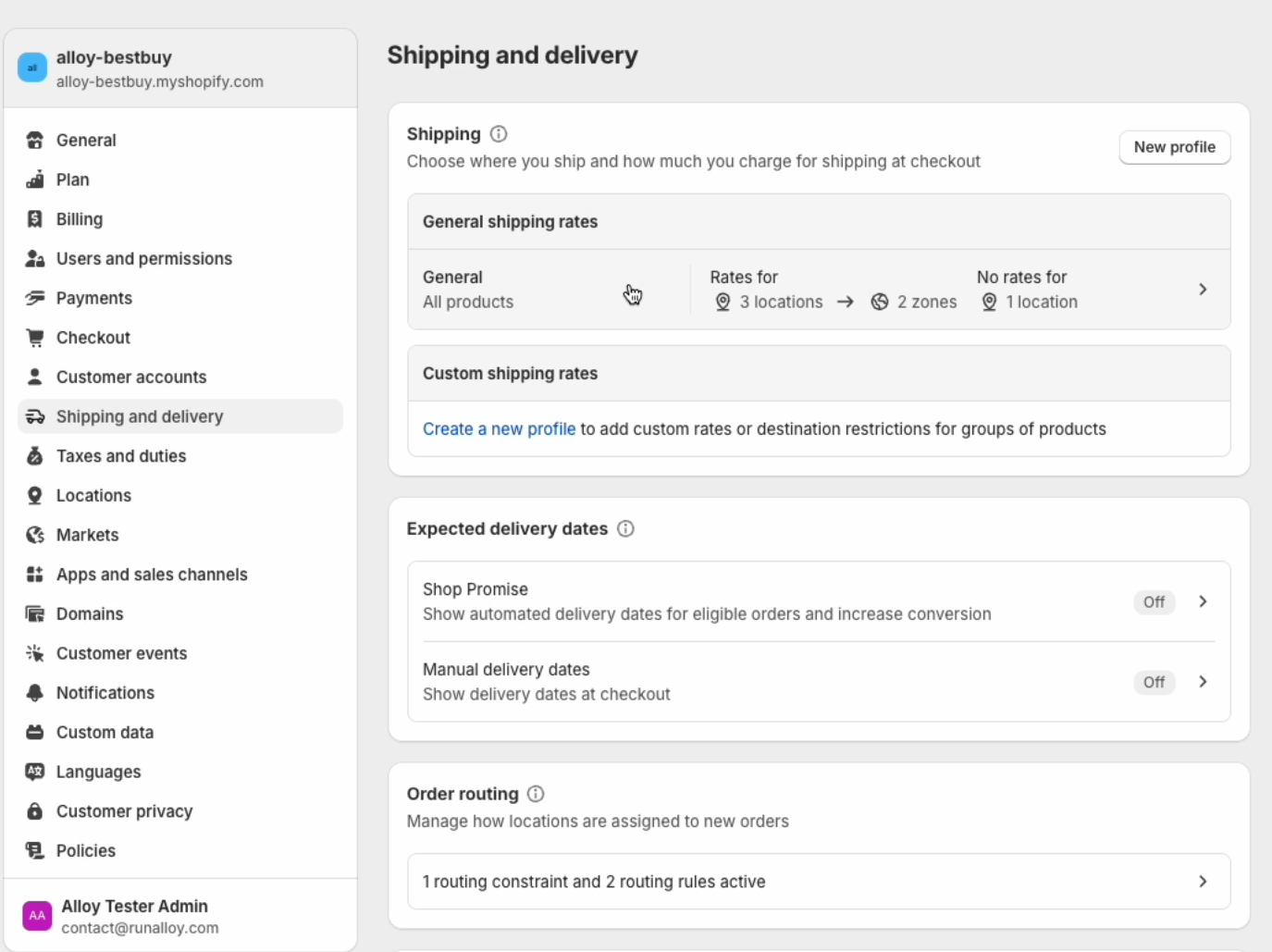
In the shipping section, click on **General shipping rates**.
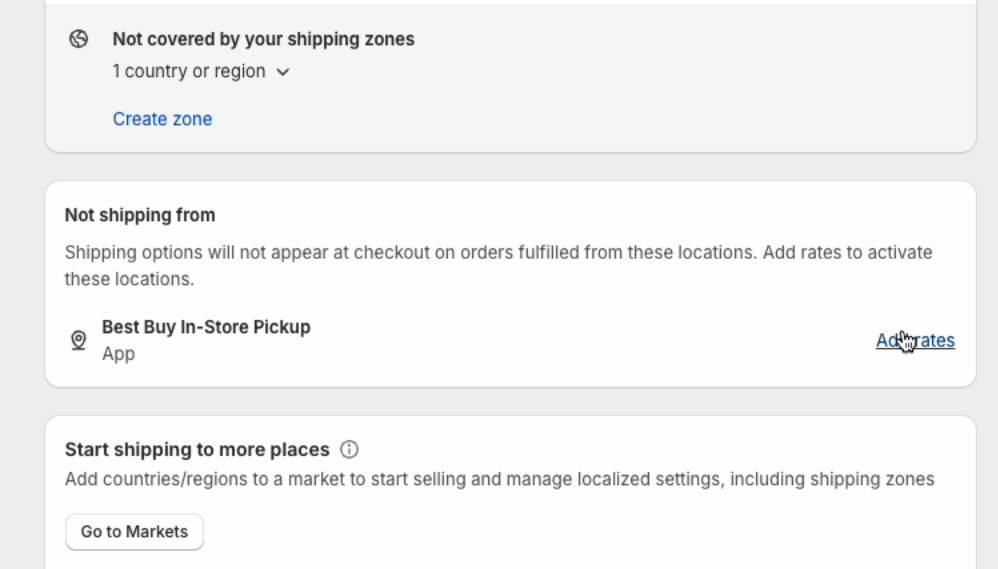
At the bottom of the page, you should see a section called **Not Shipping from** with **Best Buy In-Store Pickup**. Click on **Add Rates.**
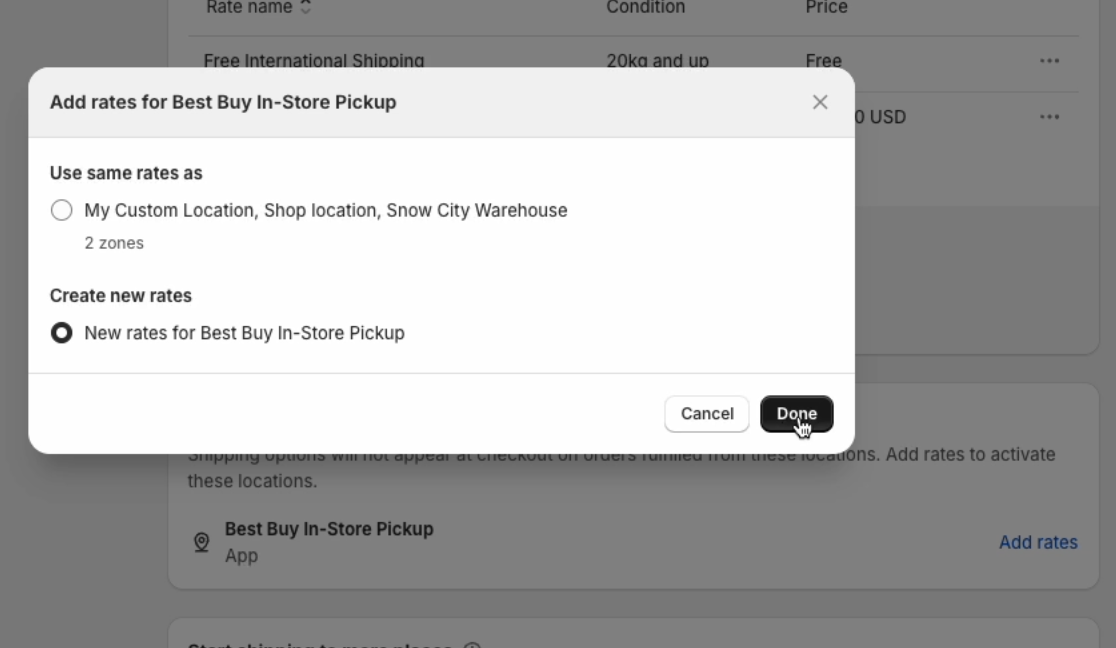
In the modal, select **Create new rates**.
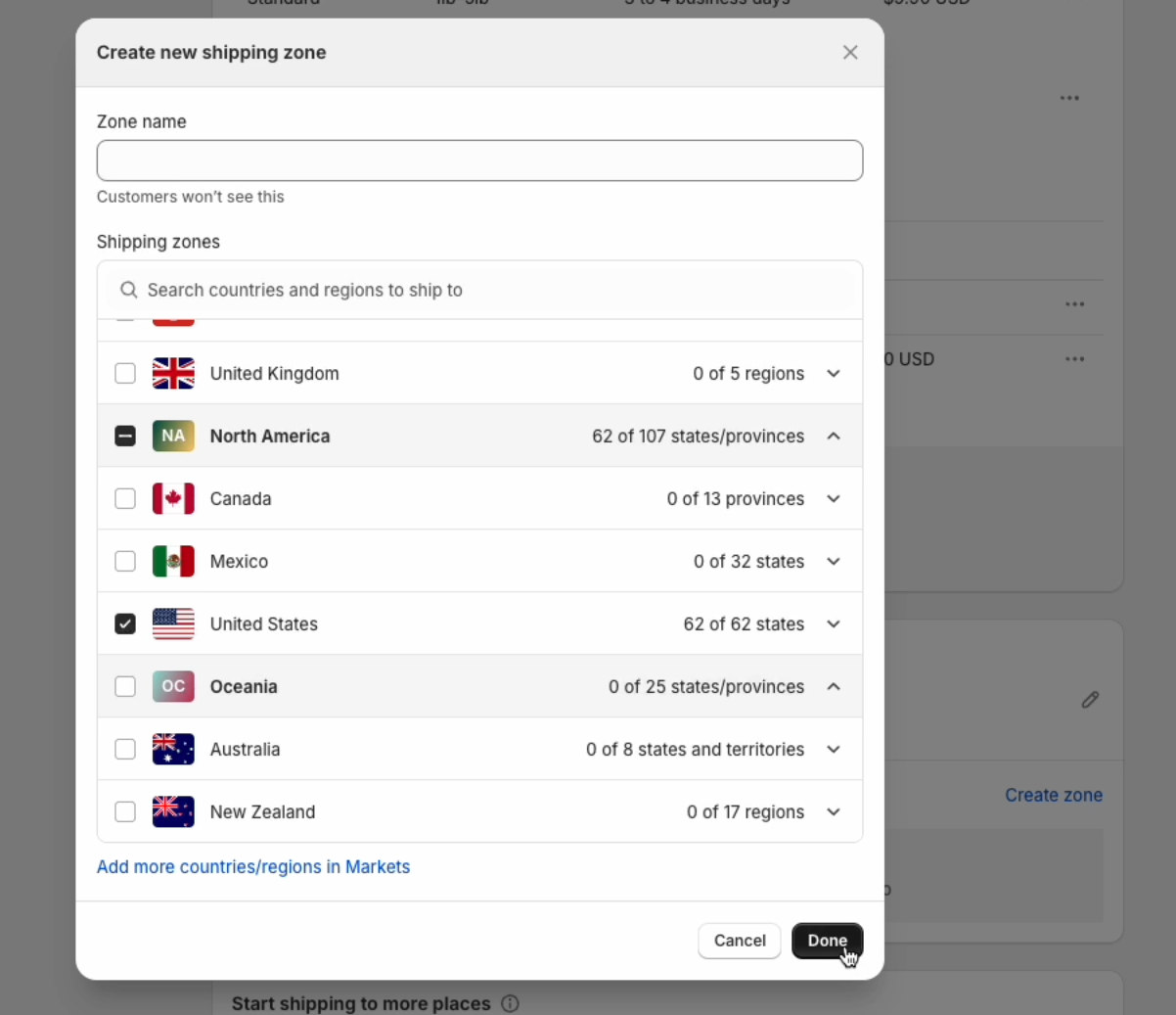
Then click on **create zone** and add a **United States** zone.
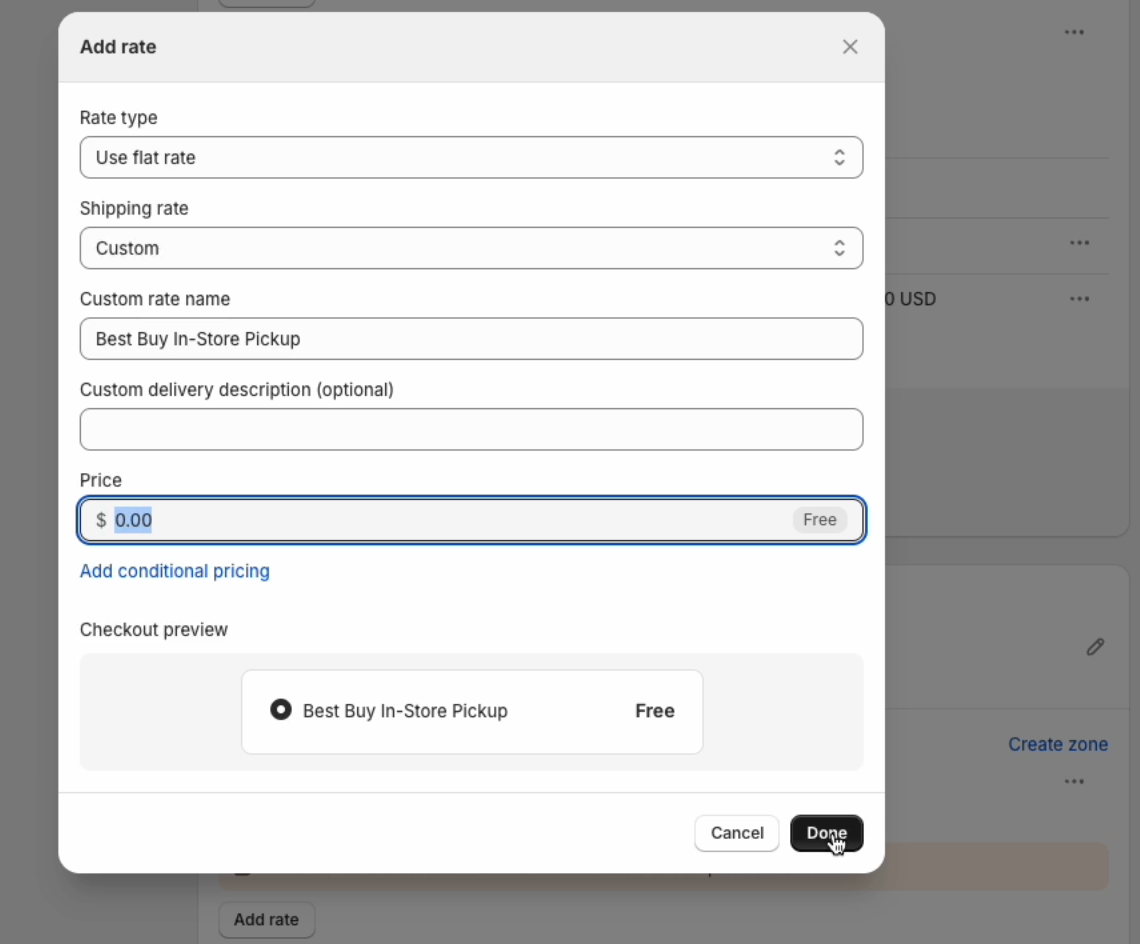
Click on **Add rate** for this zone. In the modal, select the following:
Click **Done**.
### Order Routing
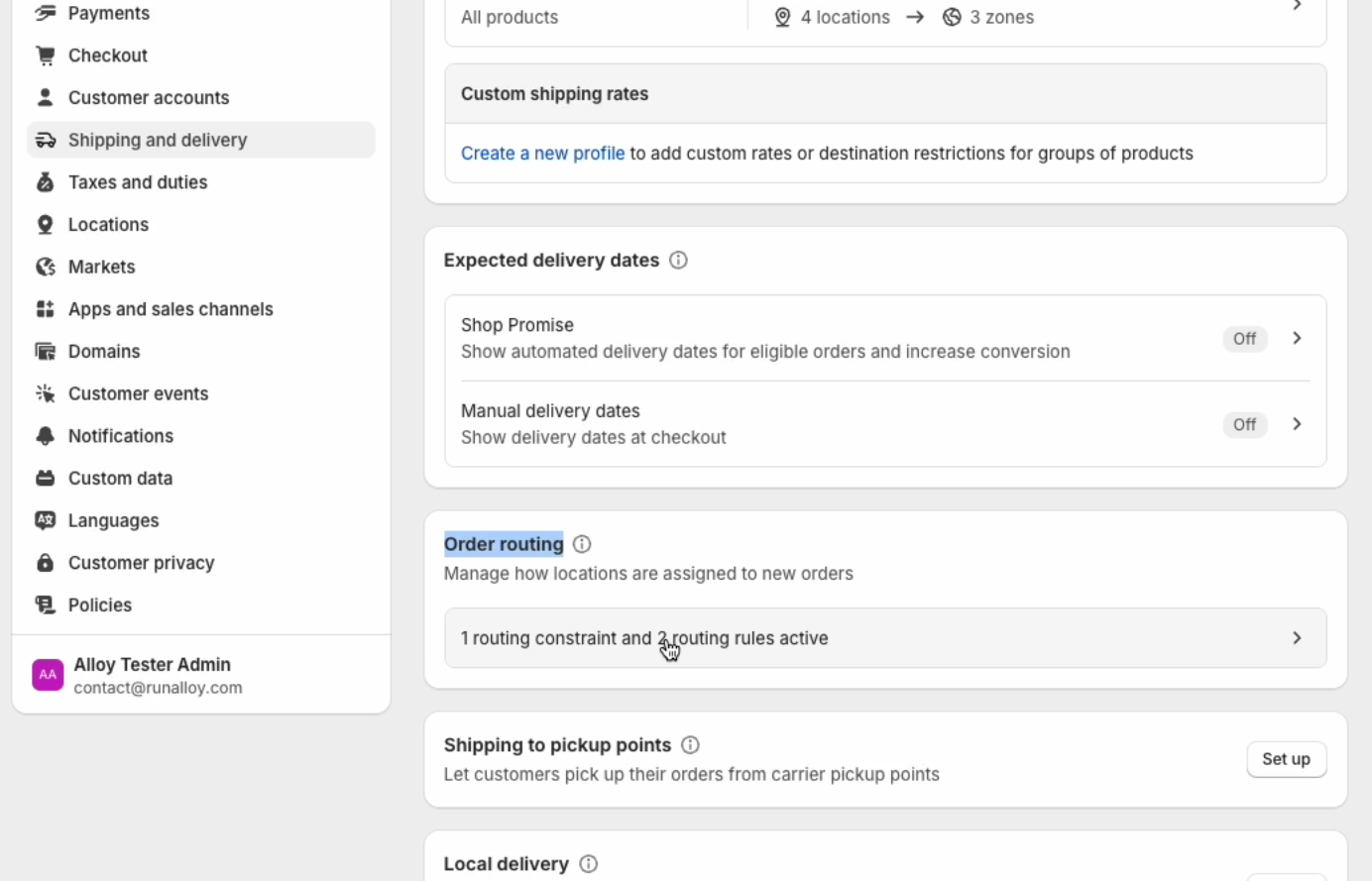
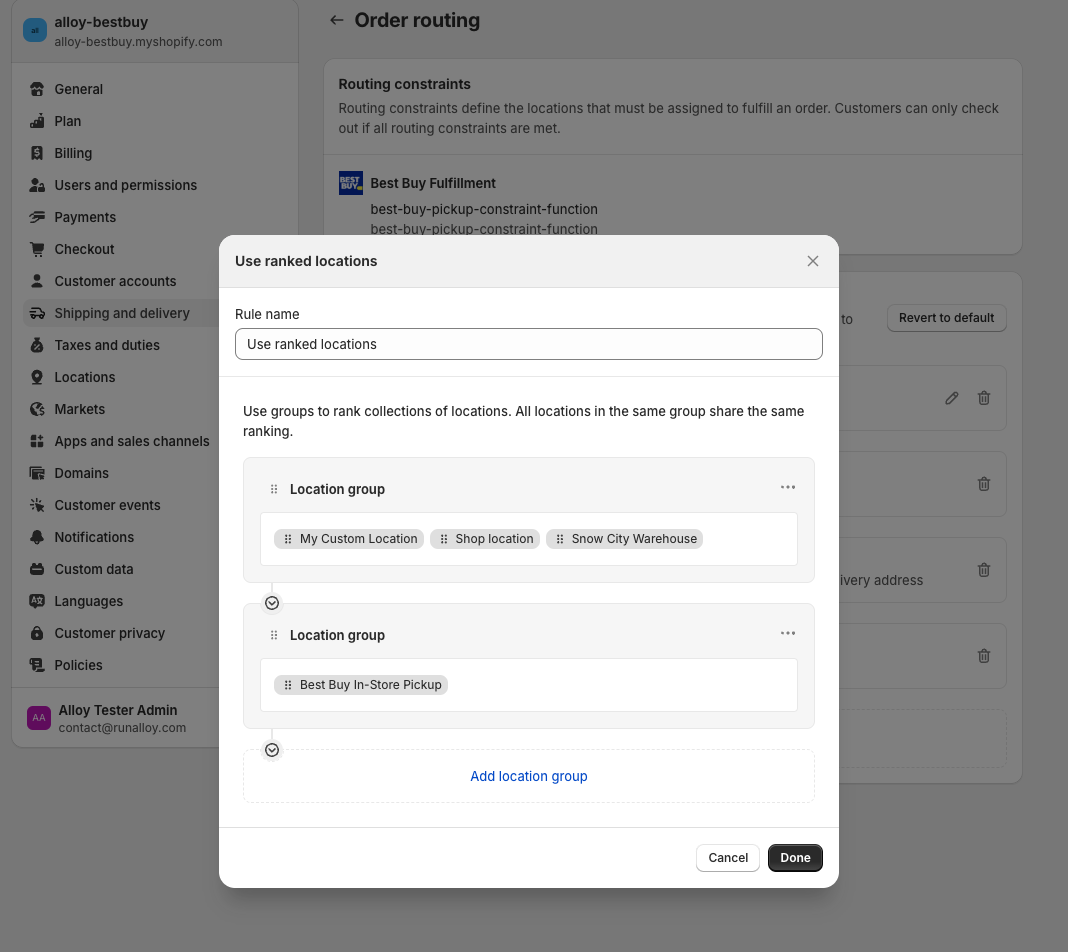
Under the same **Shipping and Delivery** page in **Settings**, click on **Order Routing Rules** in the **Order routing section**.
Make sure that you add the Use Ranked Locations rule at the top.
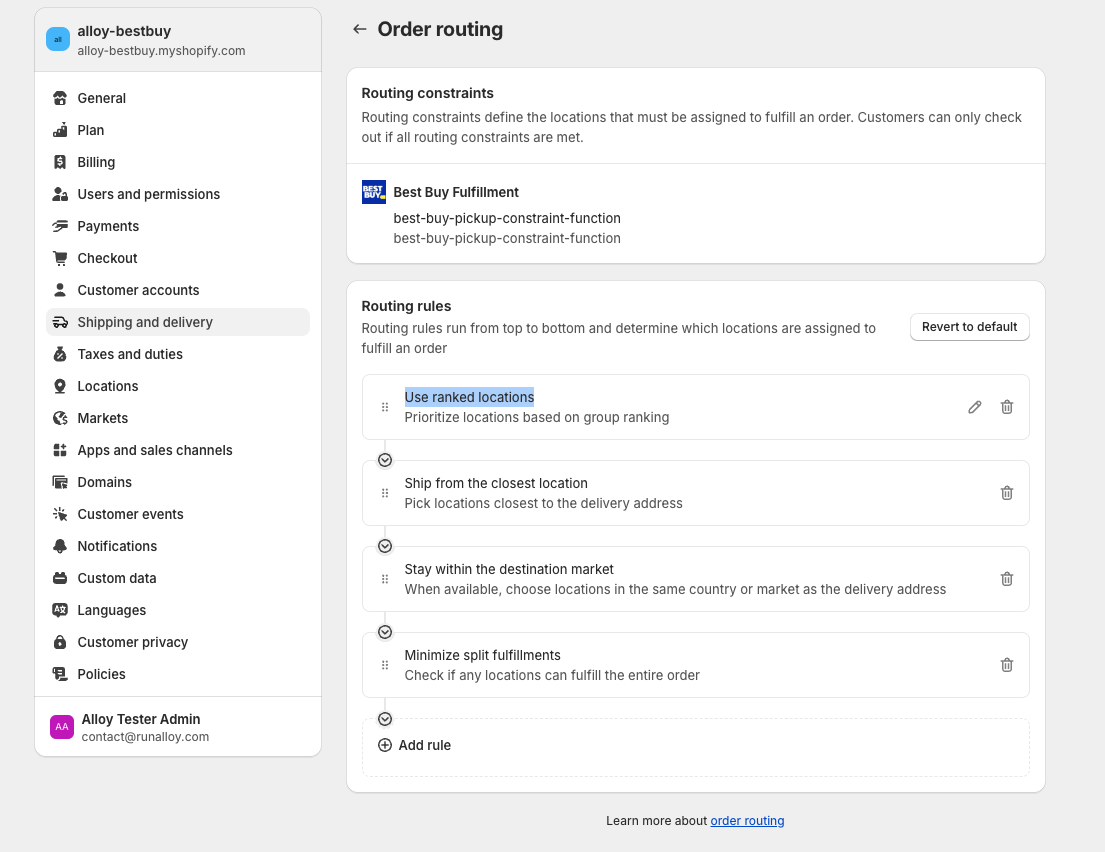
Click **edit** on the **User ranked locations** rule and make sure Best Buy In-Store Pickup is at the bottom of the ranking. This will ensure this location will only be selected at checkout if the In-Store pickup option is selected by the customer.
Voila! You are all set up! Now you can checkout your storefront and see Best Buy In-Store Pickup in action!