> ## Documentation Index
> Fetch the complete documentation index at: https://docs.runalloy.com/llms.txt
> Use this file to discover all available pages before exploring further.
# AWS Lambda
> In this article, you'll learn how to set up your AWS Lambda account to work with the Alloy platform.
## Credentials
For the credentials, you will need the following:
1. Region
2. Access Key ID
3. Secret Access Key
## How to get the Keys
In order to get the Access Key ID and Secret Access Key, follow these steps: IAM -> Users -> Select User -> Security Credentials -> Create access key -> Access key best practices & alternatives (Other)
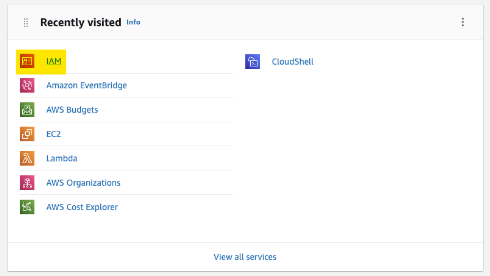
On your Console Home, go to IAM (Identity Access Management)
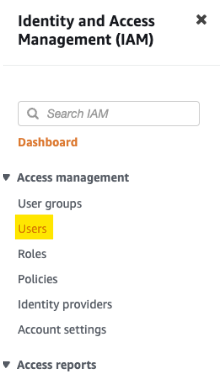
Once there go to Users and select the user. If one does not exist, please click on Add User

Once there go to Users and select the user. If one does not exist, please click on Add User
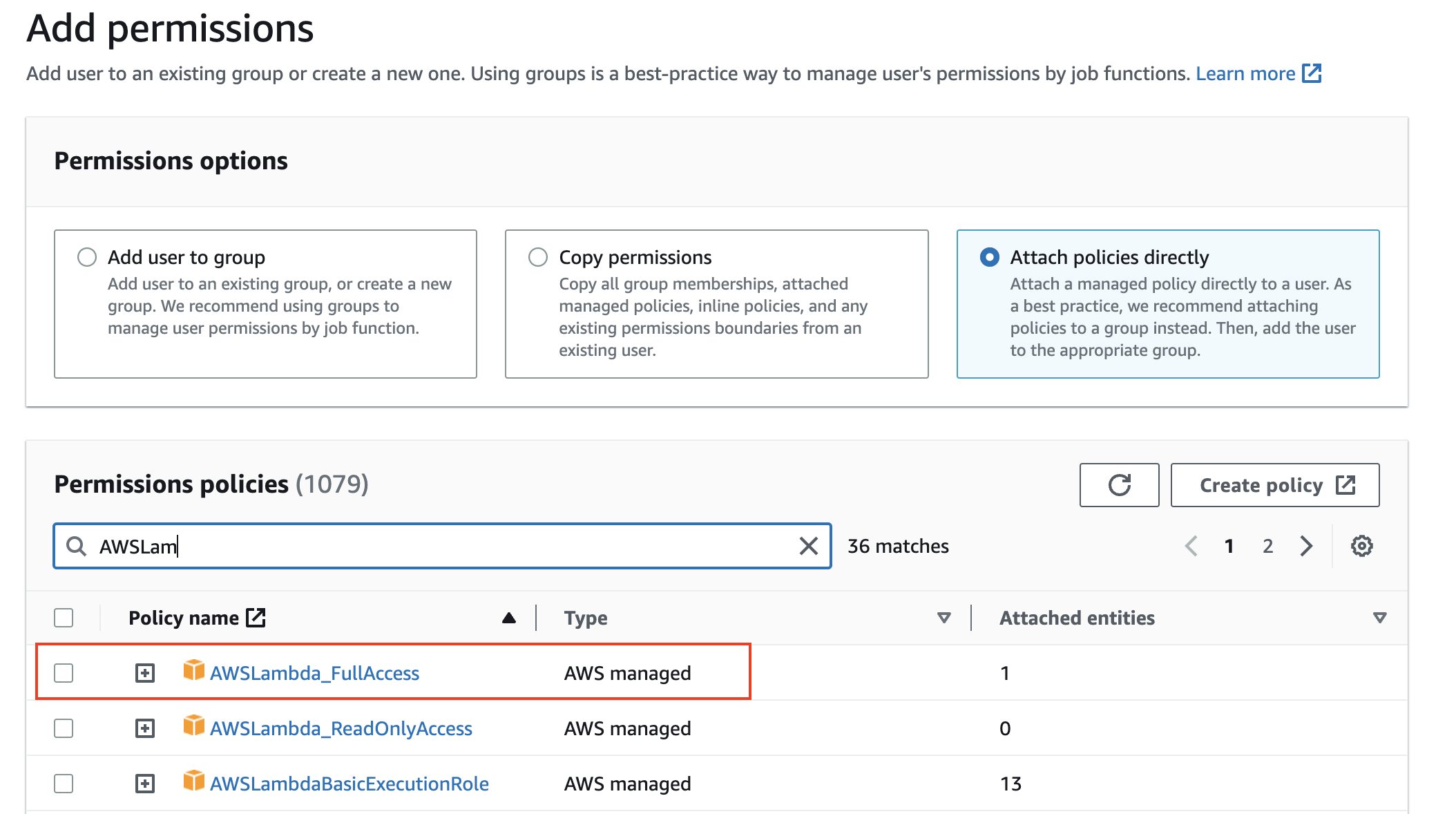
Once on the user, go to the Permissions tab and choose "Add permissions" and search for AWS Lambda. Be sure to select "Attach policies directly" in the Permission options section.

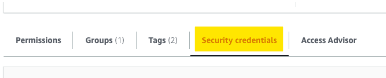
Next go to the Security Credentials tab
Click on Create access key
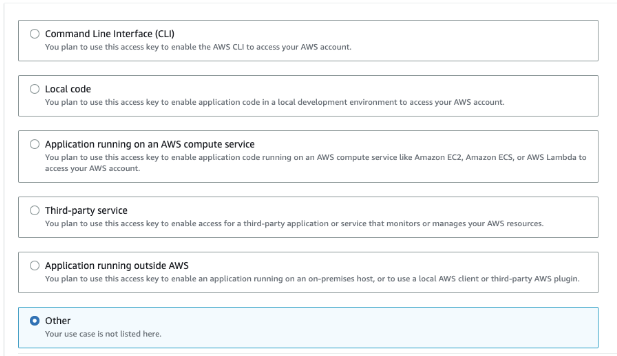
On the Access key best practices & alternatives page, select Other
You may enter a description tag for the access key you are creating if you wish to do so. This is an optional step
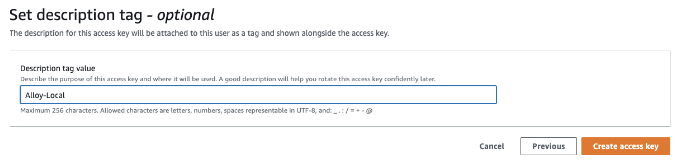
Once finished, click on Create access key
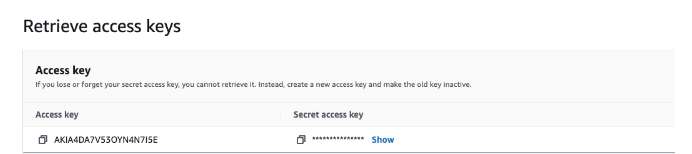
You will then be prompted with the option to reveal your new access keys. Please save these keys in a safe and secure location as you cannot reveal them again if they are lost or forgotten
## Complete Block Credentials
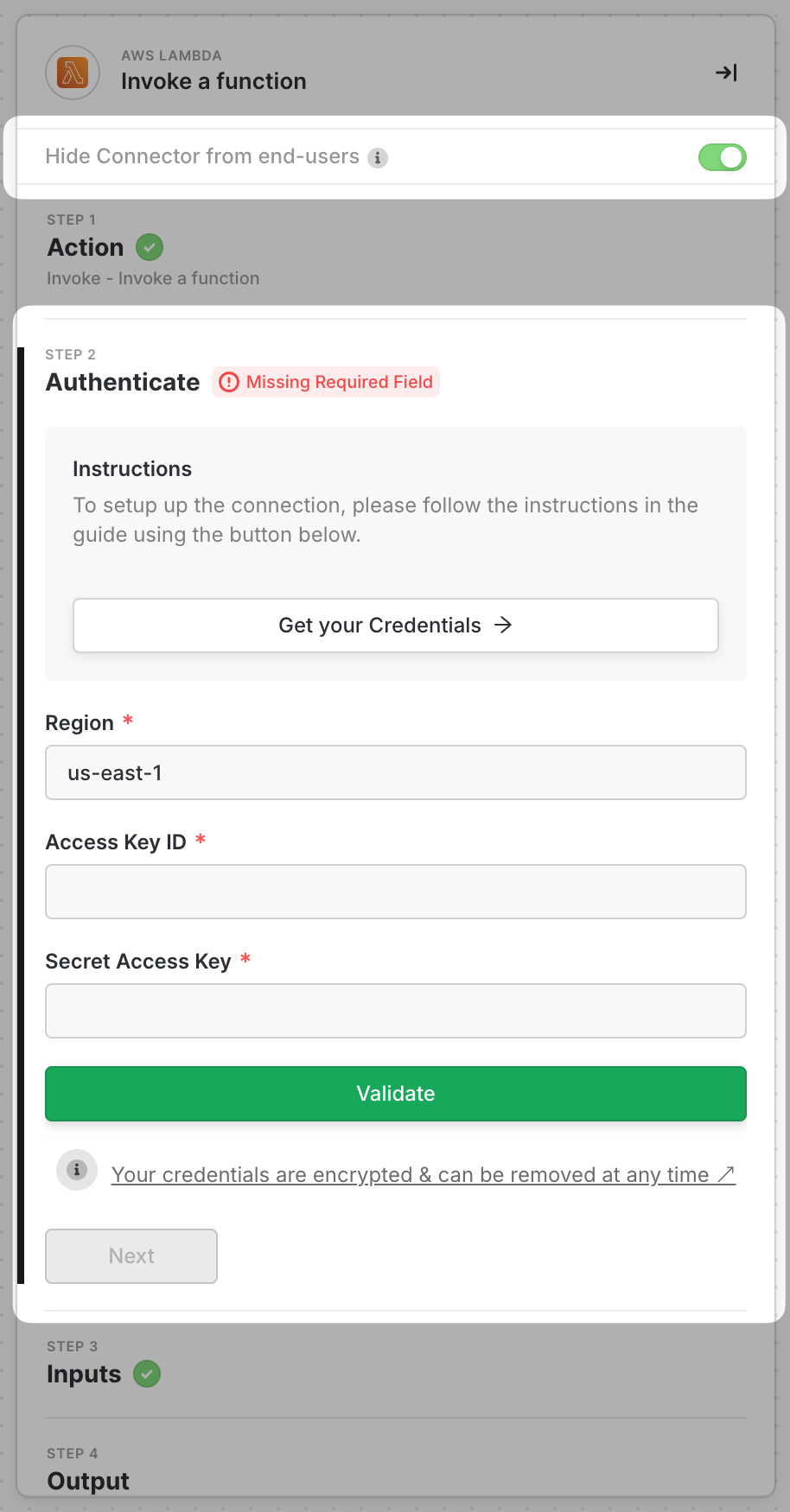
Now just pop in the two keys from the previous step along with the Region your DB is in and you are all set!
**AWS Lambda is available in the following 19 regions**
US East (Ohio) us-east-2\
US East (N. Virginia) us-east-1\
US West (N. California) us-west-1\
US West (Oregon) us-west-2\
Asia Pacific (Hong Kong) ap-east-1\
Asia Pacific (Mumbai) ap-south-1\
Asia Pacific (Osaka-Local) ap-northeast-3\
Asia Pacific (Seoul) ap-northeast-2\
Asia Pacific (Singapore) ap-southeast-1\
Asia Pacific (Sydney) ap-southeast-2\
Asia Pacific (Tokyo) ap-northeast-1\
Canada (Central) ca-central-1\
Europe (Frankfurt) eu-central-1\
Europe (Ireland) eu-west-1\
Europe (London) eu-west-2\
Europe (Paris) eu-west-3\
Europe (Stockholm) eu-north-1\
Middle East (Bahrain) me-south-1\
South America (São Paulo) sa-east-1