> ## Documentation Index
> Fetch the complete documentation index at: https://docs.runalloy.com/llms.txt
> Use this file to discover all available pages before exploring further.
# AWS RedShift
> In this article, you'll learn how to set up your AWS Redshift account to work with the Alloy platform.
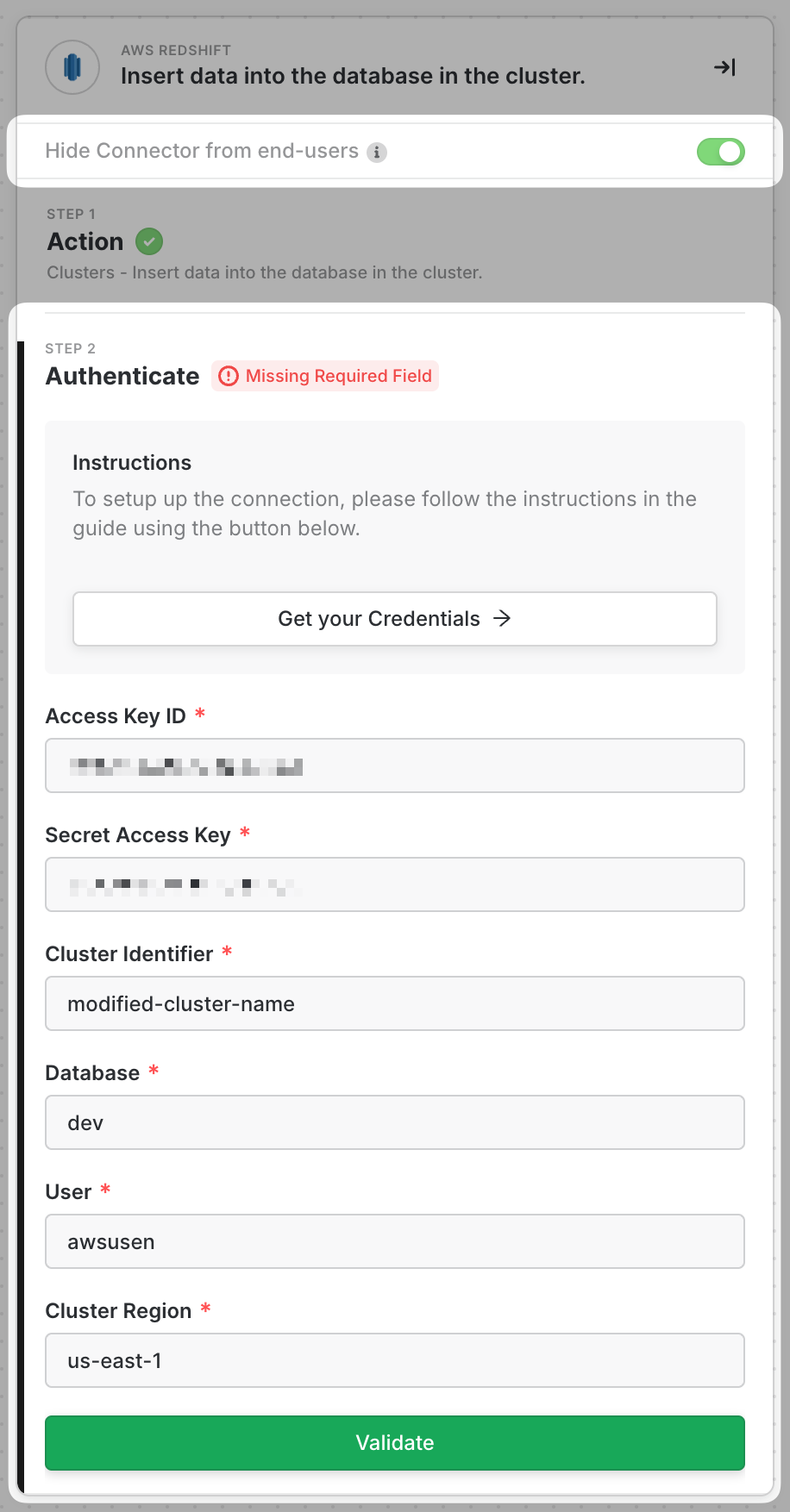
For the credentials, you will need the following:
* AWS Access Key ID
* AWS Secret Access Key
* Redshift Cluster Identifier
* Redshift Database
* Redshift User
* Redshift Cluster Region
As you can see below, Alloy will need this information to make queries to your Pub/Sub instance. You'll want to copy/paste that information in Alloy once you have it. In this guide, we'll explore how to obtain these keys.
## How to get the AWS Access Key And Secret Access Key
Please follow the link to [set up your credentials](https://docs.aws.amazon.com/IAM/latest/UserGuide/id_credentials_access-keys.html#Using_CreateAccessKey).
Make sure your IAM user has necessary permissions to access to AWS Redshift, the said cluster and database
## How to get the Redshift Details
To obtain your AWS Redshift details, first navigate to AWS Redshift and select the desired cluster.
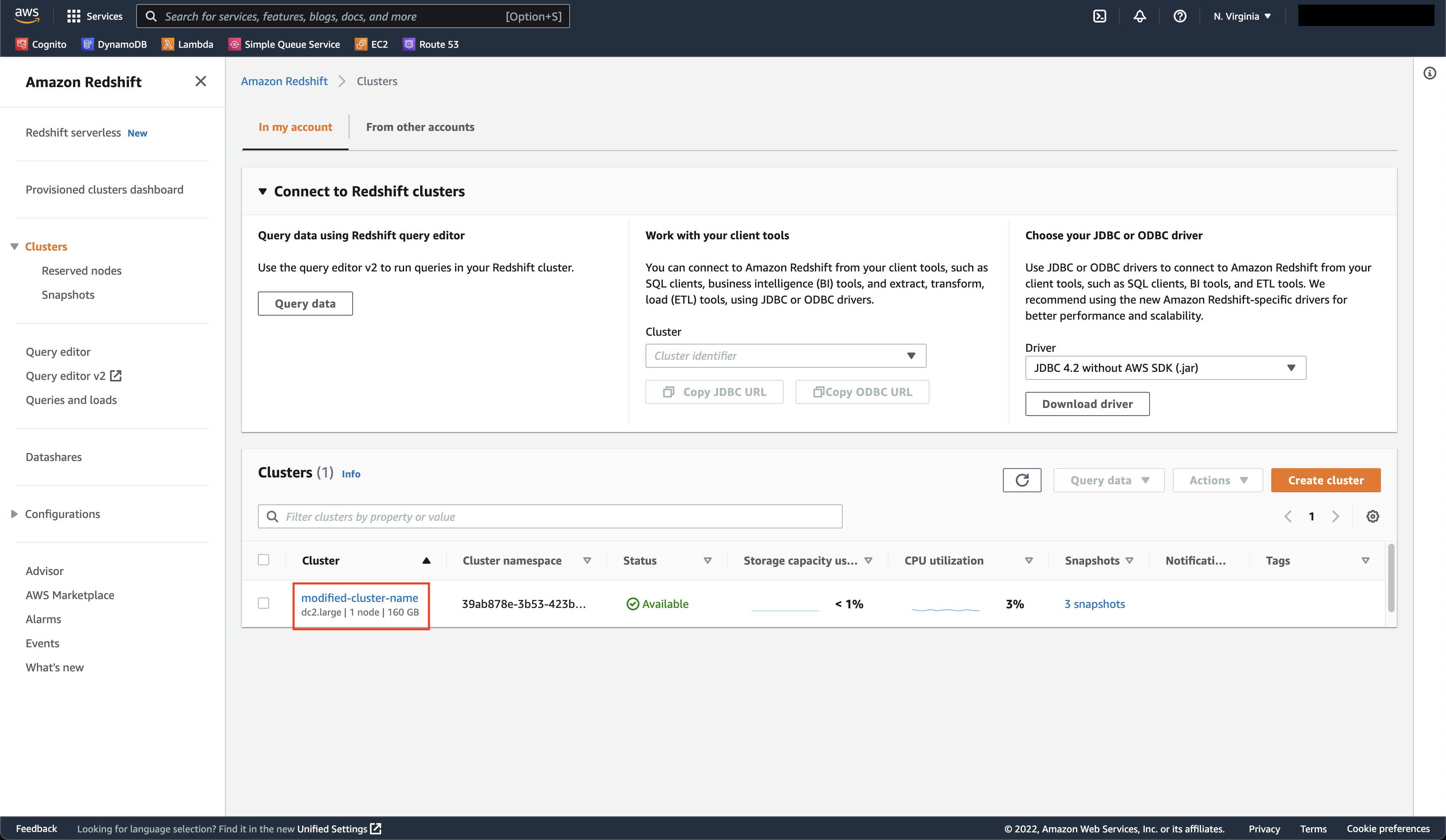
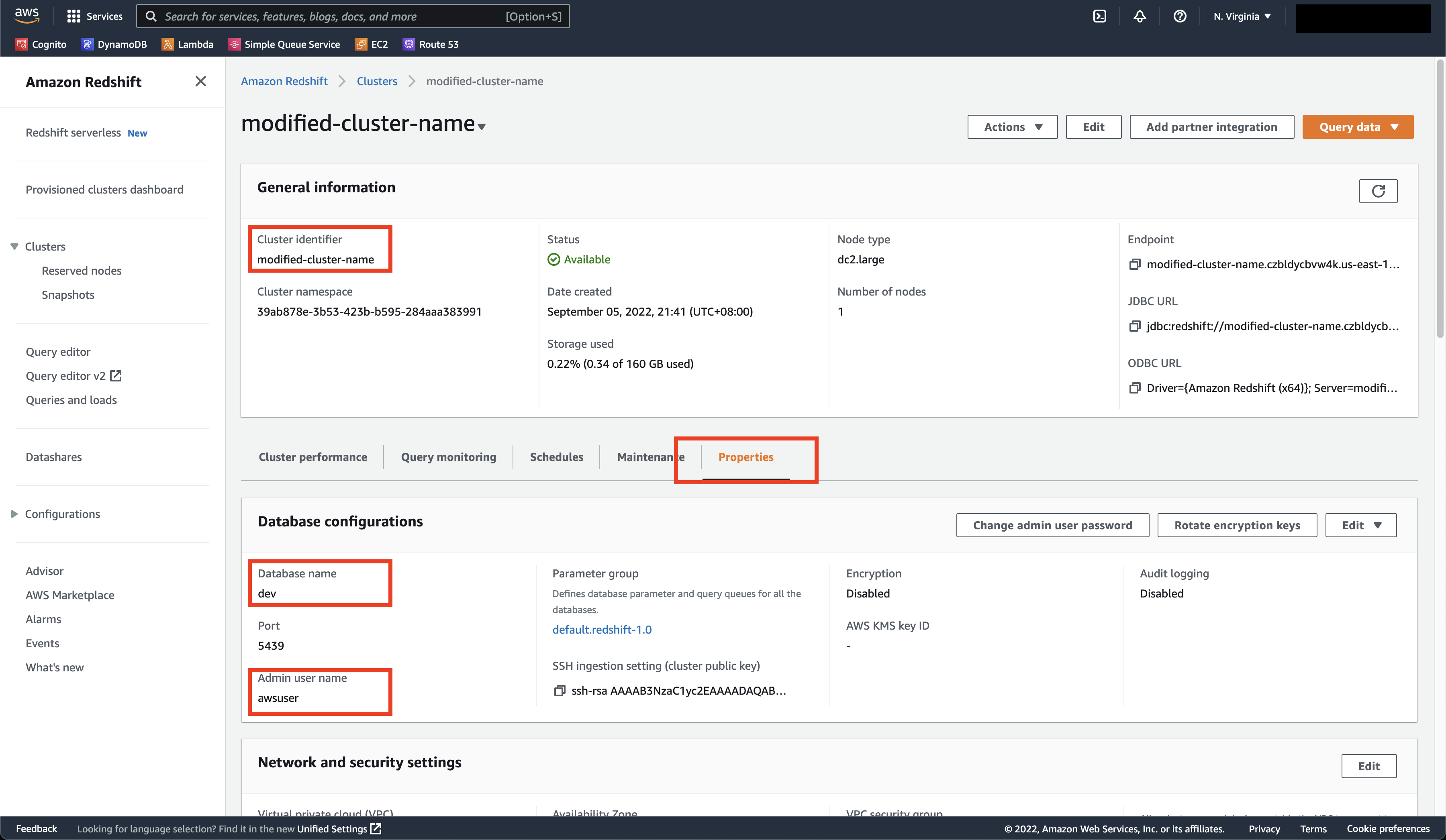
Once there, click on the Properties tab. You can get your cluster identifier, database name and database admin user name.
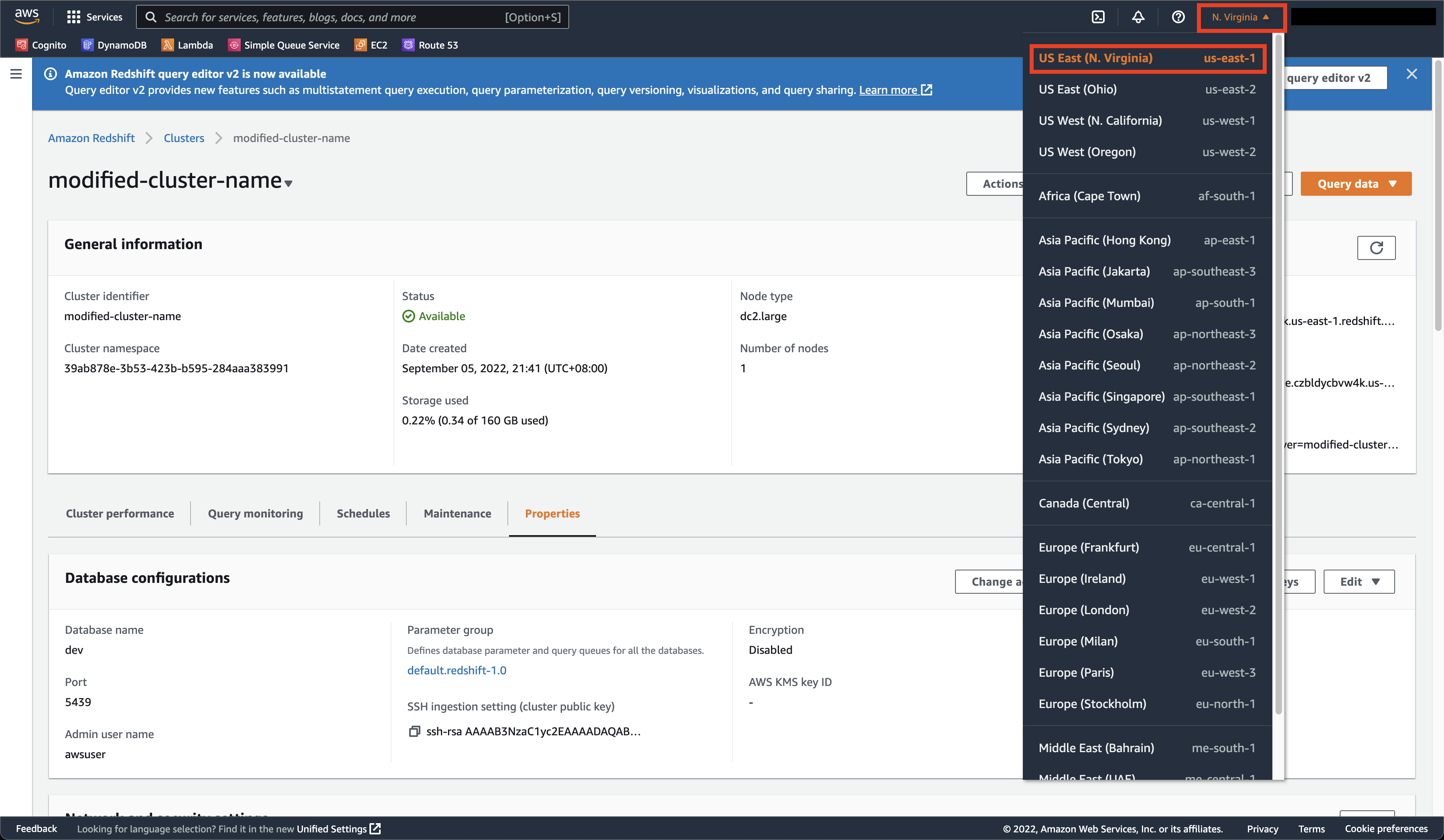
To find the `Region`, click on the top right corner. There you can see the region code. In our example, we're using the `us-east-1` region, or North Virginia.
## Configuring the Service Account
Next, you'll need to configure the Service Account. To do so, follow the simple steps below:
Go to the [project principals list](https://console.cloud.google.com/iam-admin/iam/project) in your Google Cloud Console
Click on +Add
In the **New Principals** field, enter the service account. The service account is the entire email address.\
In the **Role** field, search for the role **Pub/Sub Admin** and select that.Then click on the Save button.
## Complete Block Credentials
Input the **Access Key ID** and **Secret Access Key** that you have retrieved in the previous steps.
Also input the **Cluster Identifier**, **Database**, **User** and **Cluster Region**
Then click on the **Validate** button to save.