> ## Documentation Index
> Fetch the complete documentation index at: https://docs.runalloy.com/llms.txt
> Use this file to discover all available pages before exploring further.
# Google BigQuery
> In this article, you'll learn how to set up your Google BigQuery account to work with the Alloy platform.
To obtain credentials, you will need the following:
* Project Id
* Service Account Private Key JSON
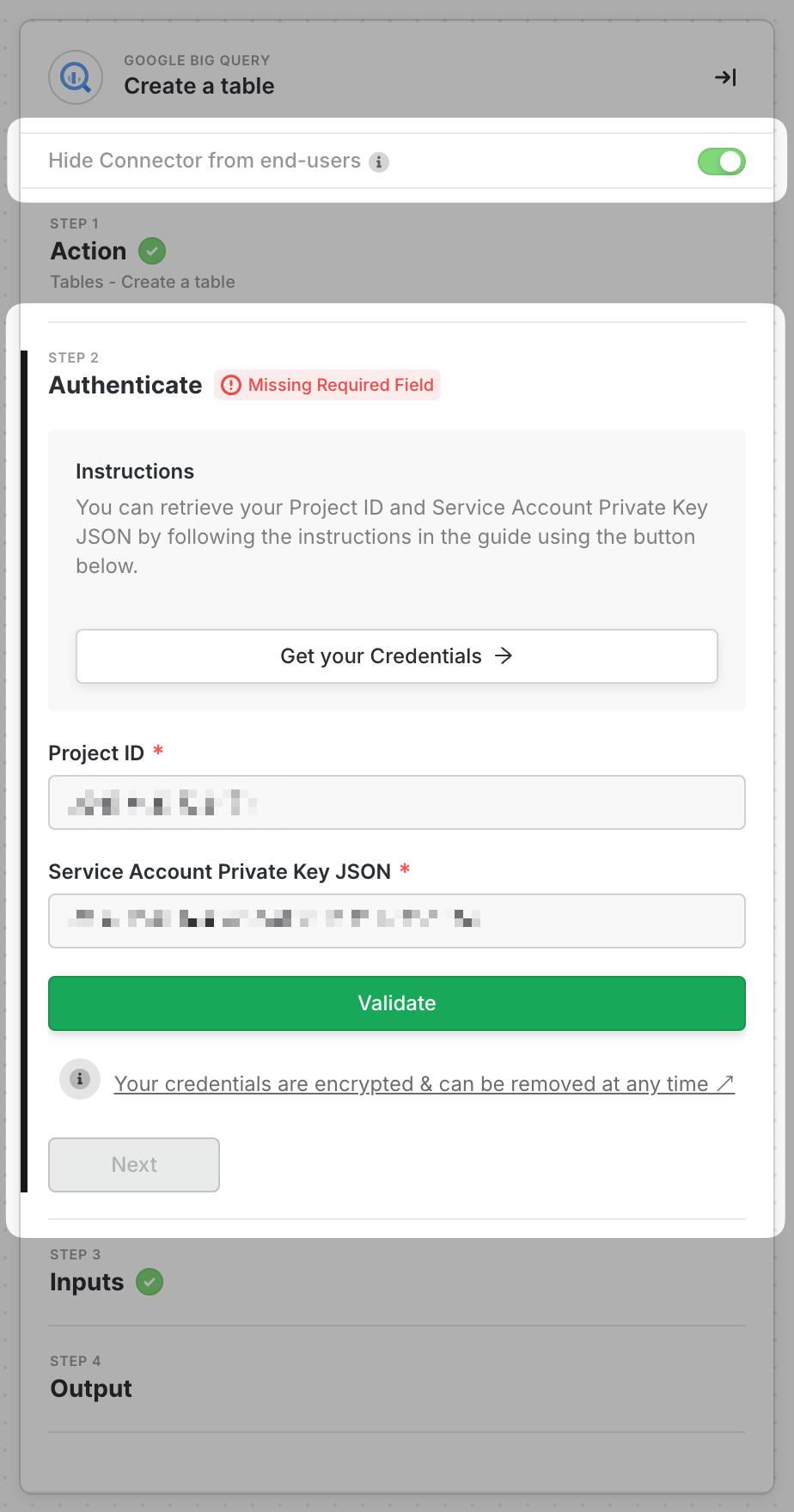
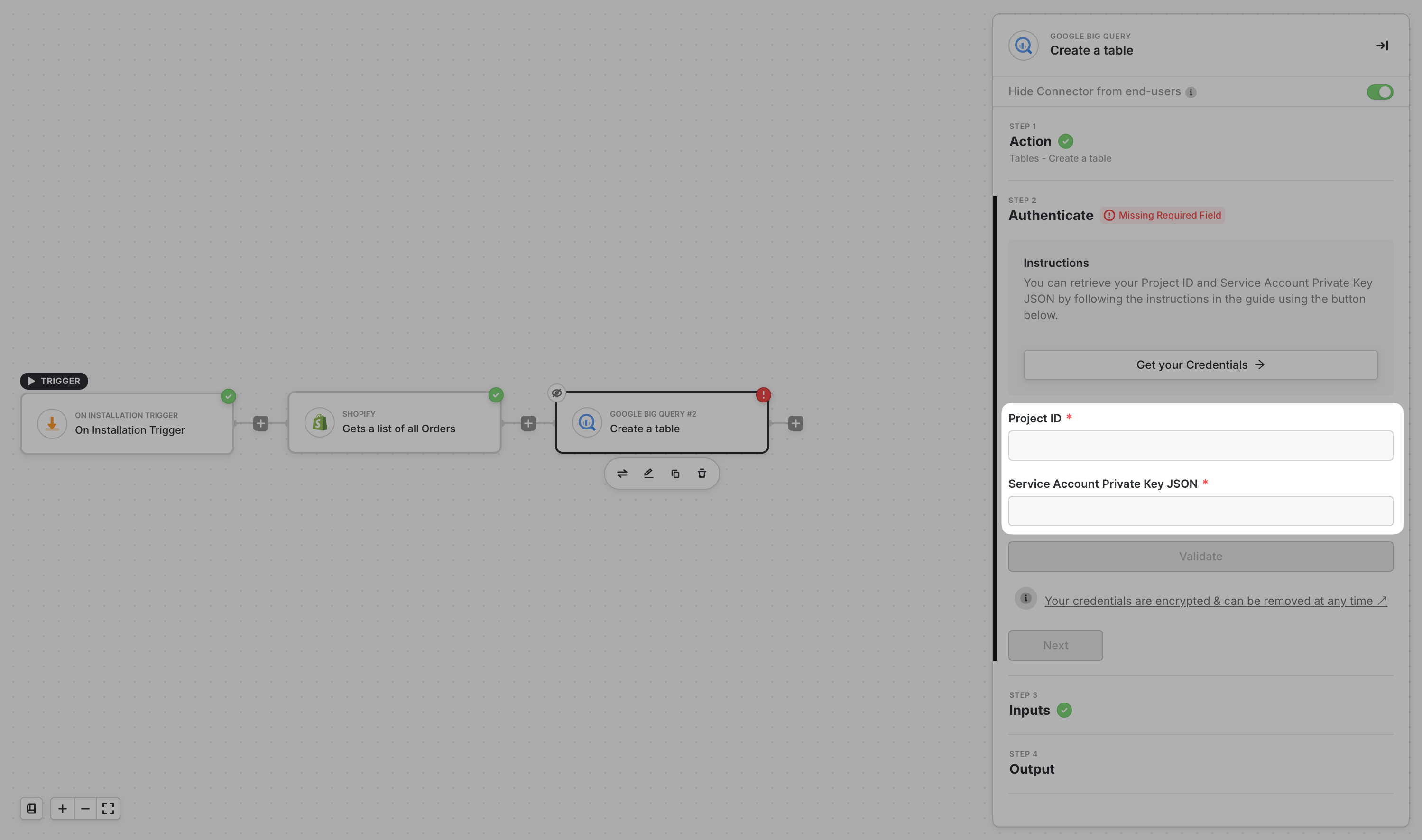
As you can see below, Alloy will need this information to make queries to your Big Query instance. You'll want to copy/paste that information in Alloy once you have it. In this guide, we'll explore how to obtain these keys.
## How to get the Project Id
To obtain your project Id, navigate to your Google Cloud console's Projects List. You can do so [here](https://console.cloud.google.com/cloud-resource-manager?pli=1). Then, choose the Project ID of the project where your BigQuery is in.

## How to get the Service Account Private Key JSON
First things first, if you don’t have a service account yet, create a service account following Google’s Documentation [here](https://cloud.google.com/iam/docs/creating-managing-service-accounts#creating).
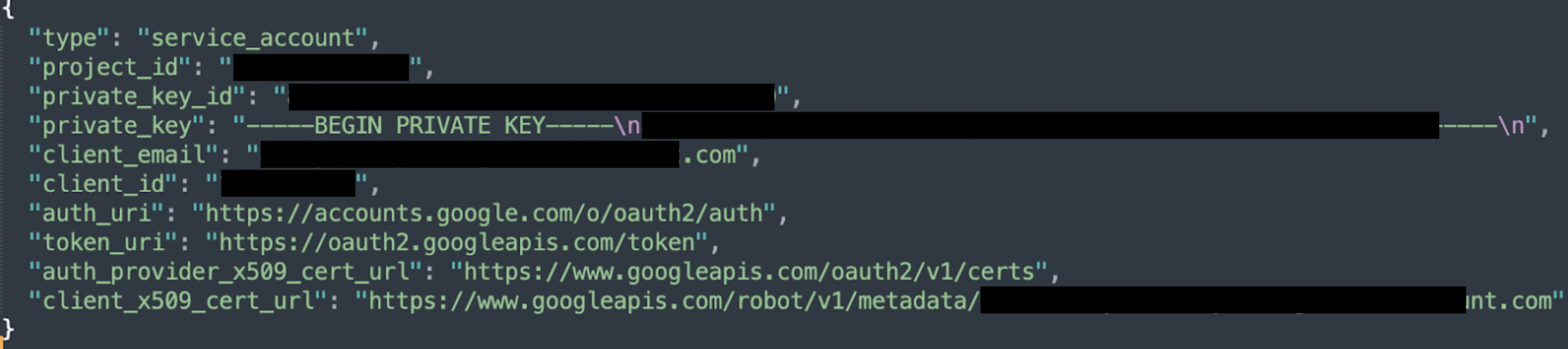
Then follow the steps in Google’s Documentation [here](https://cloud.google.com/iam/docs/creating-managing-service-account-keys#creating) on how to create a private key in JSON format. See sample below showing how a private key in JSON format looks like.
## Configuring the Service Account
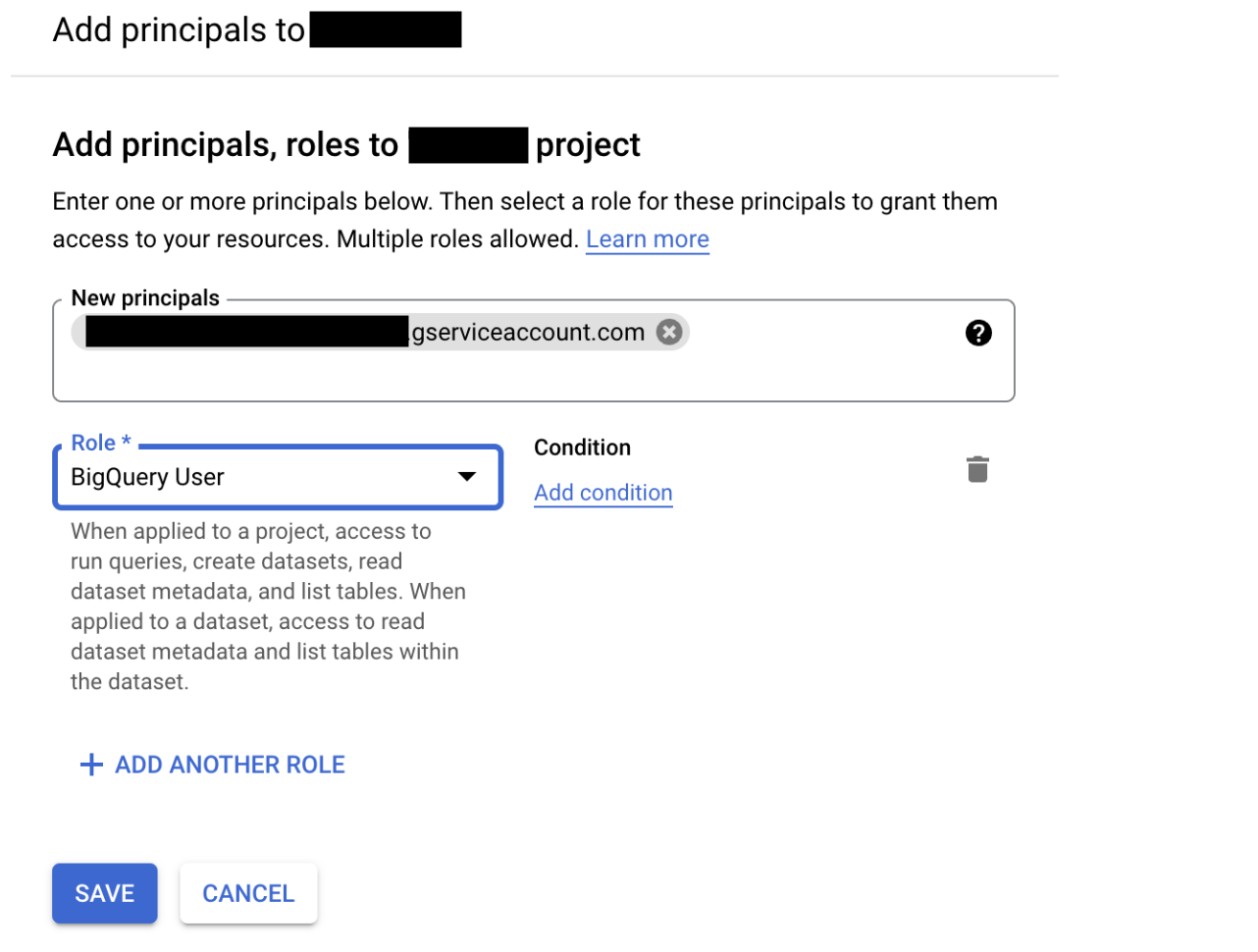
Next, you'll need to configure the Service Account. To do so, follow the simple steps below:
Go to the [project principals list](https://console.cloud.google.com/iam-admin/iam/project) in your Google Cloud Console
Click on +Add
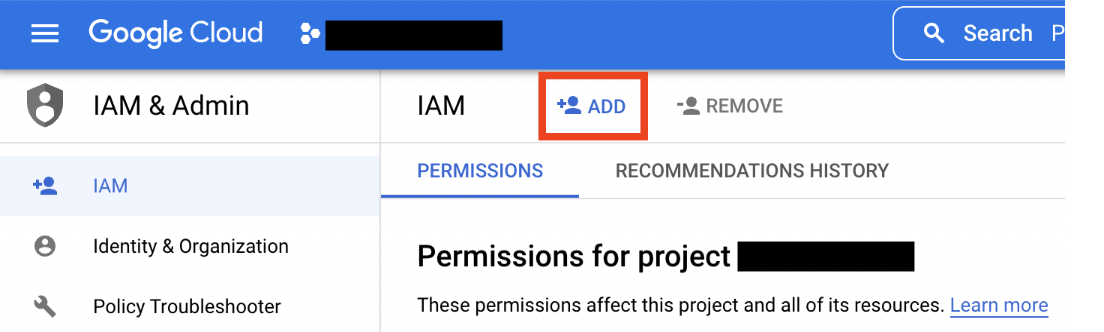 3. In the **New Principals** field, enter the service account. The service account is the entire email address. 4. In the **Role** field, search for the role **BigQuery User** and select that. Then click on the **Save** button.
## Complete Block Credentials
Input the **Project ID** for your project found in the previous steps.
Then copy the whole contents in the JSON file created in the previous steps into the **Service Account Private Key JSON** field and then click on **Validate**.