> ## Documentation Index
> Fetch the complete documentation index at: https://docs.runalloy.com/llms.txt
> Use this file to discover all available pages before exploring further.
# Google Cloud Storage
## Credentials
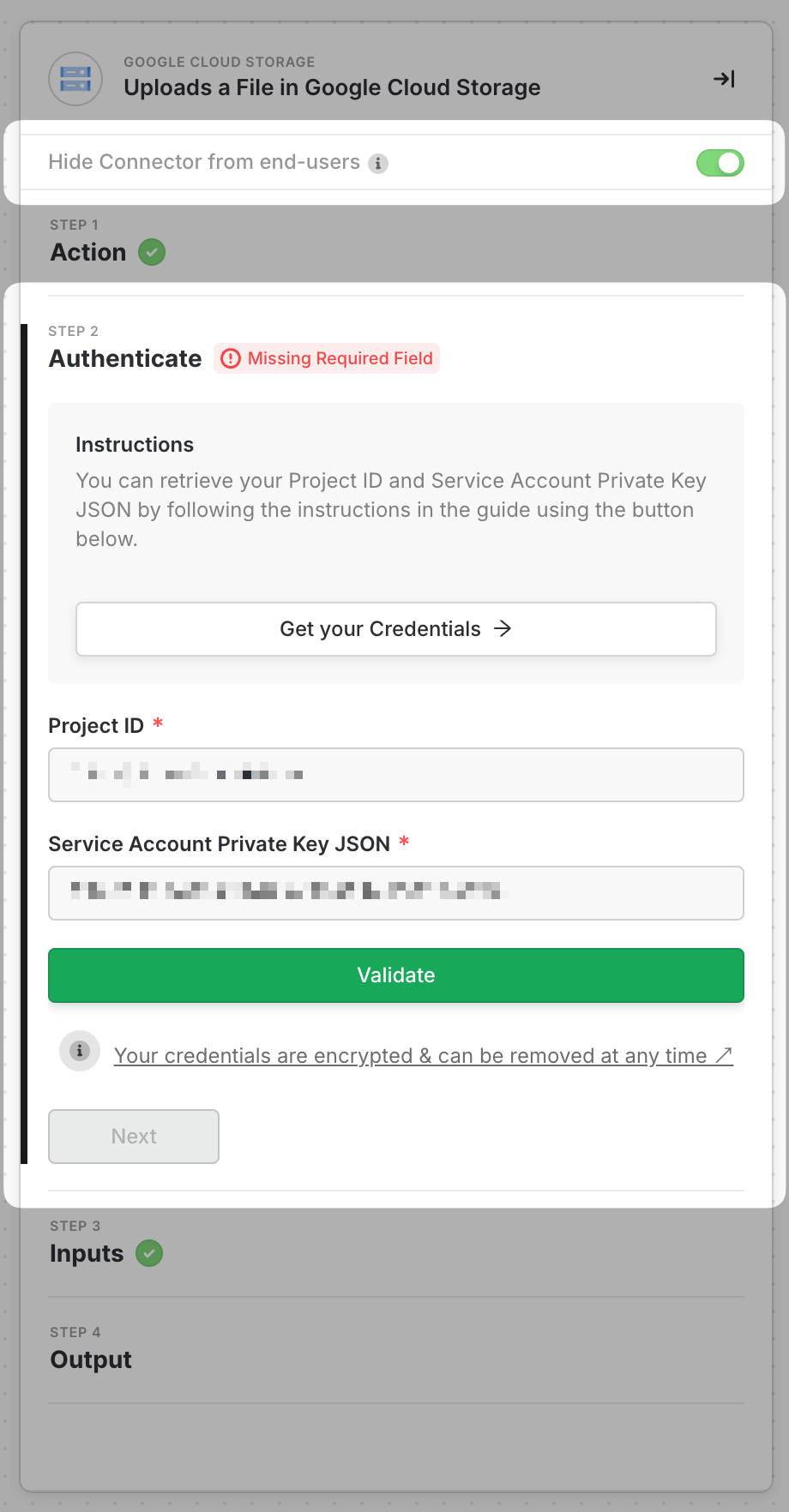
For the credentials, you will need the following:
The Project ID
The Service Account Private Key JSON
## How to get the Project ID
Go to your Google Cloud Console's [projects list](https://console.cloud.google.com/cloud-resource-manager?pli=1).
Choose the Project ID of the project where your Cloud Storage is in.

## How to get the Service Account Private Key JSON
If you don’t have a service account yet, create a service account following [Google’s Documentation](https://cloud.google.com/iam/docs/creating-managing-service-accounts#creating).
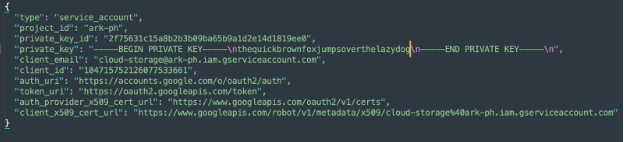
Then follow the steps in [Google’s Documentation](https://cloud.google.com/iam/docs/creating-managing-service-account-keys#creating) on how to create a private key in JSON format. See sample below showing how a private key in JSON format looks like.
## Configuring the Service Account
Go to the Cloud Storage in your Google Cloud Console
Click on your desired Bucket
Then click on Permissions and click on Grant Access
Input the Service Account under New Principals
In the **Role** field, search for the roles **Storage Legacy Bucket Owner** and **Storage Legacy Object Owner** and select that. Then click on the **Save** button.
## Complete Block Credentials
Input the **Project ID** for your project found in the previous steps.
Then copy the whole contents in the JSON file created in the previous steps into the **Service Account Private Key JSON** field and then click on **Validate**.