> ## Documentation Index
> Fetch the complete documentation index at: https://docs.runalloy.com/llms.txt
> Use this file to discover all available pages before exploring further.
# Logs
> Logging is a critical debugging and [error handling](/embedded/handling-errors) feature of Alloy Embedded, providing an intuitive interface for Independent Software Vendors (ISVs) to monitor the performance of their workflows in production environments.
## Monitoring Logs
Logs are available right out of the box for Alloy Embedded. To access logs for your executed workflows, navigate to the Logs screen from your dashboard: Monitor > Logs.
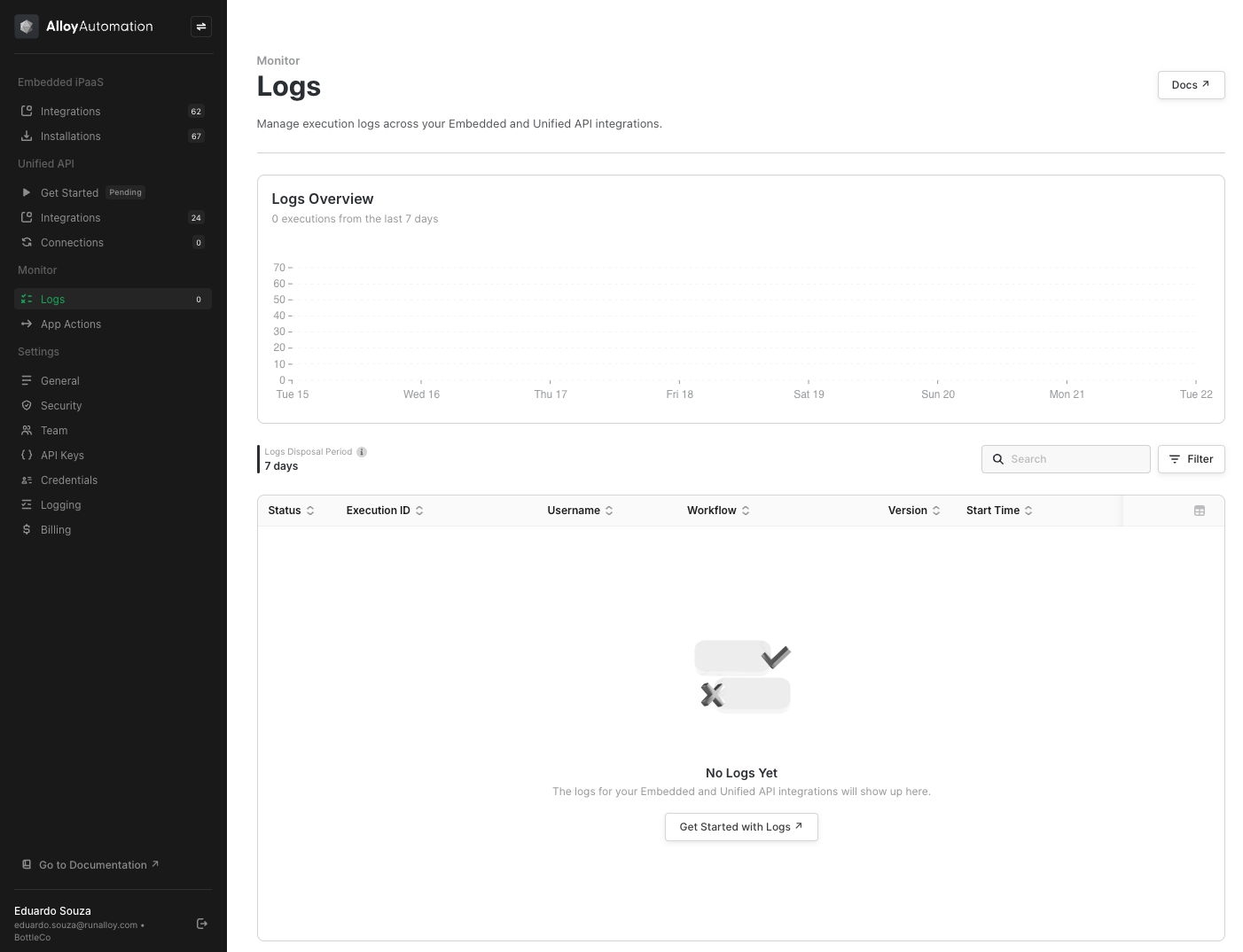
## Understanding Log Data
The **Logs chart** gives an overview of the number of successful and failed workflows executed within a time period. By default, it displays logs data from workflows that have been executed within the current day.
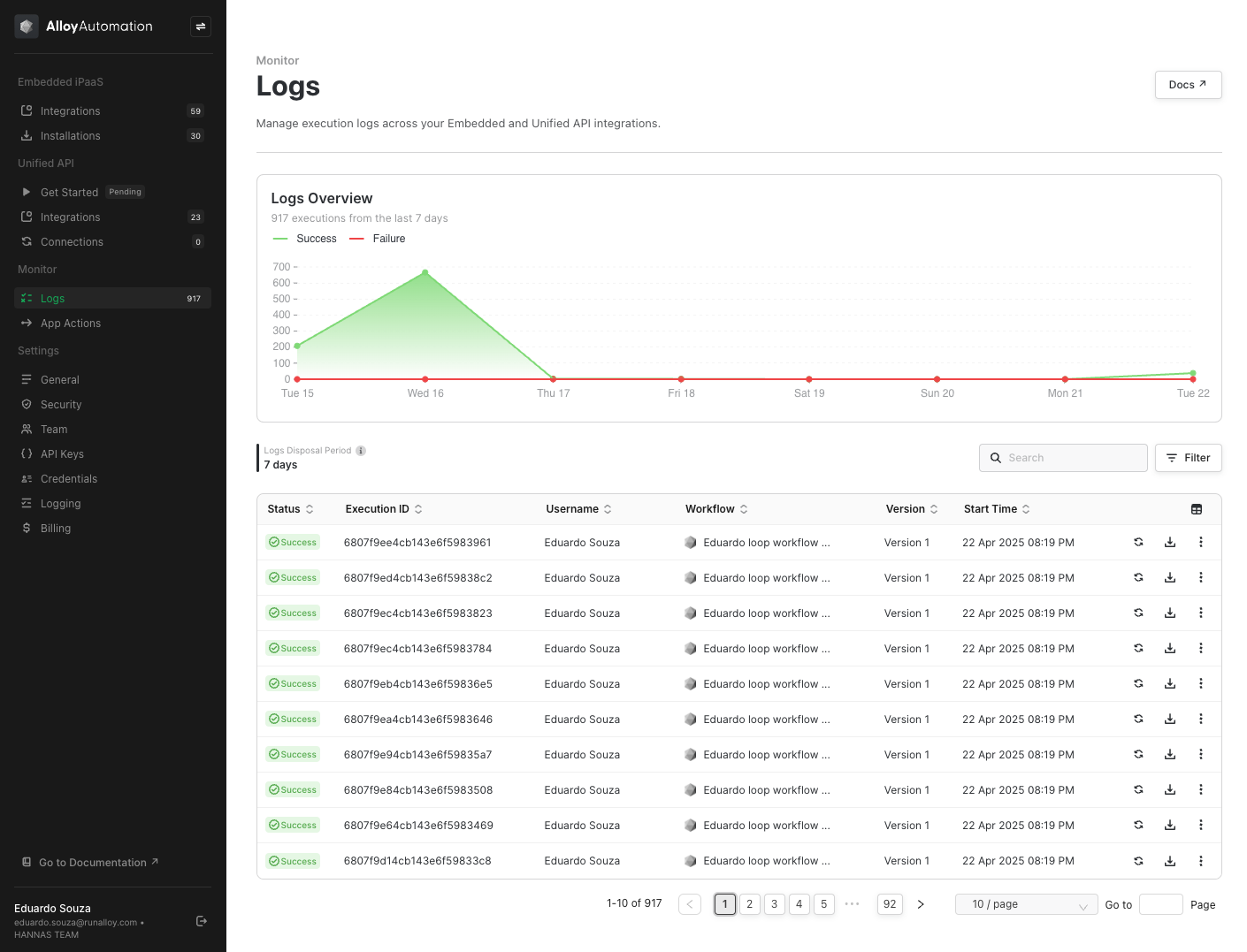
The **Logs table** provides detailed information on each executed workflow. The table shows the following columns:
* Execution Status - Indicates whether a workflow execution was successful or failed.
* Execution ID
* Username
* Workflow name and version
* Start Date and time for the workflow.
You can also customize which columns are shown in the table by using the column selector button.
Workflows can be re-run using the () button. The Logs table allows users to download or delete log data using the relevant buttons.
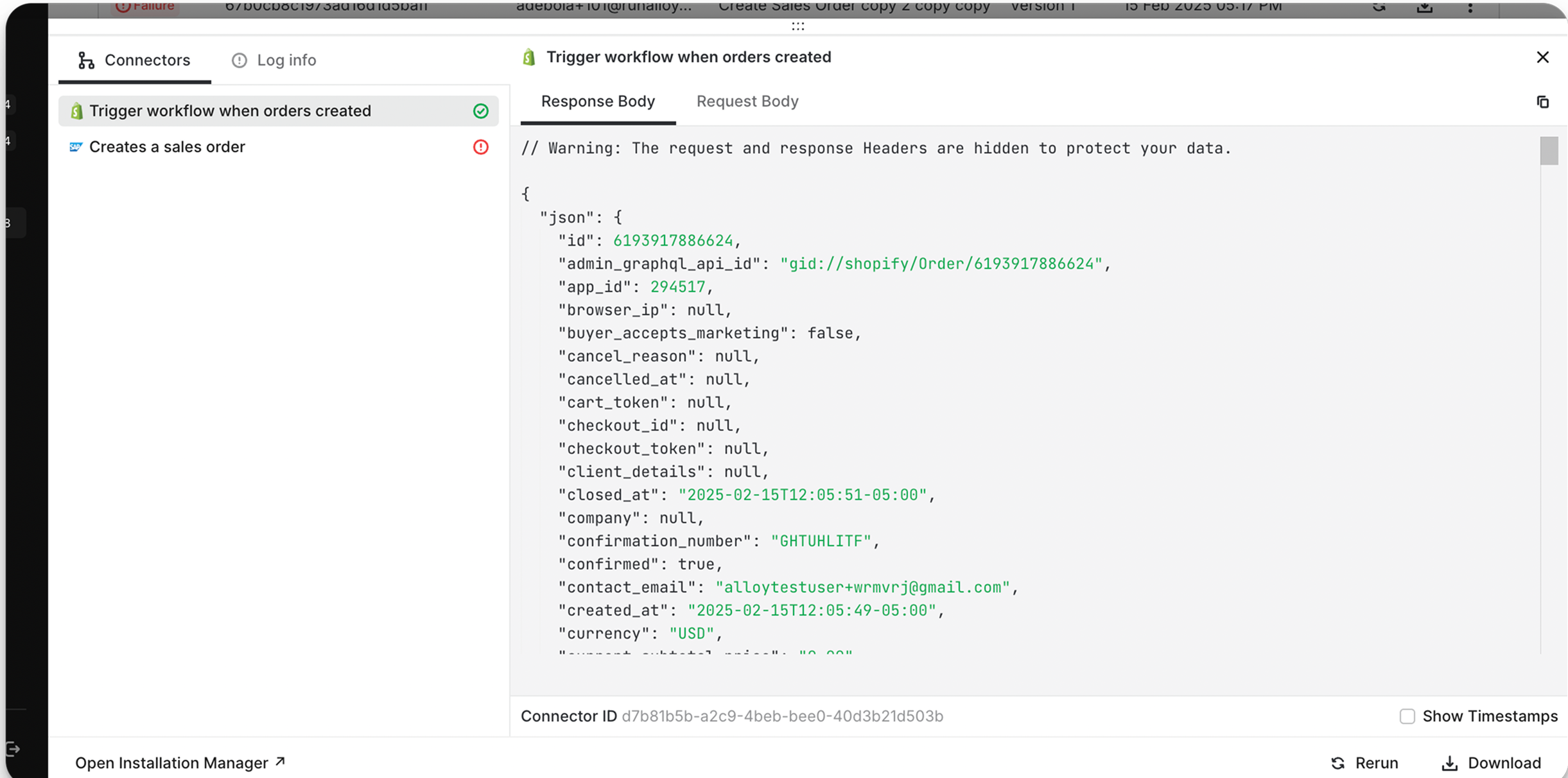
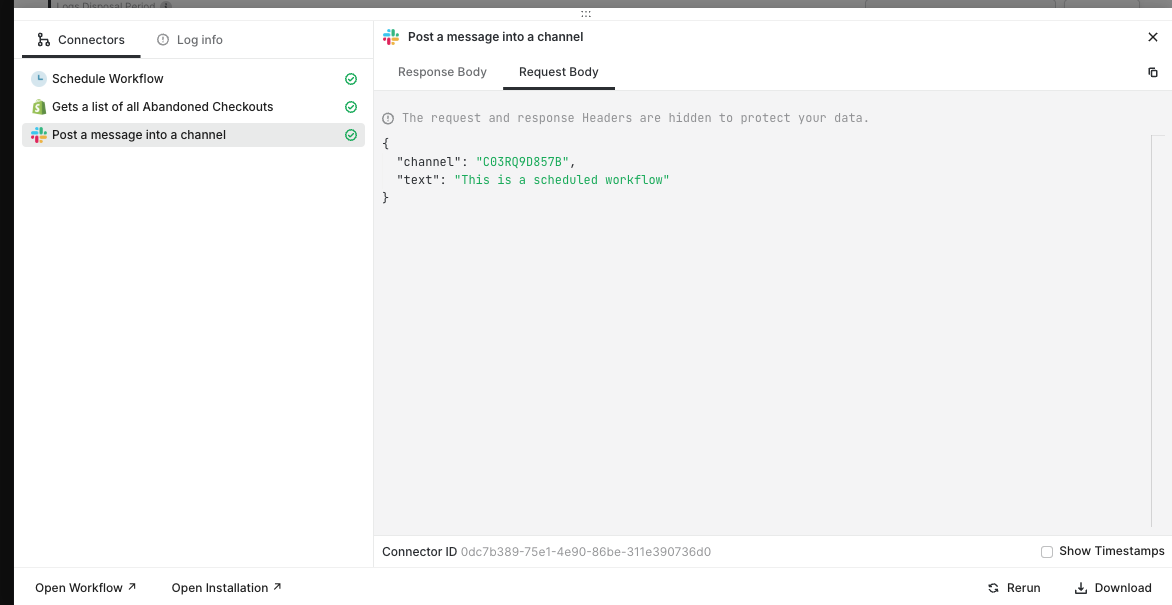
You can click on any individual log to view its metadata.
## Filtering Logs
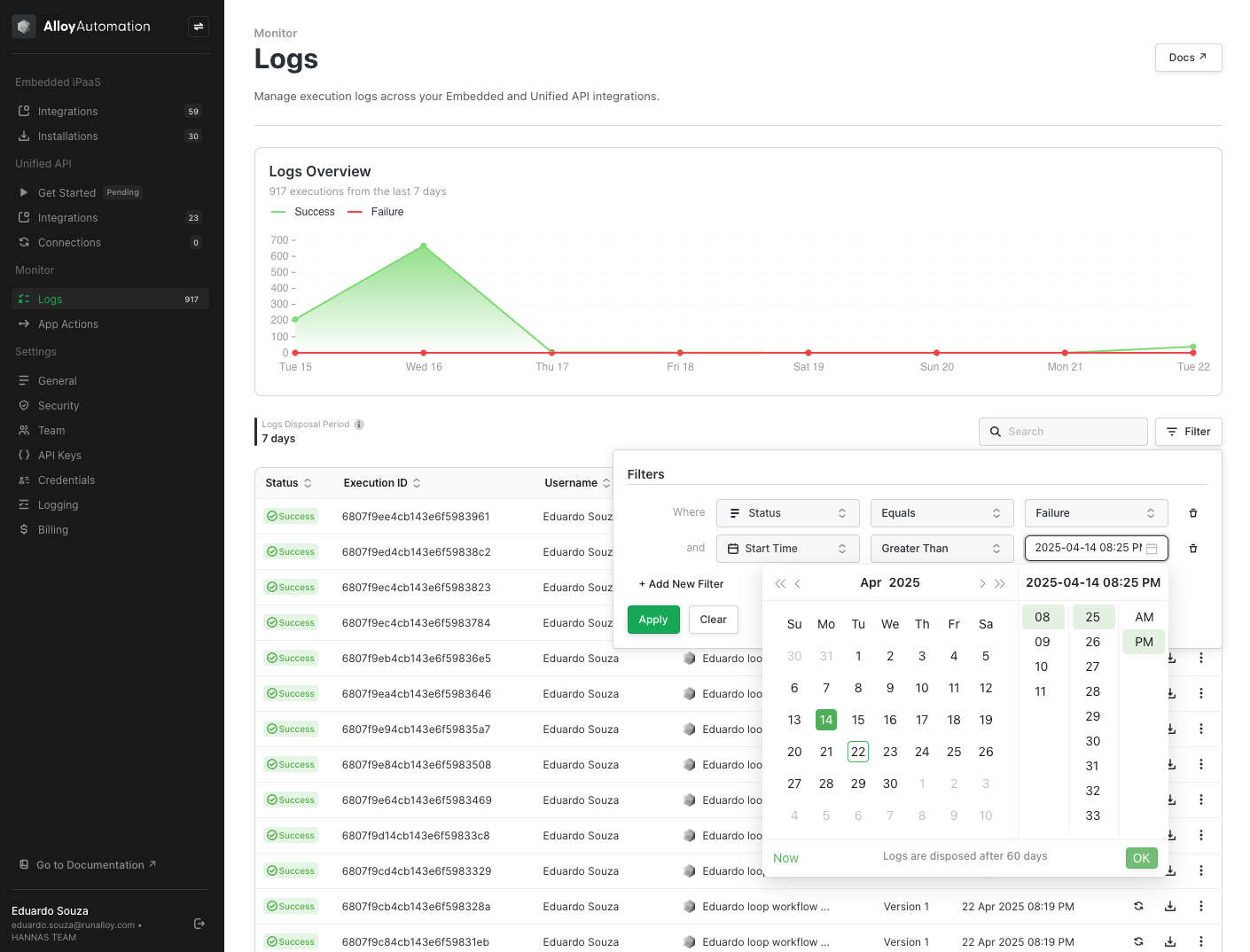
The filter button allows you to combine multiple criteria to troubleshoot issues with executed workflows even faster.
## Advanced Logs Search
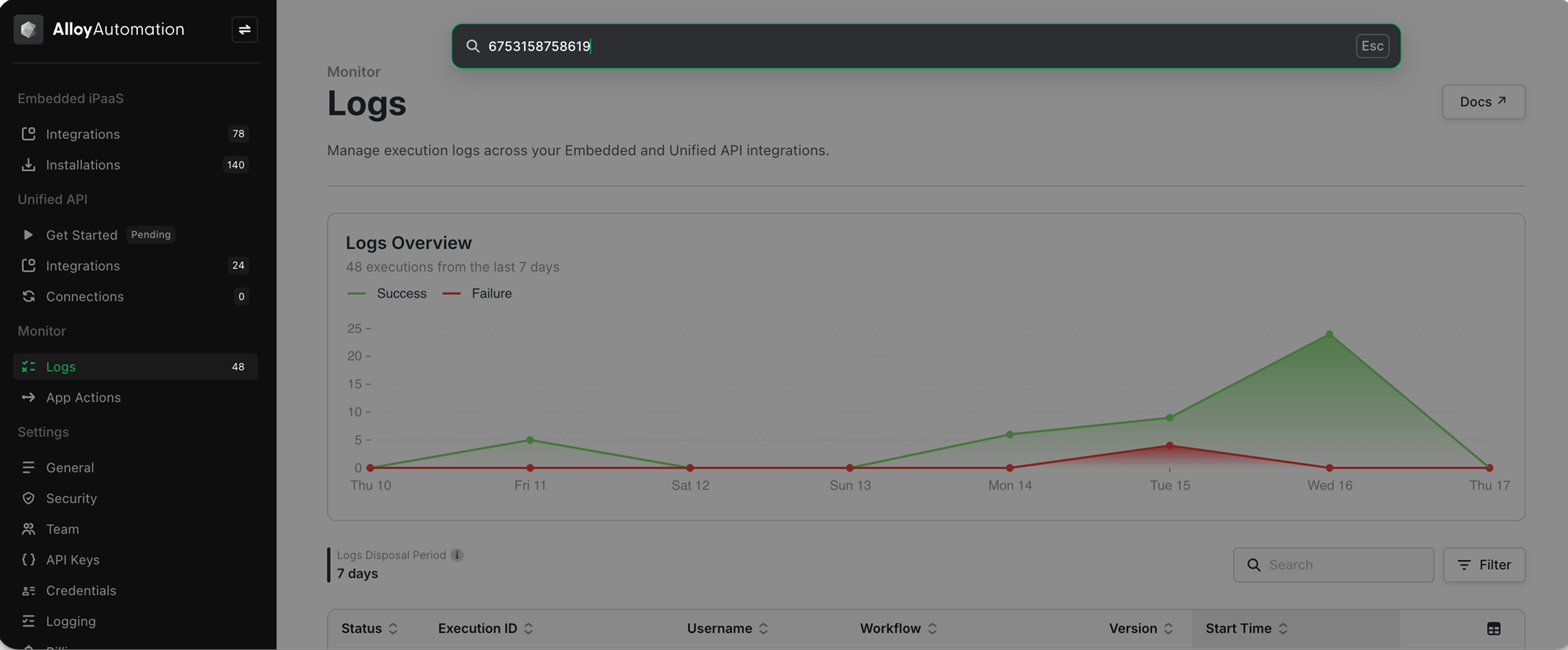
You can search through millions of logs in seconds using our advanced search feature.
Enter any piece of data related to the workflow you’re interested in (e.g. customer ID, order ID, etc.) to instantly view associated logs.
For example, in the screenshot below, we search for all workflows related to a single customer using their customer ID from Shopify.
You can now see all of the logs related to the user with the customer ID from the previous step. Each log shows the workflow title, version number, and the date/time of the workflow execution. Logs also show the Execution ID, Status, user and integration you're working with.
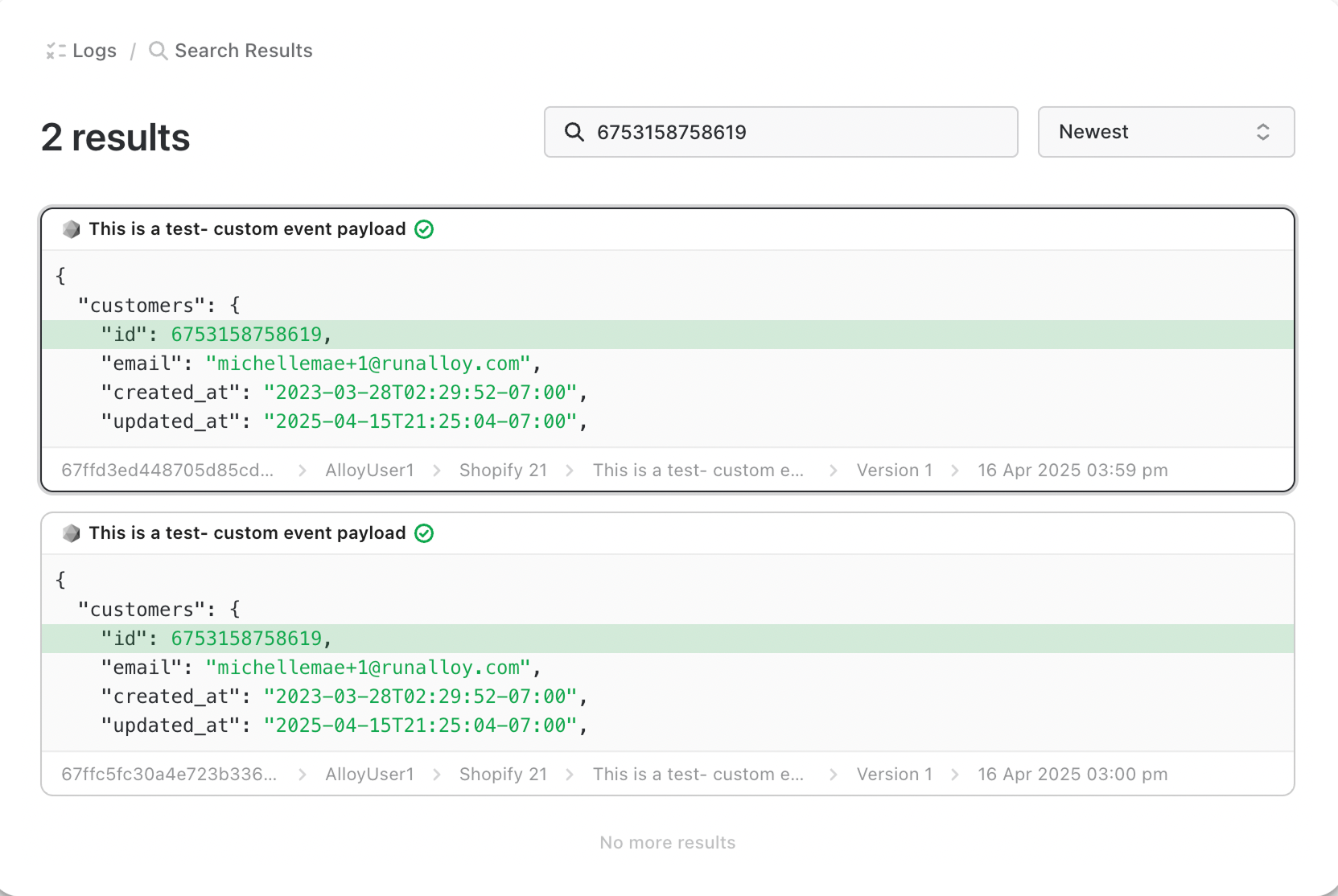
Click on any of the results to view more metadata about a specific log.
Advanced search is also intelligent enough to let you search using a combination of field and value. For example, you can search for an *address* with the value *123 Main street* by entering `address: 123 Main Street, San Francisco, CA` in the search bar.
## Streaming Logs
Alloy allows you to stream logs data to a webhook on your server, [Datadog](/embedded/streaming-logs-to-datadog), AWS EventBridge, or any other service via our [Embedded Logs APIs](/reference/embedded/get-logs).
## Logs Disposal Period
Logs are retained on Alloy's servers for up to 7 days, after which they are automatically removed.