> ## Documentation Index
> Fetch the complete documentation index at: https://docs.runalloy.com/llms.txt
> Use this file to discover all available pages before exploring further.
# Scheduled Sync: 3rd Party App to Your App
## Overview
In this guide, you will learn how to use Alloy's Schedule Trigger to Sync data between a 3rd party and your application on a set interval you determine. The Alloy Schedule Trigger allows different settings to run workflows on set intervals. Workflows can be run as frequently as every `1` minute.
To Sync Data on a Schedule from a 3rd party to your app efficiently, it's important to only fetch new records each time the workflow runs. Let's take this example flow
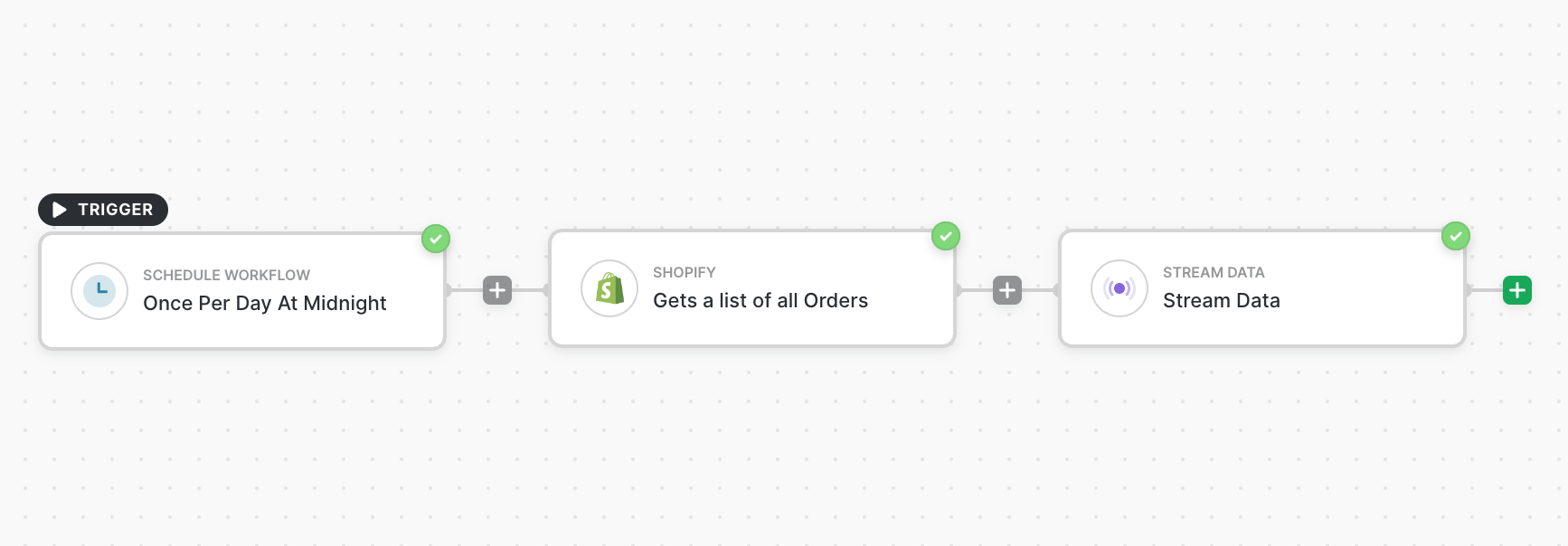
As constructed, this workflow will fetch **All Orders** every **1** day.
To refine the workflows further and only fetch **New Orders** every \*\*1 \*\* day, there are two architectures depending on your sync frequency
### Low Frequency Data Sync (1hr +)
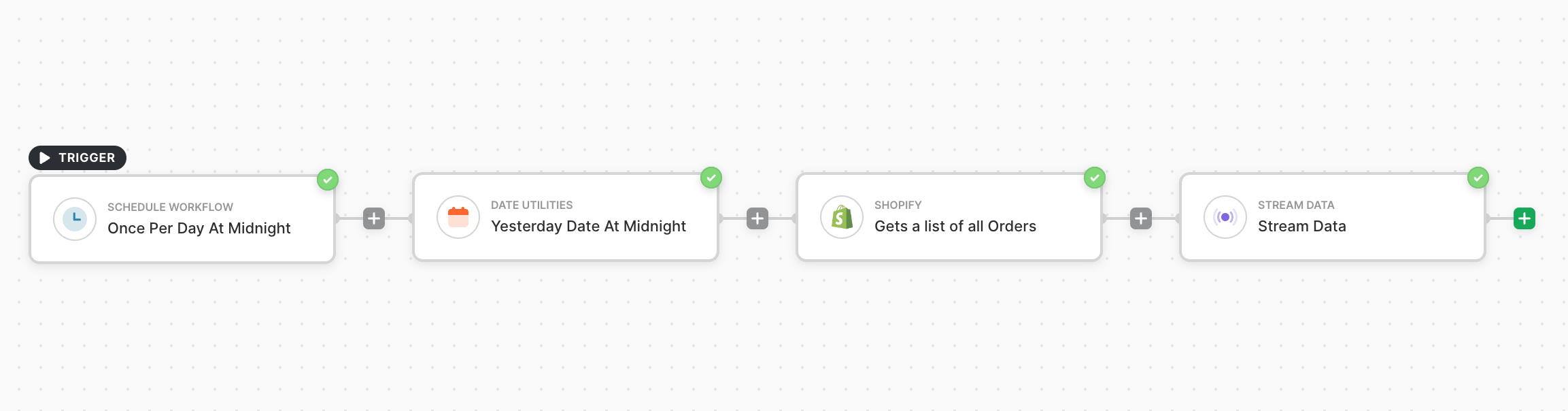
Here we refine the workflow and only fetch orders created in the last 24 hours (since the last check). Using the Date Utilities Block, we calculate the timestamp for 1 day ago at Midnight.
In the Shopify Block, we can now pass these parameters as filters so we only capture orders for a single full day upon each execution
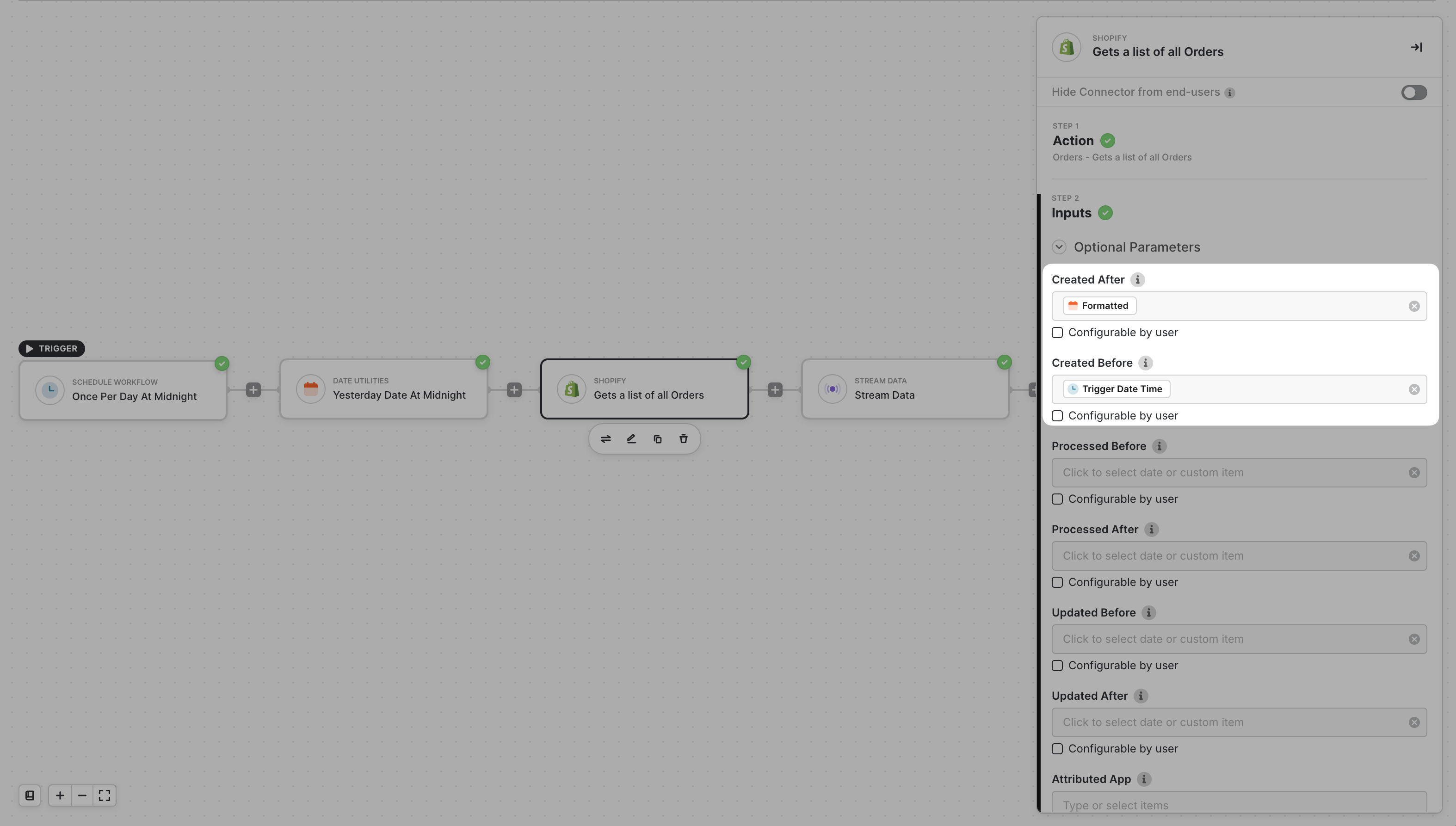
Similar logic can be used to do scheduled syncs as frequently as every 1 Hour.
### High Frequency Data Sync (\< 1 Hr)
To sync data on an interval lower than 1 hour, there is a bit more setup. We'll make use of Account Variables to store the `lastFilterDate` across executions to only fetch the records changed since the last run.
:::note
Account Variables persist at the Alloy-User level. Each Installation has it's own instance of this variable tied to that specific Alloy user. They are not global across all installs.
:::
To build a sync every `5` minutes we need two workflows
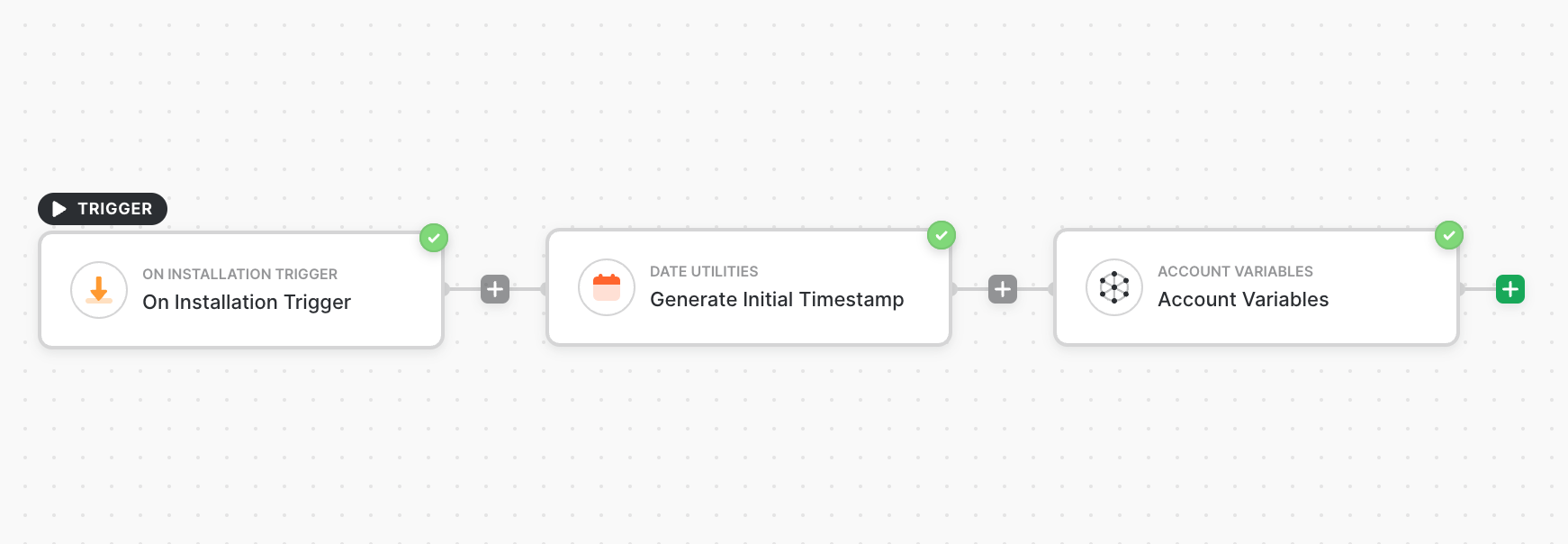
1. Initialize the variable with a value (5 minutes ago, or can be 6 months ago to do a historical sync on first run)
a. Use the `Set Variables ` action to create the ` lastFilterDate` generated by the `Date Utility`
2. Scheduled workflow, using variable from workflow 1, and updating the value of `lastFilterDate` when complete
a. Fetch `lastFilterDate` from workflow 1
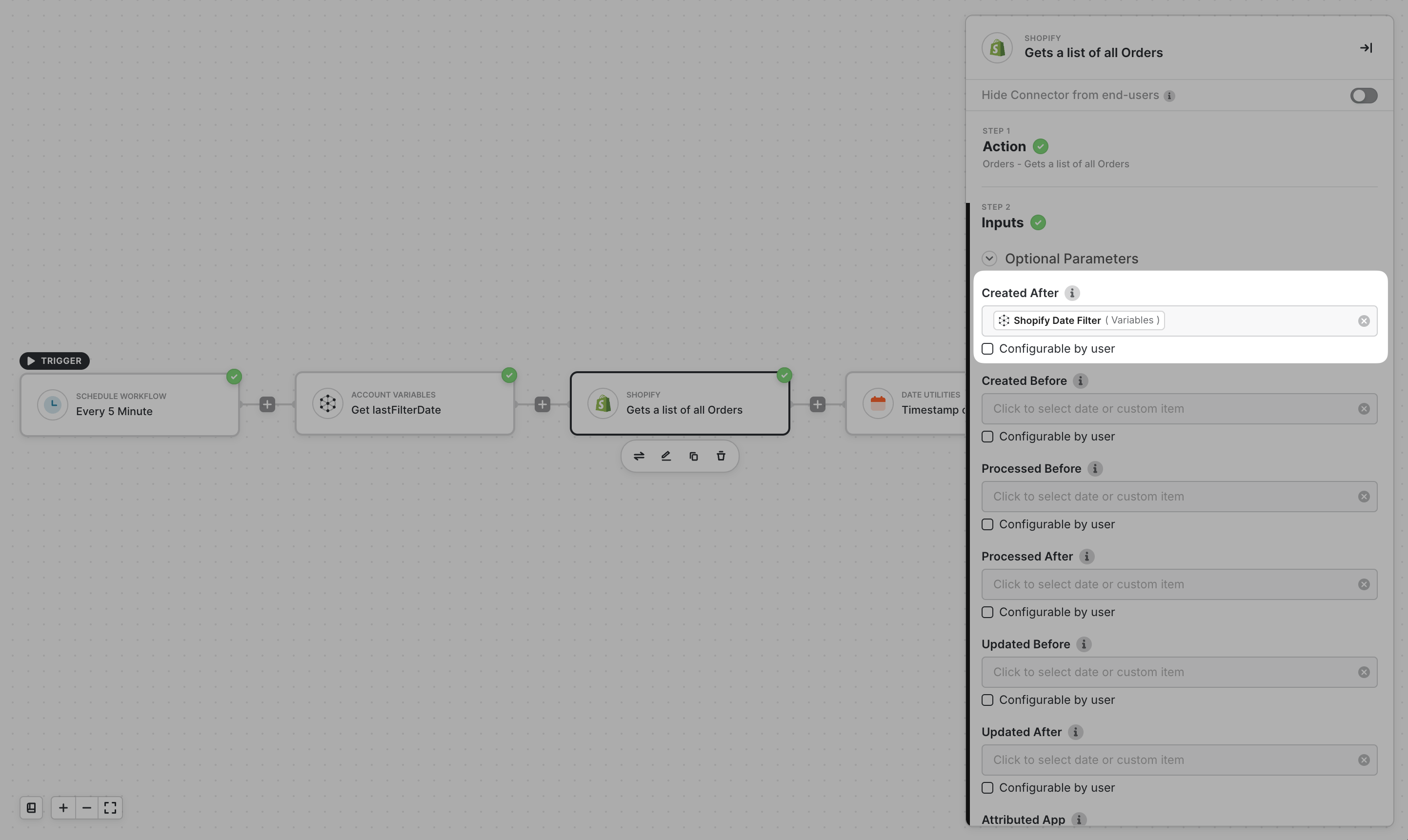
b. Pass `lastFilterDate` into the `createdAfter` Shopify Query Parameters
c. Set `lastFilterDate` to the current `timestamp` from the `Date Utility` when complete
#### Workflow 1
#### Workflow 2

Note the filters inside the Shopify List Orders Block
#### Workflow Summary
On the first run, we collect historical records from the variable initialization date chose. On the second run, we use the variable to query from that `lastFilterDate`. Once we've completed pagination through new orders, the `lastFilterDate` is updated with the `timestamp` generated after the List All Orders Block has finished.