> ## Documentation Index
> Fetch the complete documentation index at: https://docs.runalloy.com/llms.txt
> Use this file to discover all available pages before exploring further.
# Installation
> JavaScript SDK for rendering the Embedded iPaaS modal in your app.
## Overview
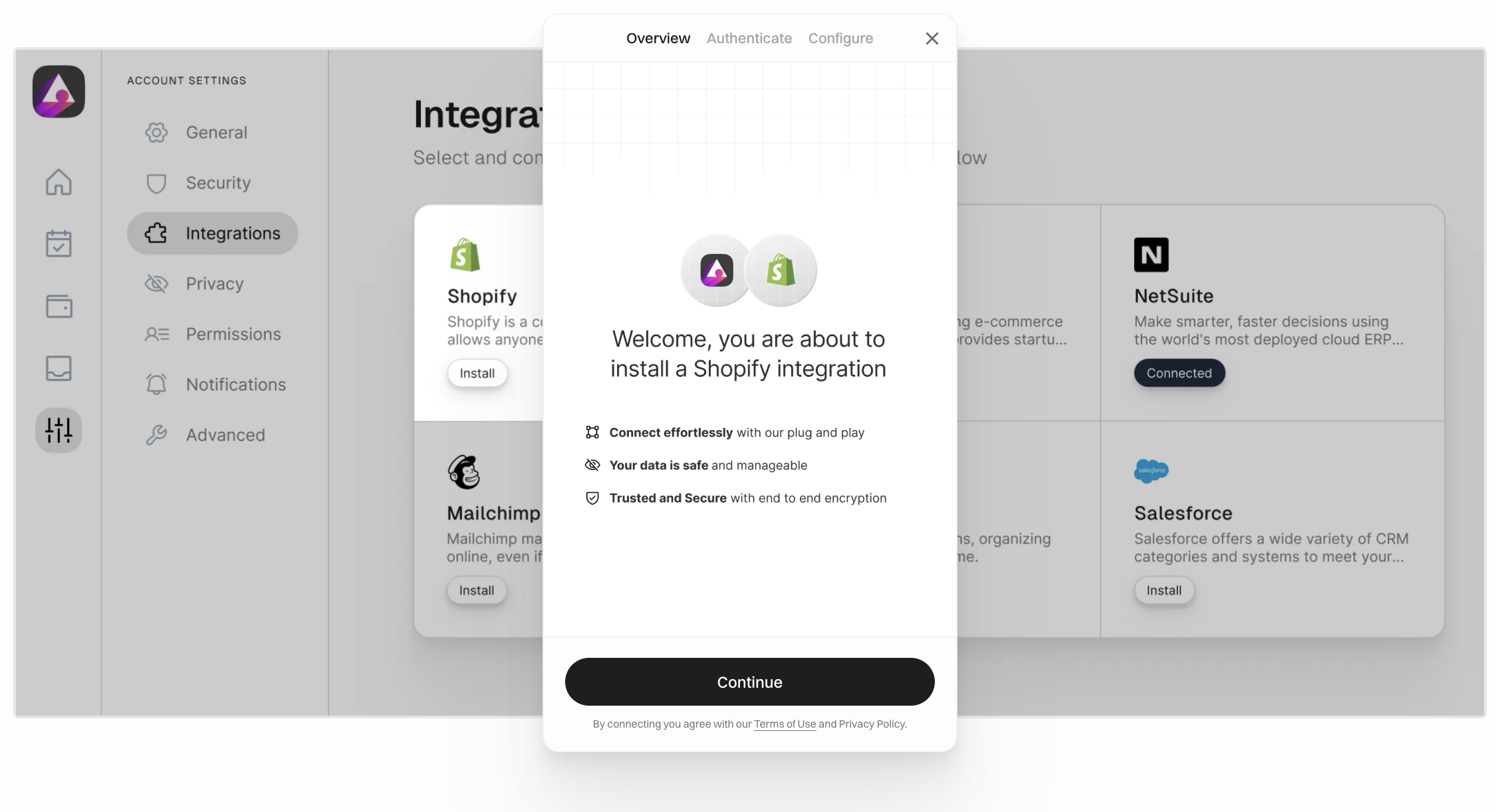
The Modal SDK powers the Embedded iPaaS modal in your application. It handles user authorization, renders the modal UI, and exposes methods to install, edit, update, and manage workflows and integrations for your end users.
### What is the Modal?
The modal is an in-app UI overlay provided by Alloy Automation’s Embedded iPaaS. It lets users install and configure integrations, connect accounts with OAuth, review required scopes, and manage workflows without leaving your product. The Modal SDK authenticates the session with a short-lived user token, renders the UI, and returns results to your app for auditing and follow-up actions.
 ### When to use
Use the Modal SDK if you present the Embedded iPaaS modal inside your product. It is not required for Headless or Alloy Link flows.
**What it provides**
* Render the Embedded iPaaS modal for integrations and workflows
* Authenticate the end user with `Alloy.setToken(...)`
* Install, edit, and update workflows: `Alloy.install`, `Alloy.edit`, `Alloy.update`
* Query installed integrations and workflows: `Alloy.getIntegrations`, `Alloy.getWorkflows`
* Activate or deactivate workflows: `Alloy.reactivate`, `Alloy.deactivate`
### Installing the Modal SDK
Install via npm or yarn:
```sh theme={null}
npm install alloy-frontend
# or
yarn add alloy-frontend
```
Or include via script tag:
```html theme={null}
```
Set your user token before calling SDK methods:
```js theme={null}
Alloy.setToken("");
```
Once the token is set, you can render the modal for a specific integration or set of workflows.
### When to use
Use the Modal SDK if you present the Embedded iPaaS modal inside your product. It is not required for Headless or Alloy Link flows.
**What it provides**
* Render the Embedded iPaaS modal for integrations and workflows
* Authenticate the end user with `Alloy.setToken(...)`
* Install, edit, and update workflows: `Alloy.install`, `Alloy.edit`, `Alloy.update`
* Query installed integrations and workflows: `Alloy.getIntegrations`, `Alloy.getWorkflows`
* Activate or deactivate workflows: `Alloy.reactivate`, `Alloy.deactivate`
### Installing the Modal SDK
Install via npm or yarn:
```sh theme={null}
npm install alloy-frontend
# or
yarn add alloy-frontend
```
Or include via script tag:
```html theme={null}
```
Set your user token before calling SDK methods:
```js theme={null}
Alloy.setToken("");
```
Once the token is set, you can render the modal for a specific integration or set of workflows.