> ## Documentation Index
> Fetch the complete documentation index at: https://docs.runalloy.com/llms.txt
> Use this file to discover all available pages before exploring further.
# On Installation Trigger
> Occasionally, you may want to perform an action when users complete the installation of your integration. For instance, you could post to a Slack channel to announce a new customer sign-up, or push logging data to an analytics tool.
**On Installation** workflows are automatically hidden from your users, so they won't see them when installing your integration using the Alloy Frontend SDK modal.
**Info:**
If you use the Alloy SDK with specific `workflowIDs` instead of the entire integration, ensure you include the `workflowID` for this workflow.
Select the **On Installation** Trigger and click **Next**. No additional configuration is required for **On Installation** Triggers. Simply add the desired logic and release the workflow. Now, whenever the **Integration** is installed either as a whole or with this `workflowId` included, the workflow will run.
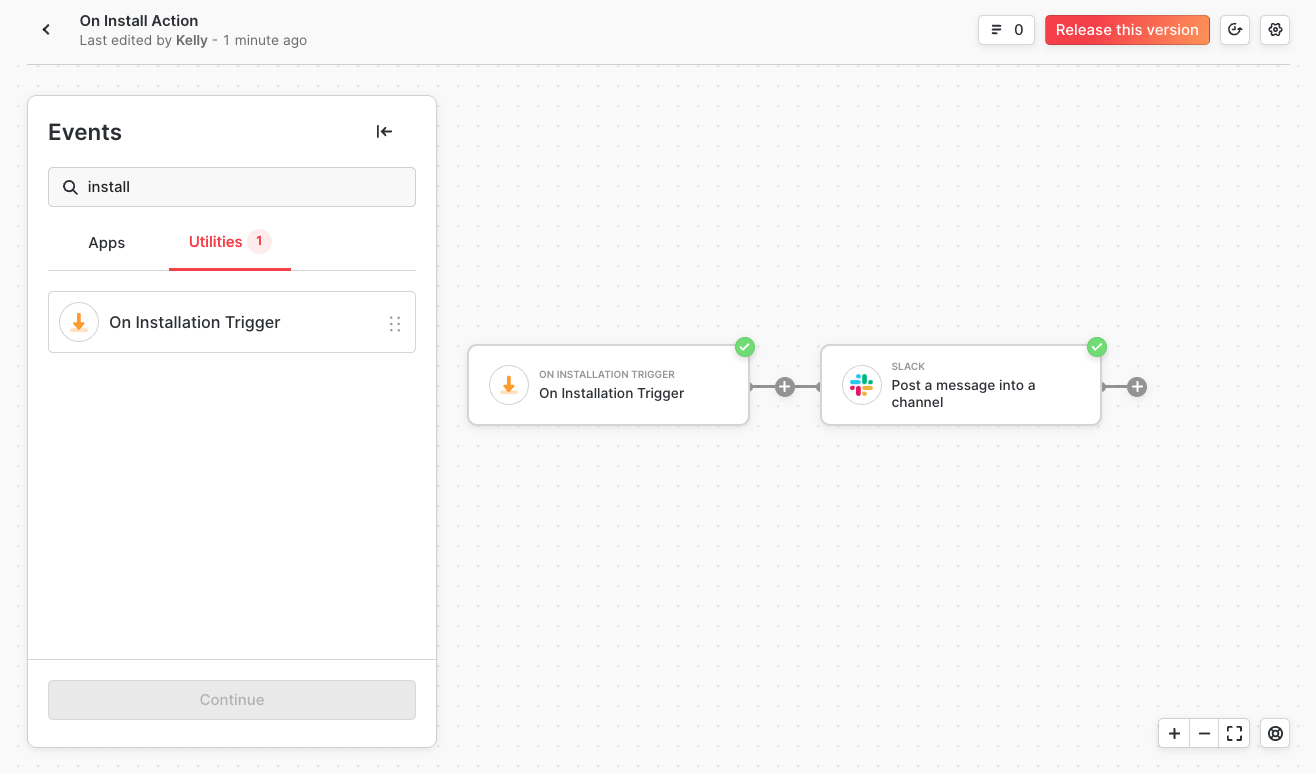
## Example
Consider this Shopify integration as an example. We have two workflows: one containing our Shopify workflow and another with the **On Installation** workflow.
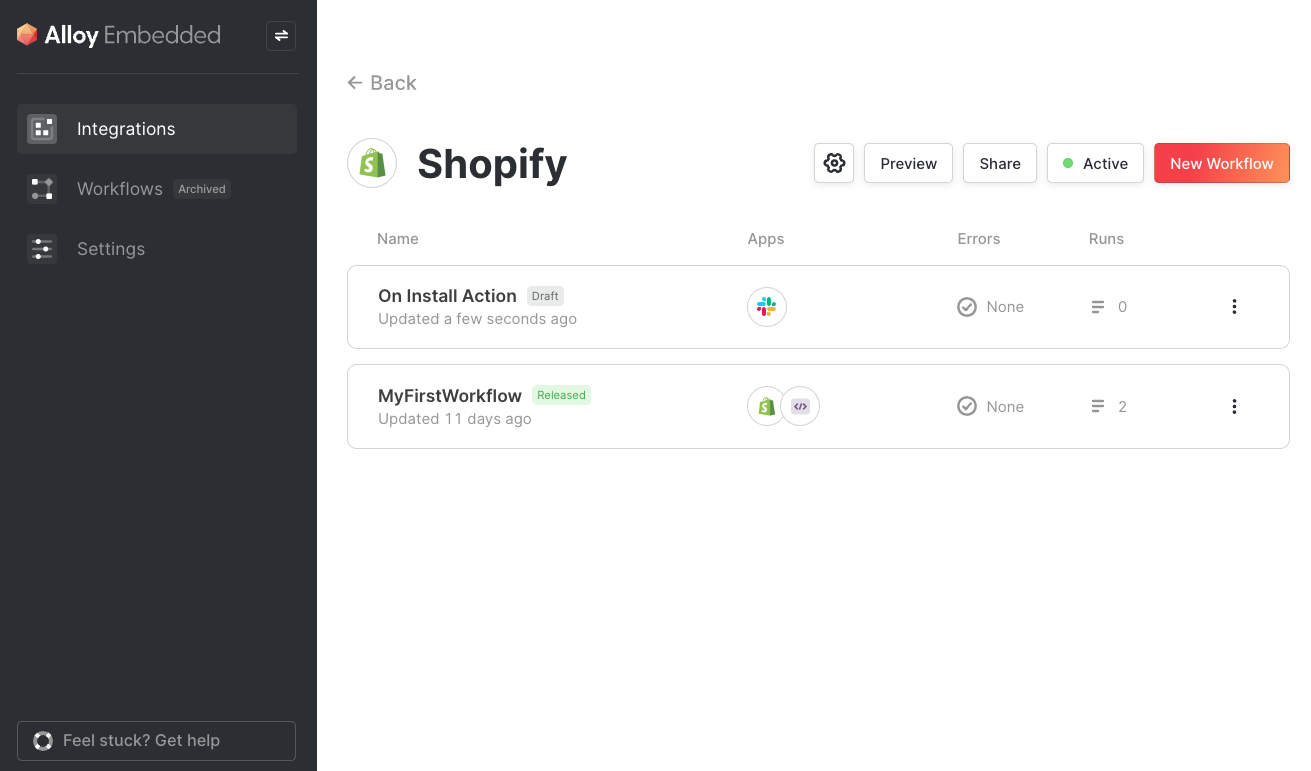
When previewing the modal, only the Shopify workflow is presented for connection. After connecting the required accounts, the user clicks **Finish Installation**, and the "On Install Action" workflow runs.
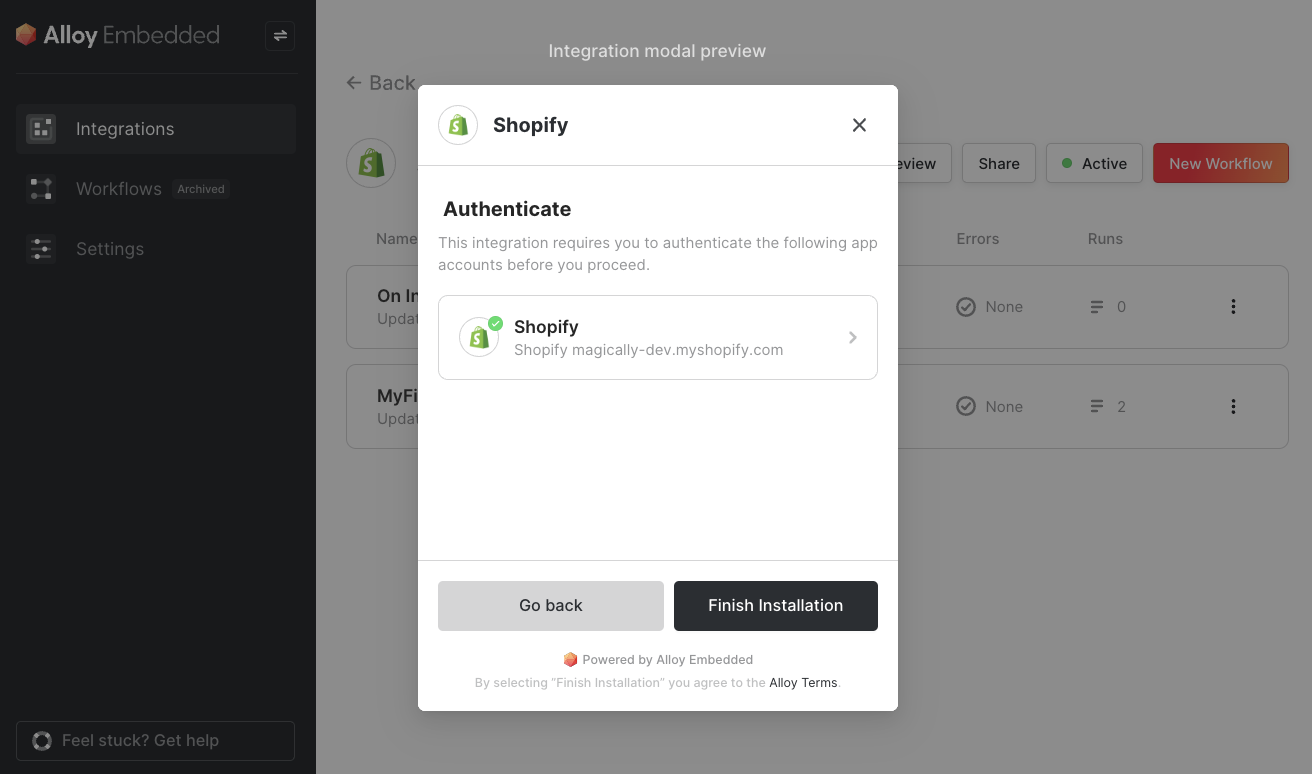
It is important to note that this will trigger any time the workflow is installed. This includes initial installs and workflow upgrades which can sometimes require a fresh install of the workflow.