> ## Documentation Index
> Fetch the complete documentation index at: https://docs.runalloy.com/llms.txt
> Use this file to discover all available pages before exploring further.
# Styling the Modal
## Overview
Branding is important to all customers. To ensure Alloy Embedded fits natively into your platform, we allow ISVs to style the Alloy Modal. Let's take a look how.
## How it Works
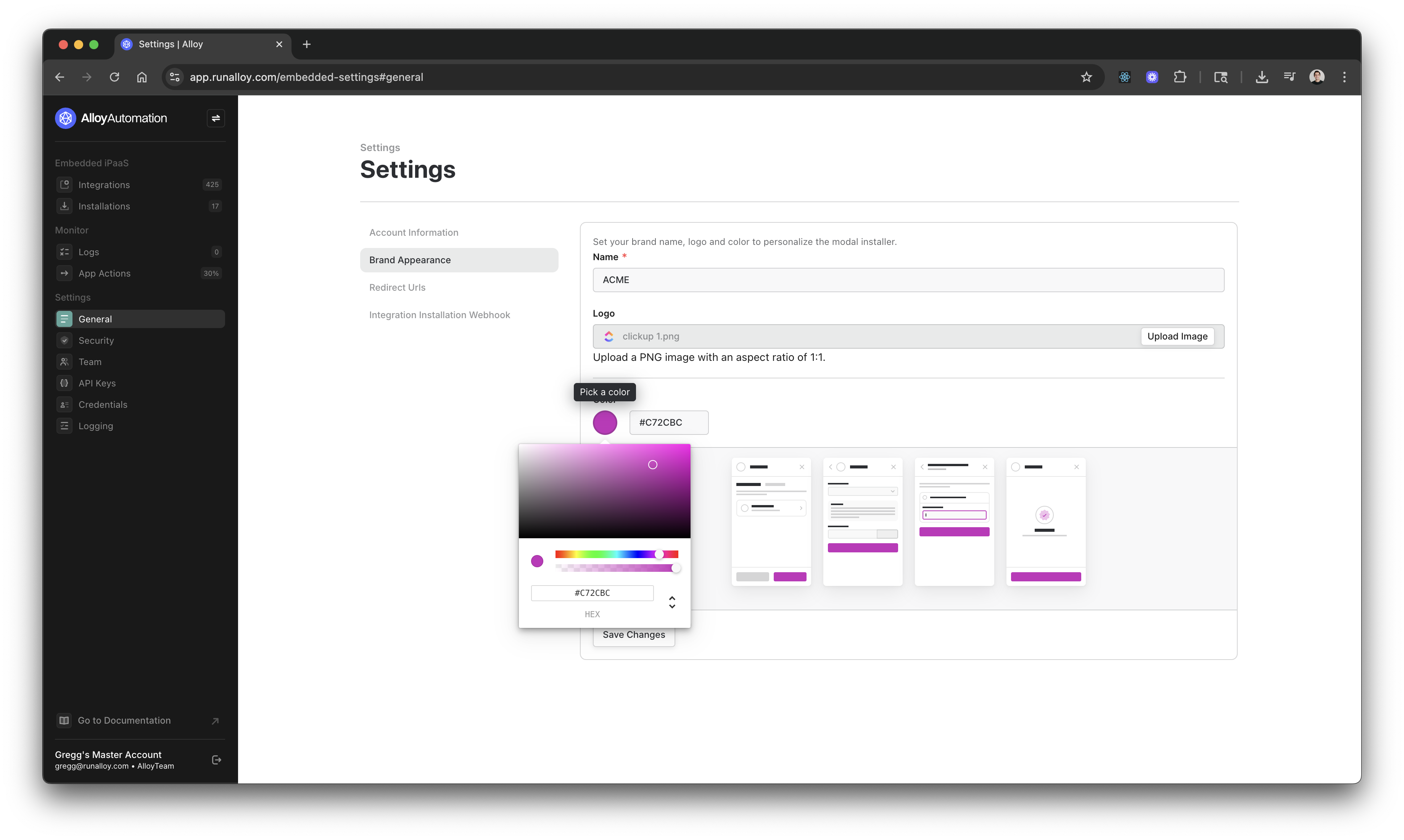
Many customers want to style the modal to their company's look and feel. If this is you, we support a way for you to style the modal to your company's color. To change the Alloy Modals's colors:
Navigate to the Settings page
Under **Brand Color** select the hex code of your choosing
Hit **Save Changes**
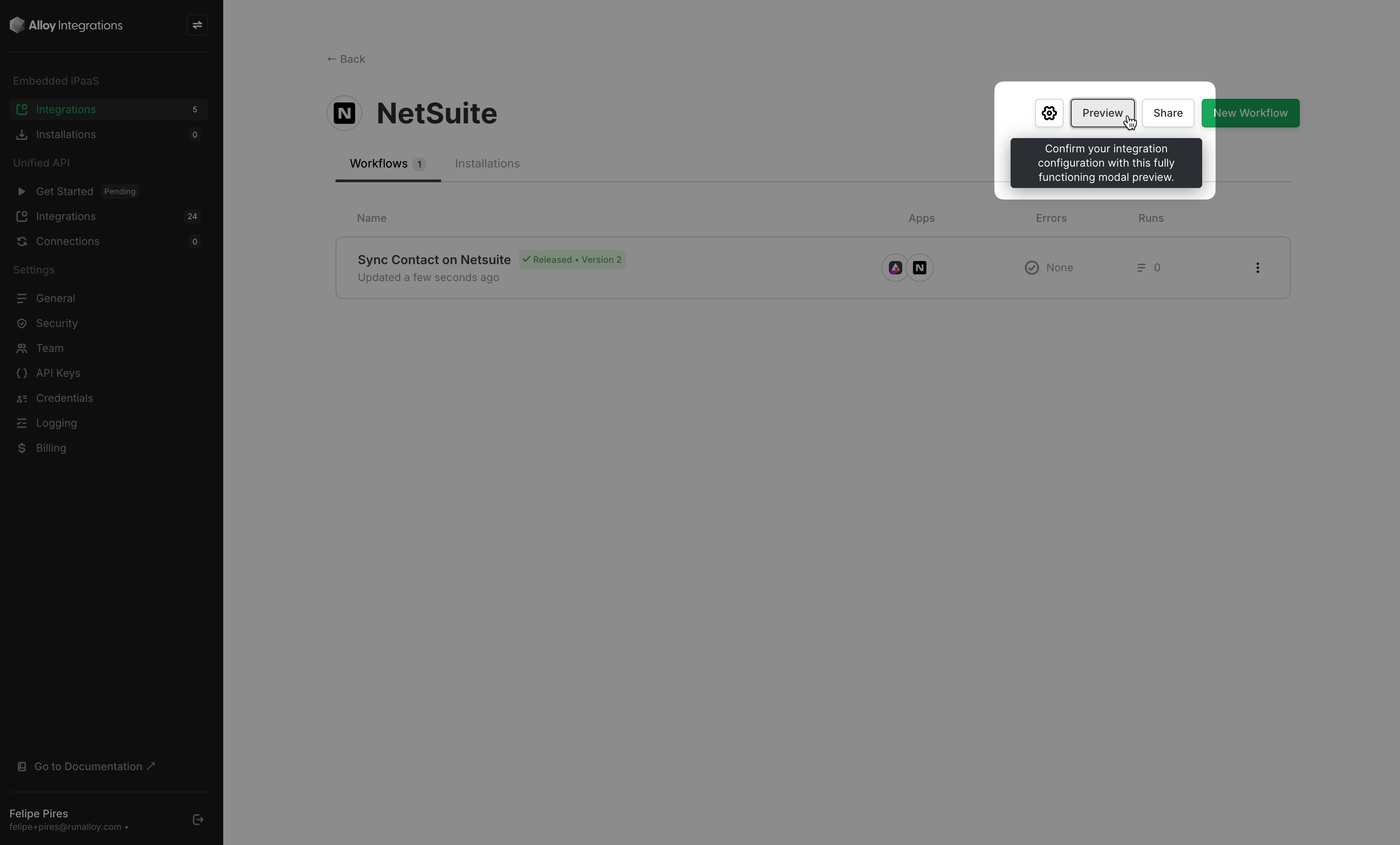
To preview your changes, navigate to any integration you've built so far as seen below. Select the **Preview** button.
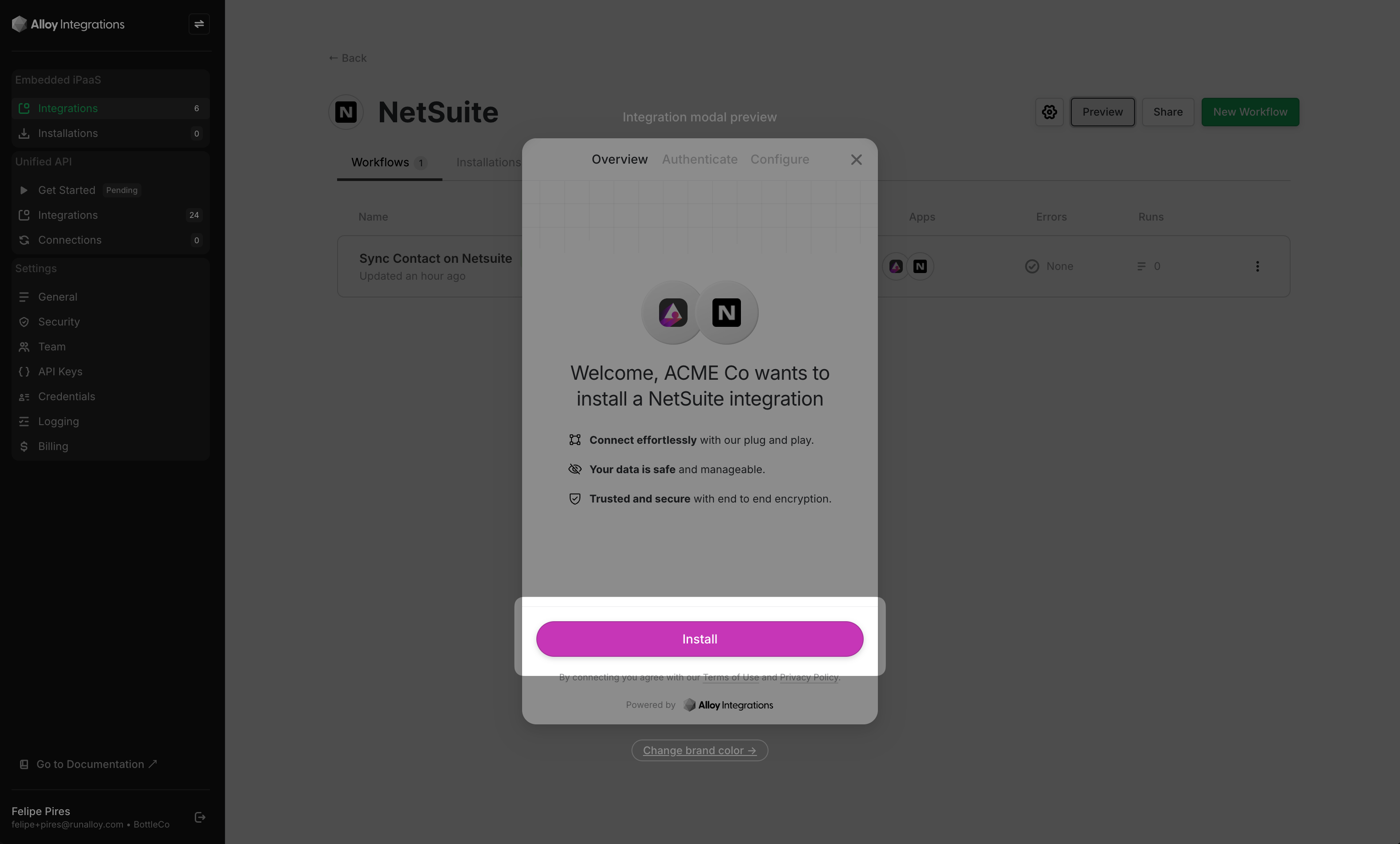
When you select the preview, Alloy Embedded with render the modal preview with your desired color scheme. These changes will reflect immediately.
## Wrapping Up
In this article, we took a look at how to style the Alloy Modal to fit your brand's color scheme.