> ## Documentation Index
> Fetch the complete documentation index at: https://docs.runalloy.com/llms.txt
> Use this file to discover all available pages before exploring further.
# Variables in Embedded
> Sometimes, you may need to save data during a workflow for later use, either within the same workflow or in a separate one.
## Using Variables in Embedded
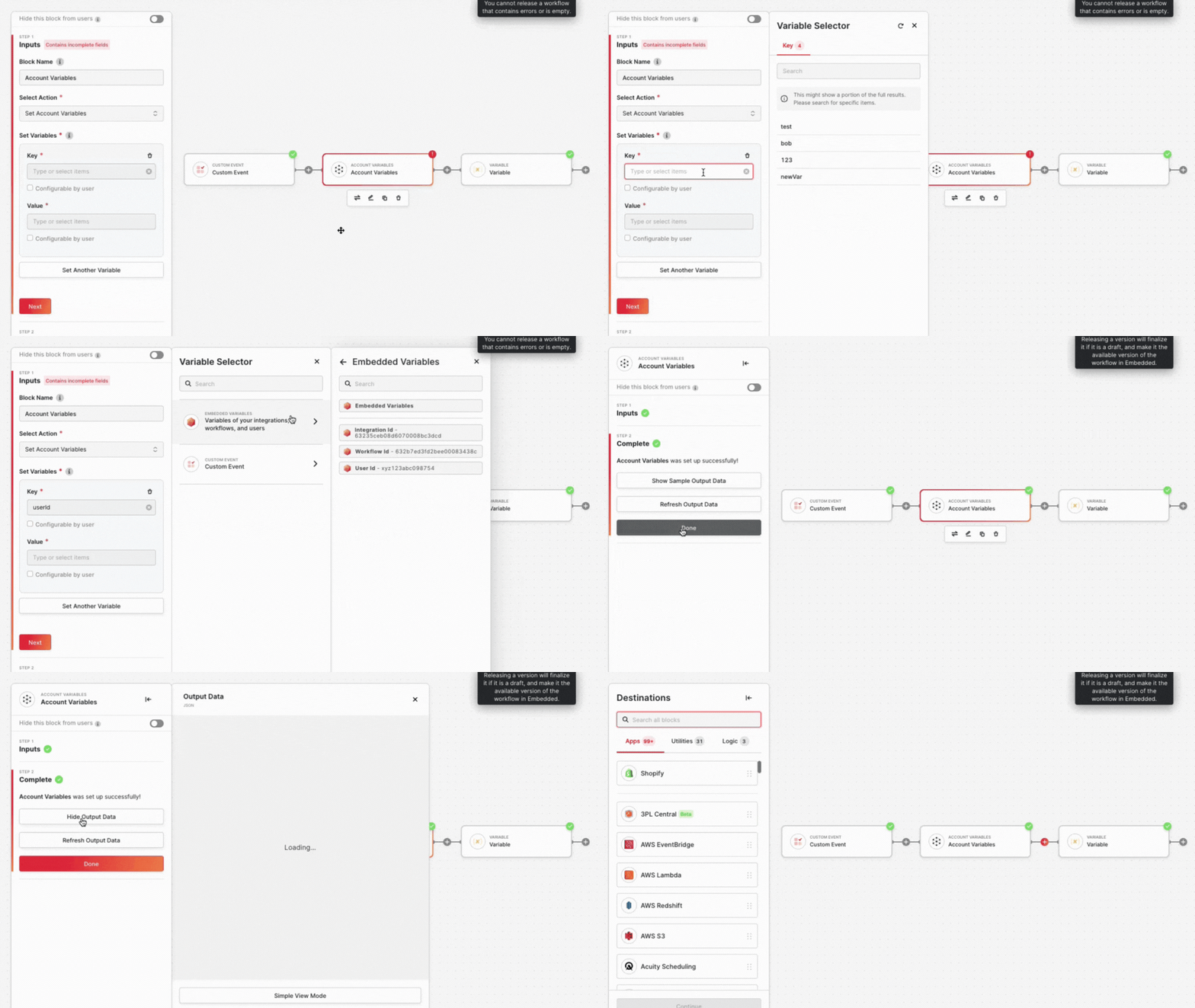
Account Variables are stored at the Alloy Account Level, functioning like *global variables* in programming. These values can be updated and are persistent. To choose from existing variables, click the **key** field, or create a new one by entering the name. For **value**, define a static string, json, or select other data from your workflow
Add more variables using **Set Another Variable**, click **Next, Refresh Output Data, and Show Output Data** to display your variables in a JSON format
## Variables
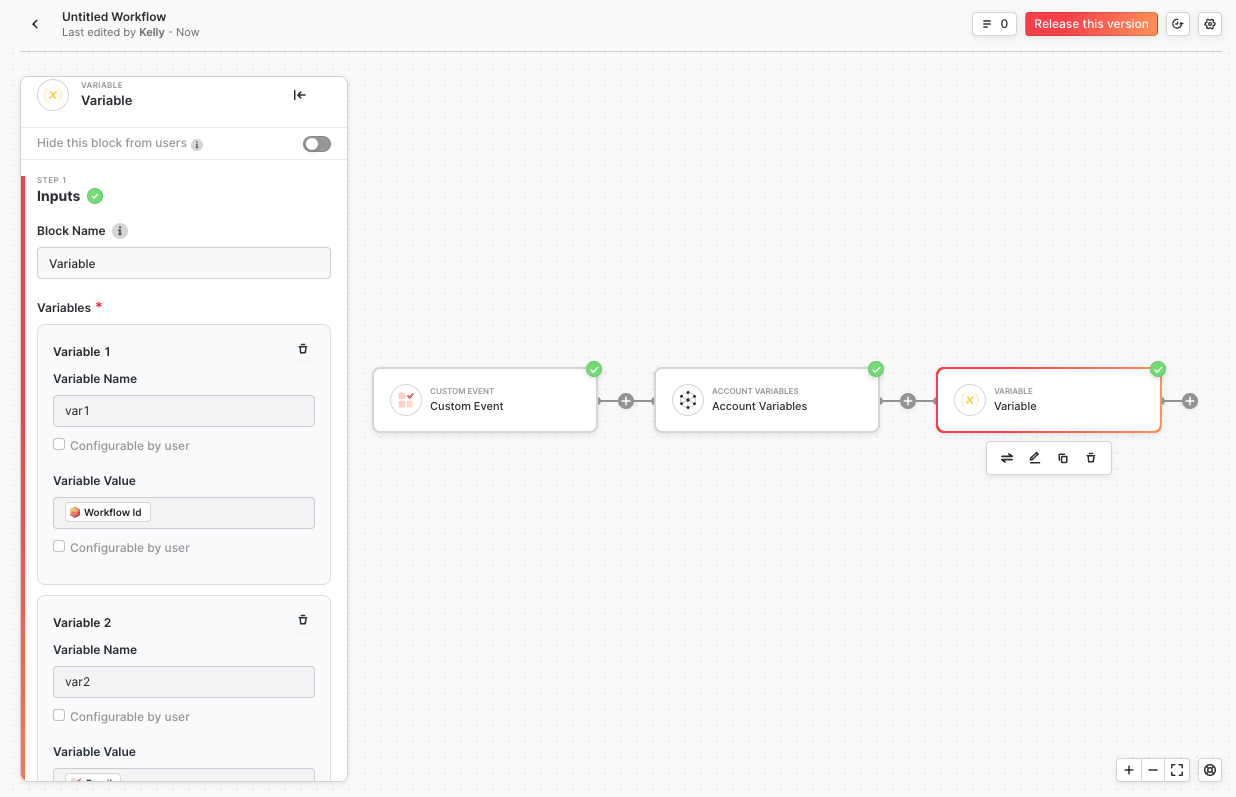
Regular variables exist only within a workflow execution context. They are created at runtime and destroyed after the workflow finishes executing. Create Variables similarly to account variables; however, you won't be able to choose from "existing" variables since they only exist at runtime.
## Editing Variables
When testing workflows in the Workflow canvas, you can edit the variables used within each connector directly. To access the variable editor, hover over the variable name in the **inputs** step of your connector. This will reveal a dialog with details about the selected connector, including the path, value, and label.
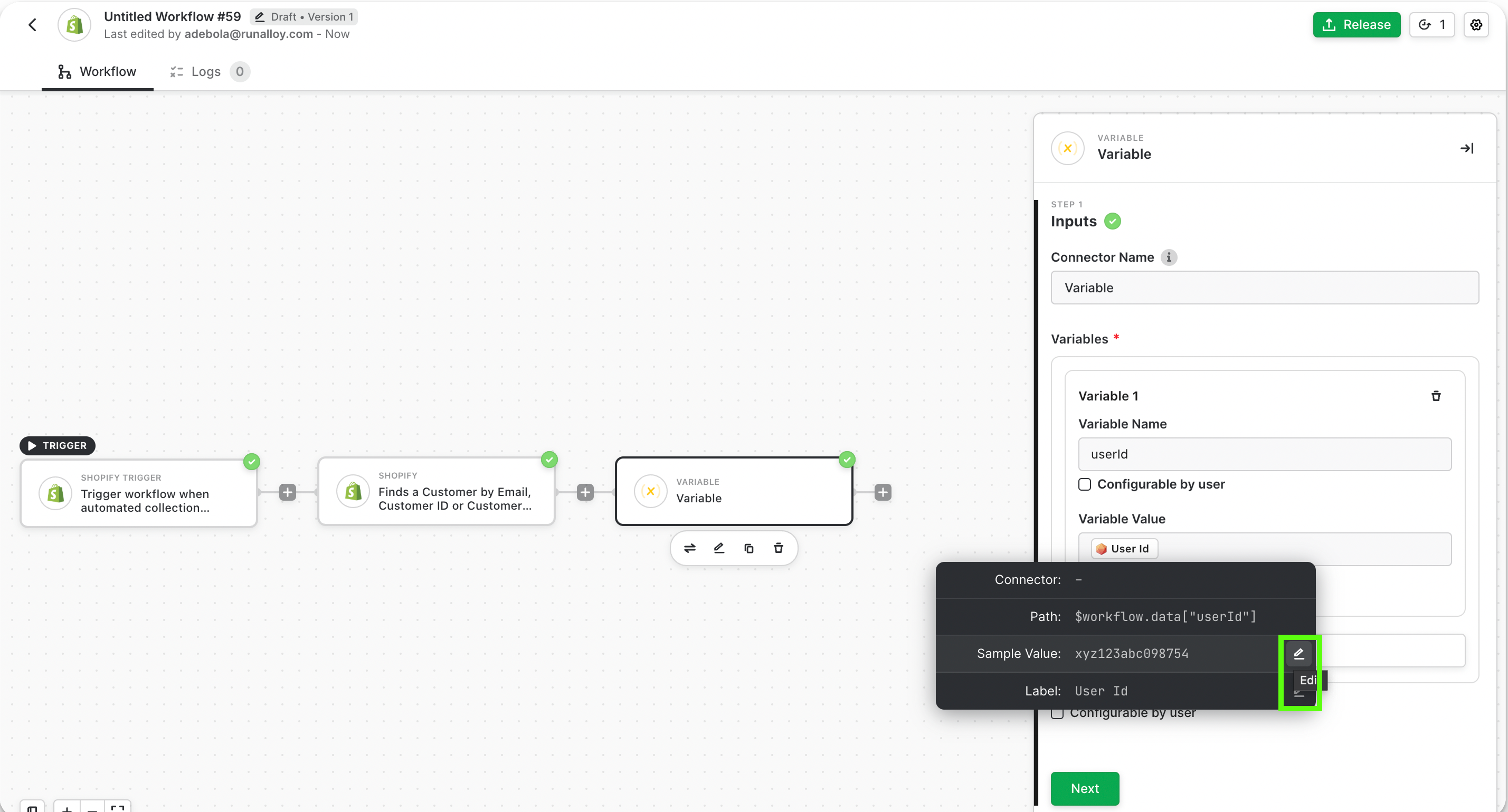
To edit a variable, click the edit icon next to the variable you want to modify. Enter the new value and press the return key to save. An *edited* tag will appear next to any variables that have been previously modified.
Your new variable can now be used while testing your workflow and will be visible in the output step of the selected connector.