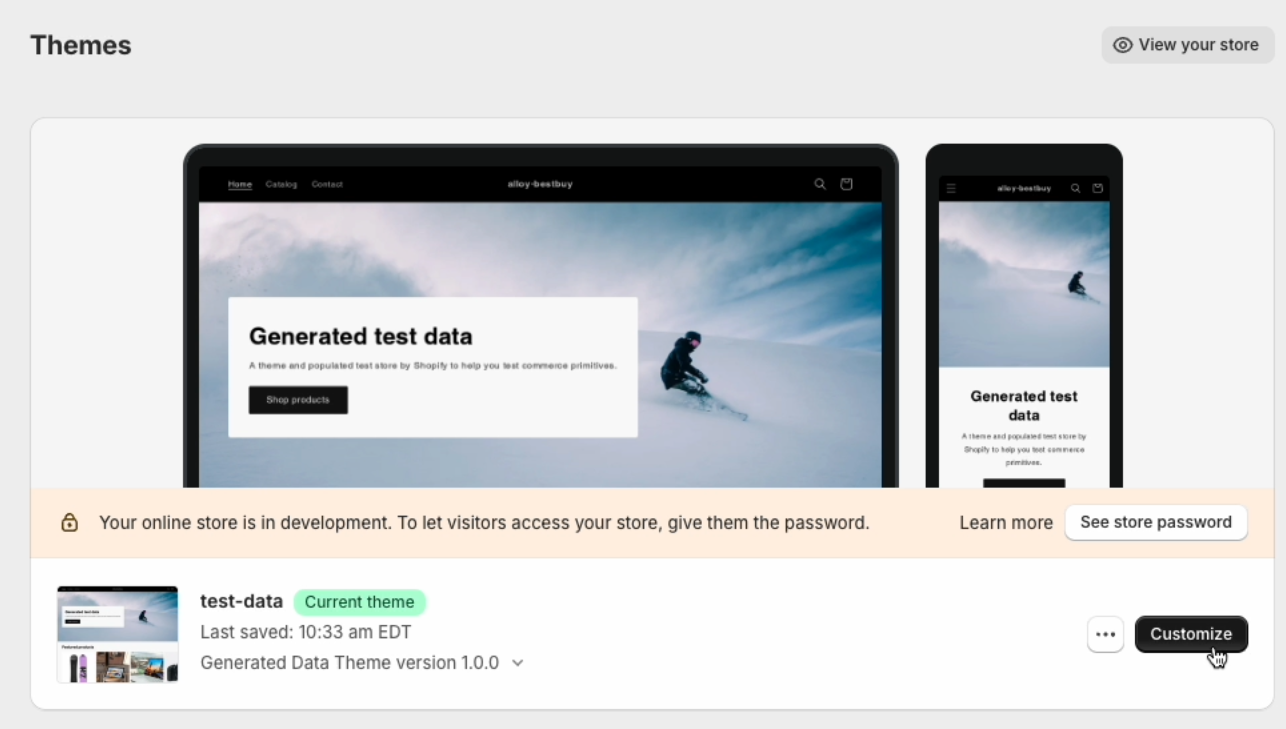
Product Page
Adding the Best Buy Product Pickup Selector will allow your customers to search and discover nearby Best Buy locations available for pickup. This component will give your customer an estimate on when they can pick up the item in store. Navigate to Products from the top navigation inside Theme Editor.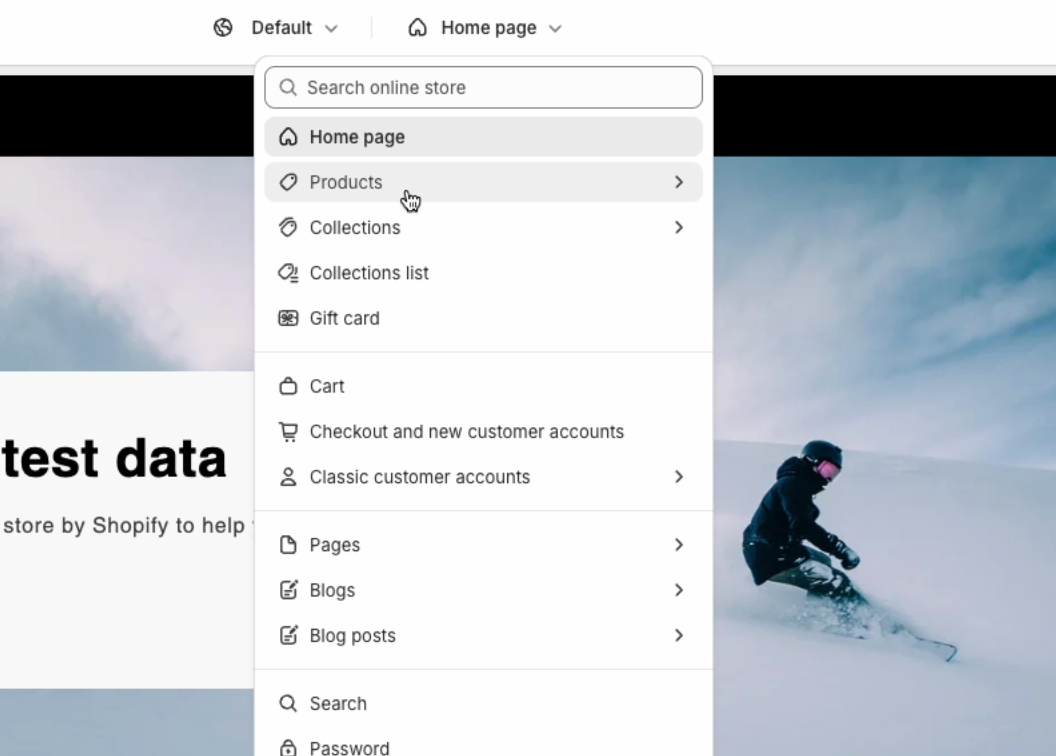
Cart Page
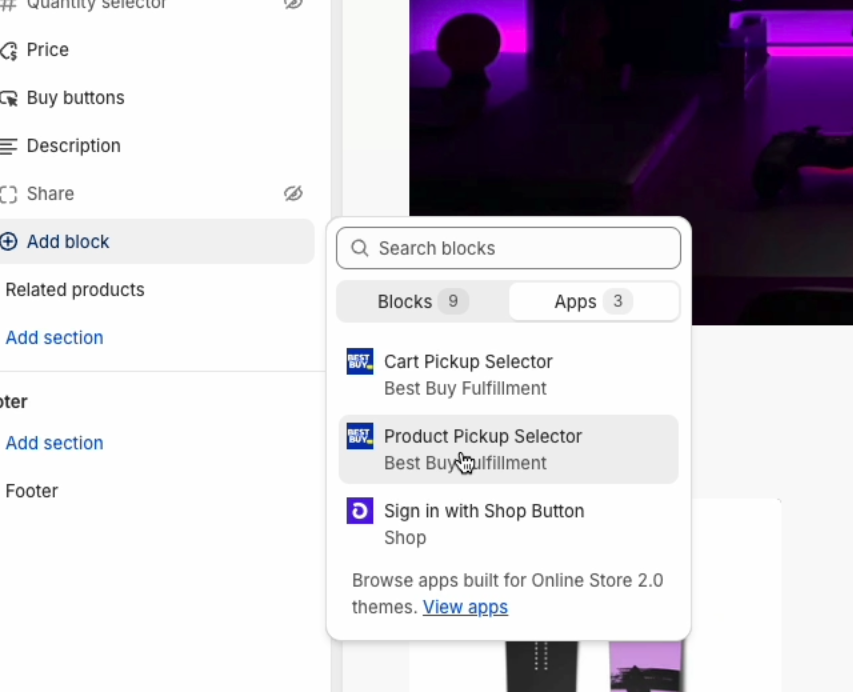
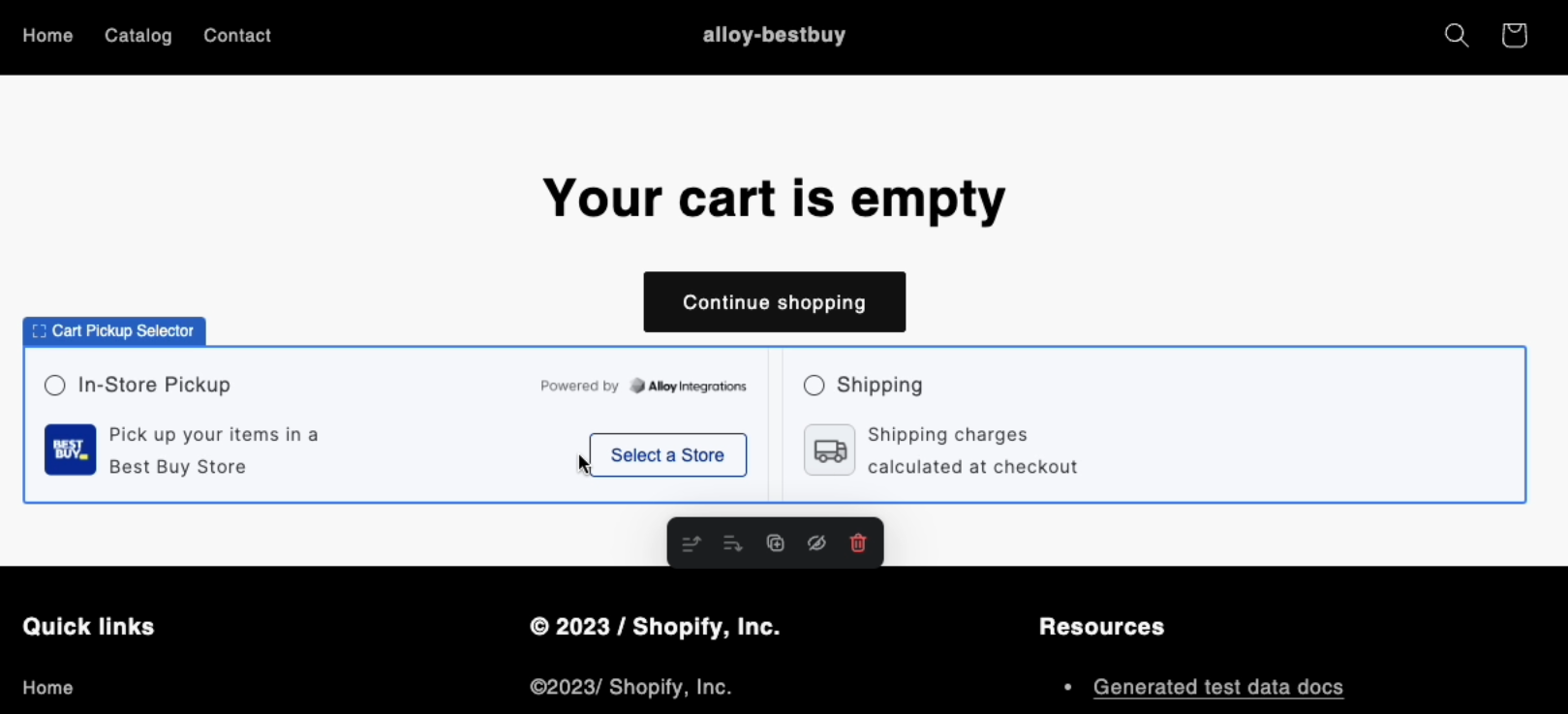
Adding the Cart Pickup Selector will allow your shoppers to express intent for Best Buy pickup. Customers can also change the store location that is best for pickup for the entire order. Navigate to Cart from the top navigation inside Theme Editor.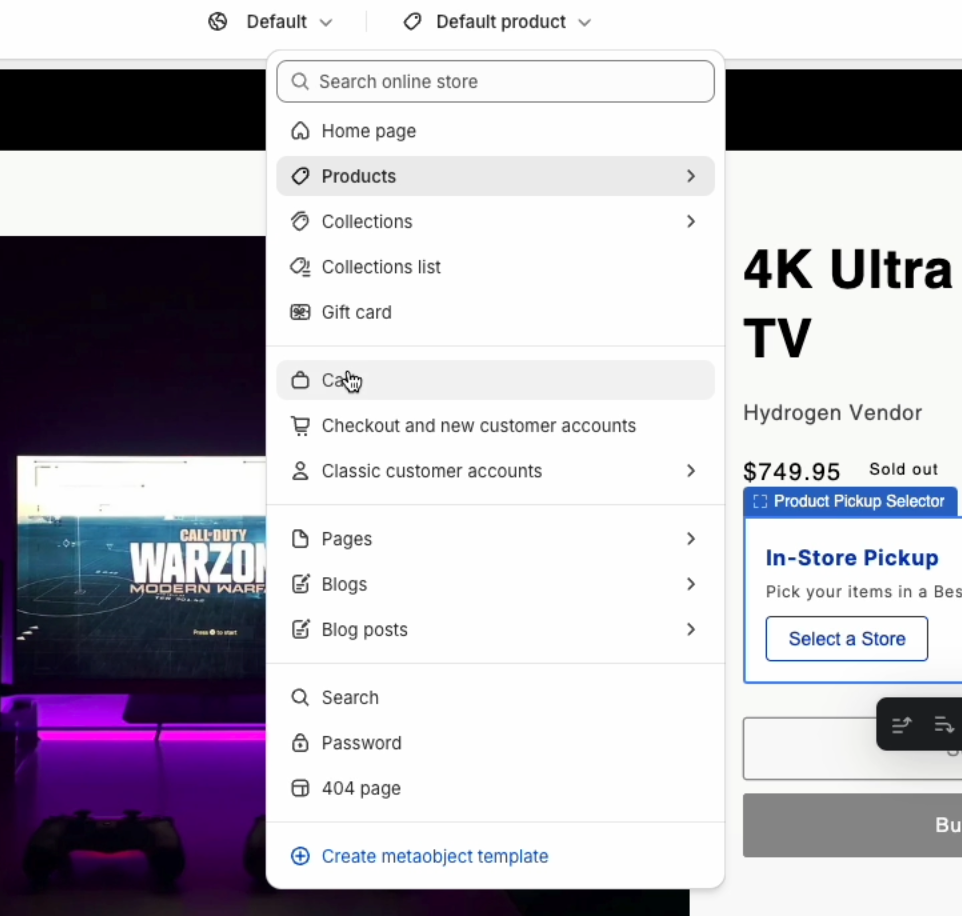
Checkout Page
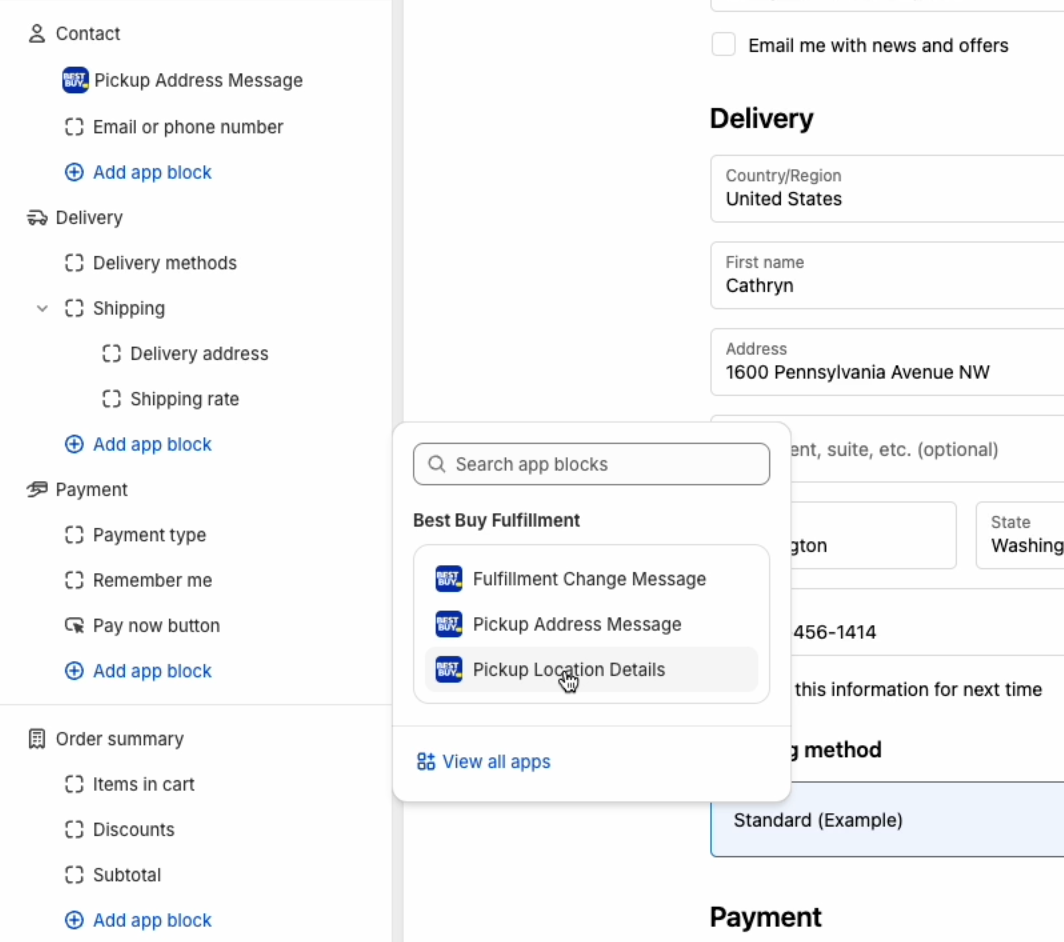
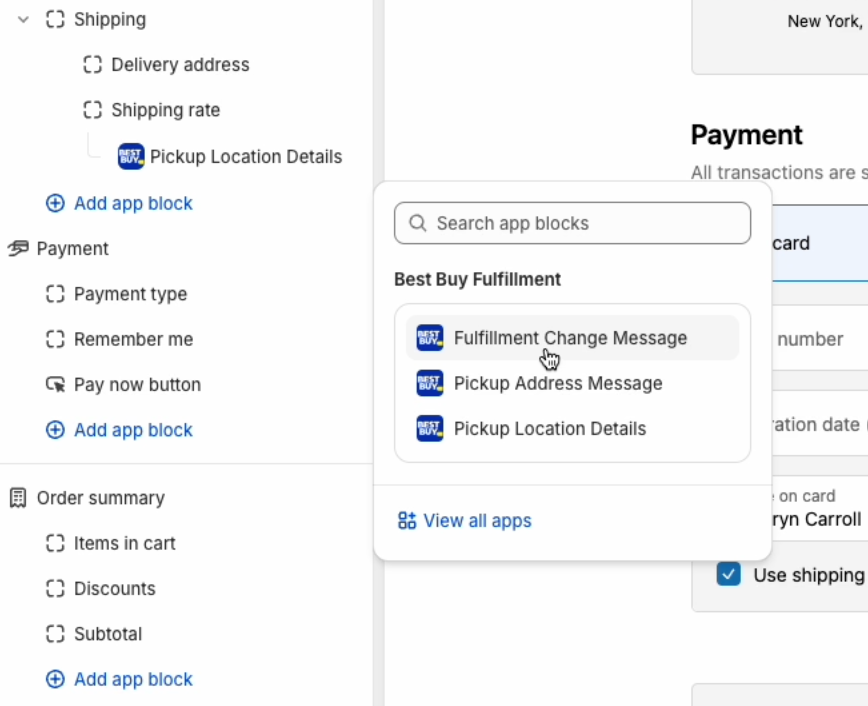
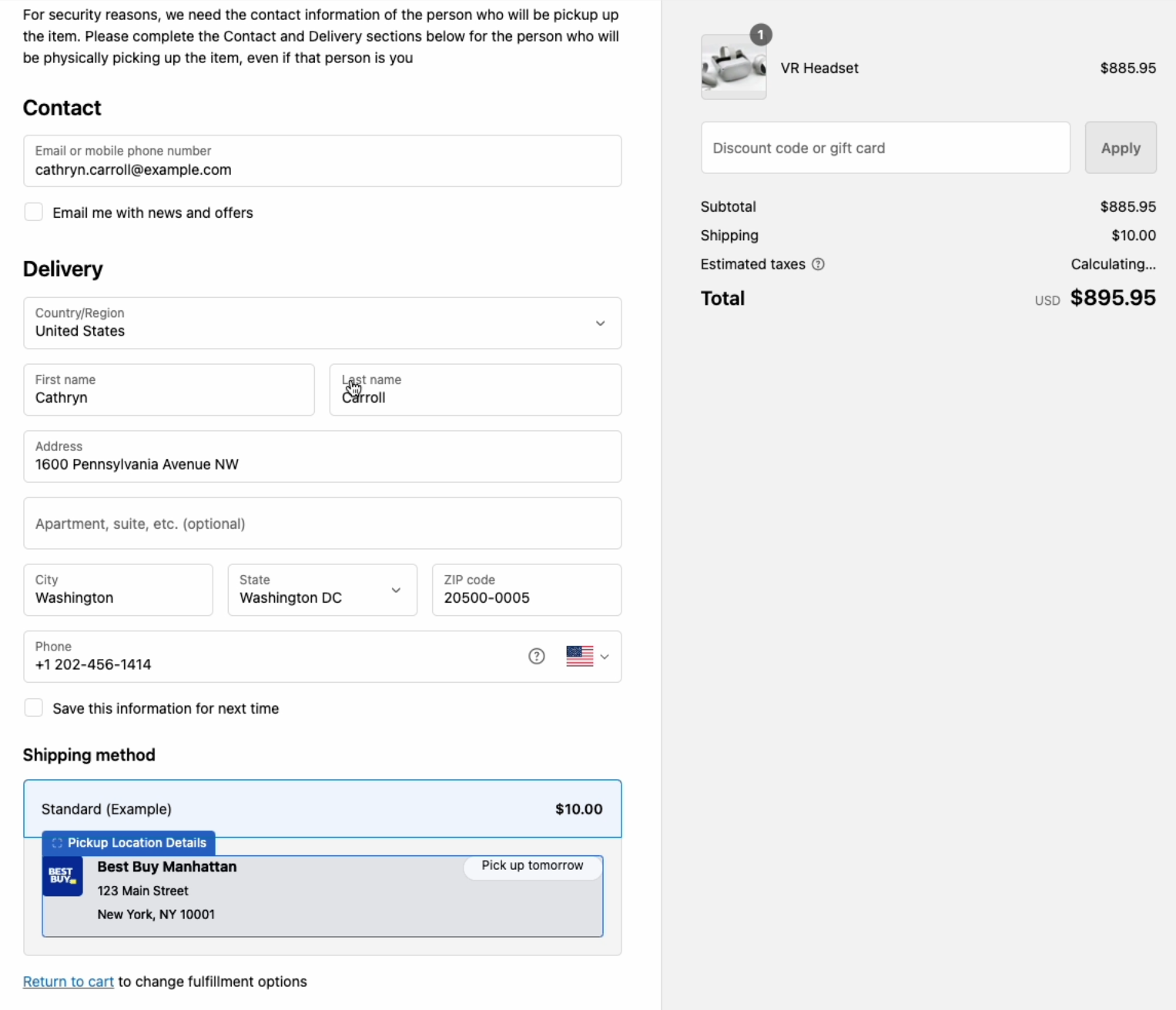
In this section, you will be adding a few components to the checkout page. These components will only show up if your customer selects Best Buy Pickup from the Cart page. Navigate to Cart from the top navigation inside Theme Editor. Add the block called Pickup Address Message under Contact to the page.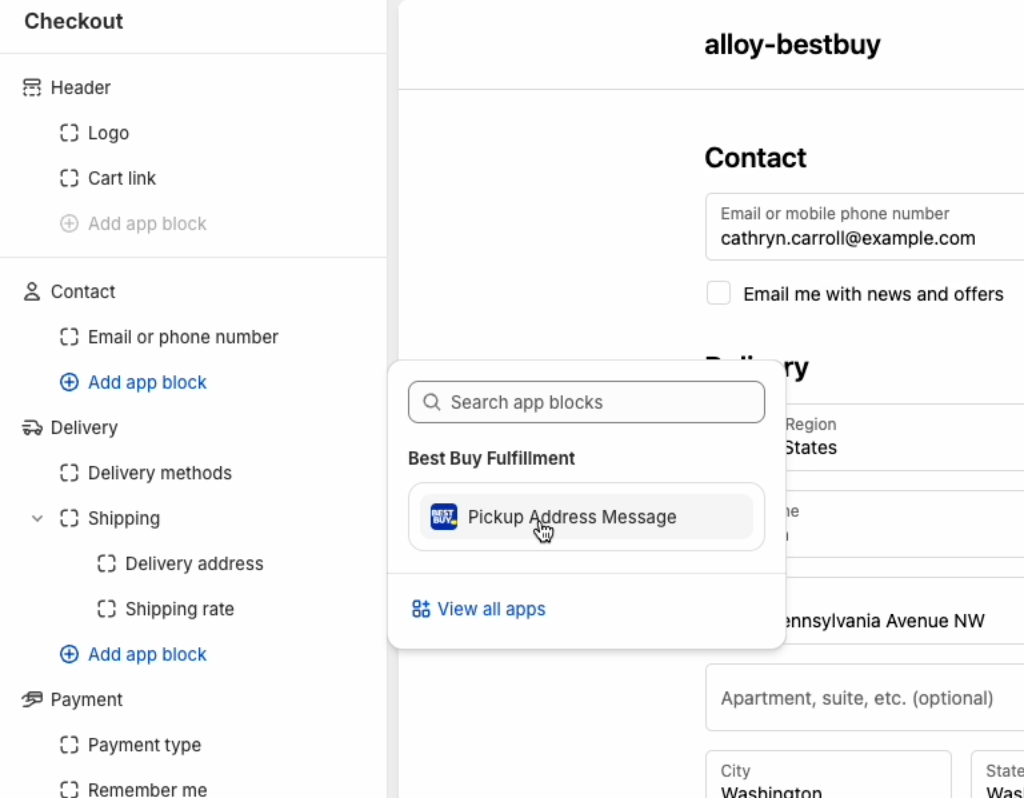
Order Confirmation Page (Thank You Page)
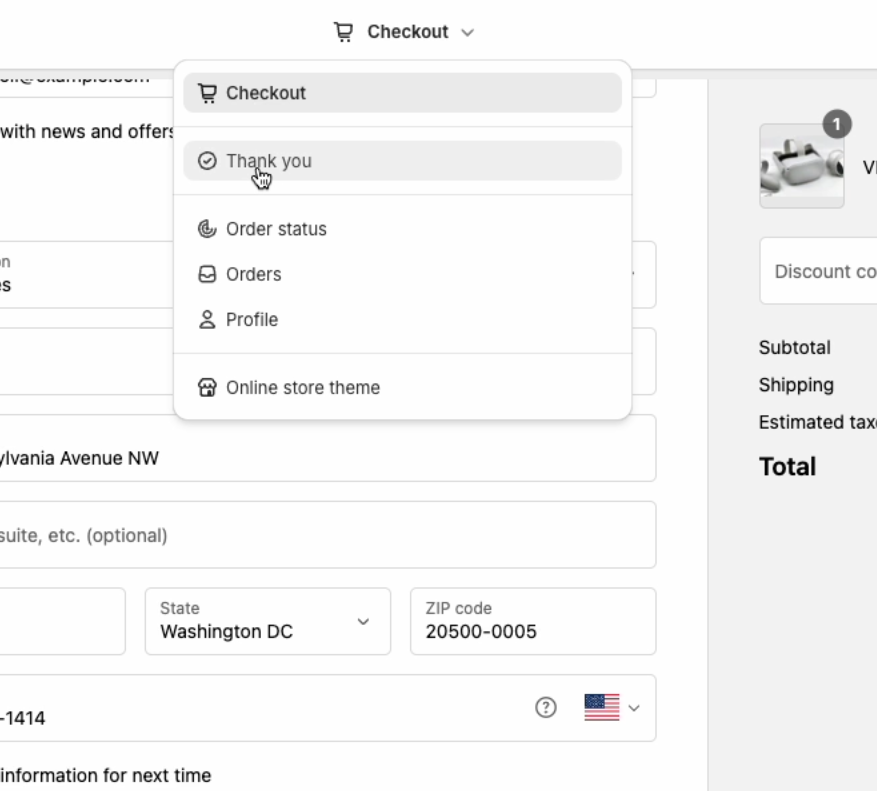
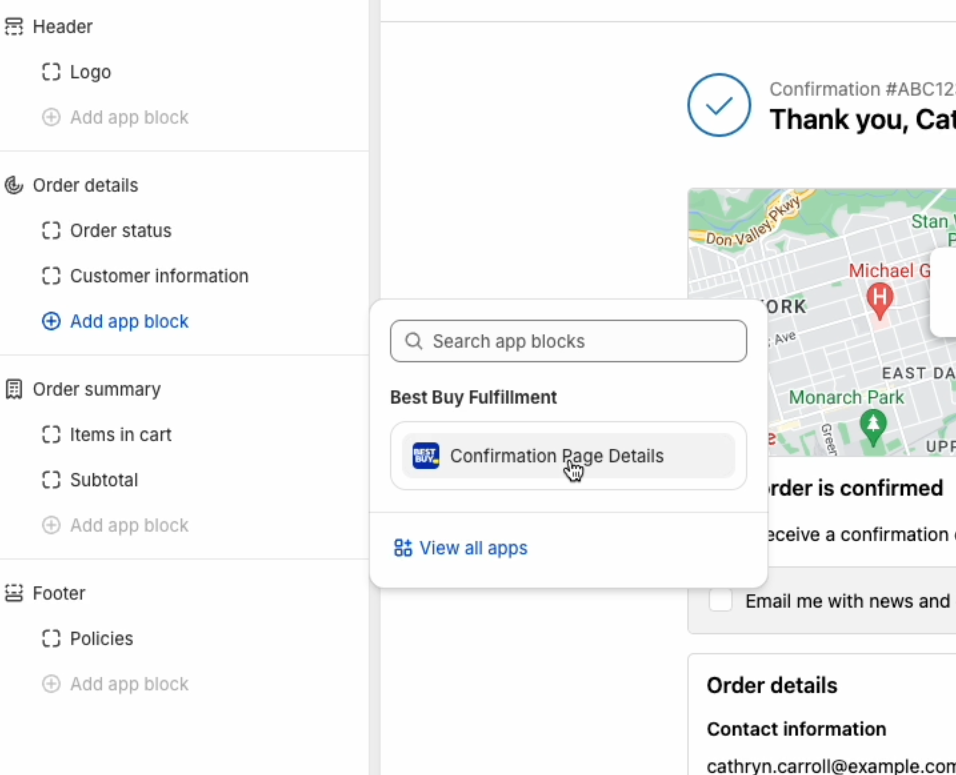
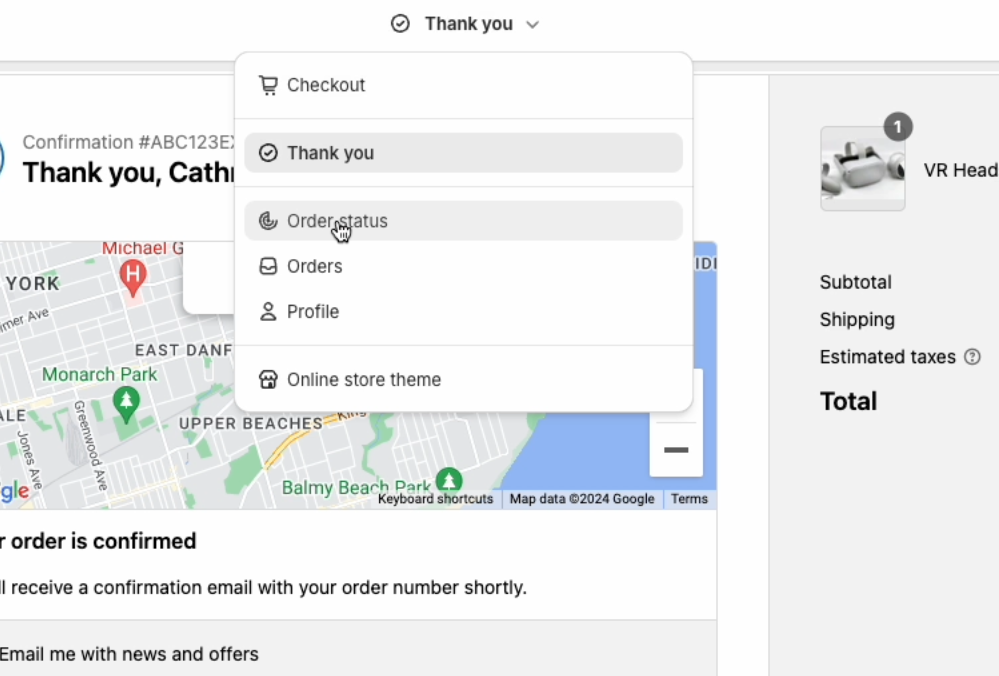
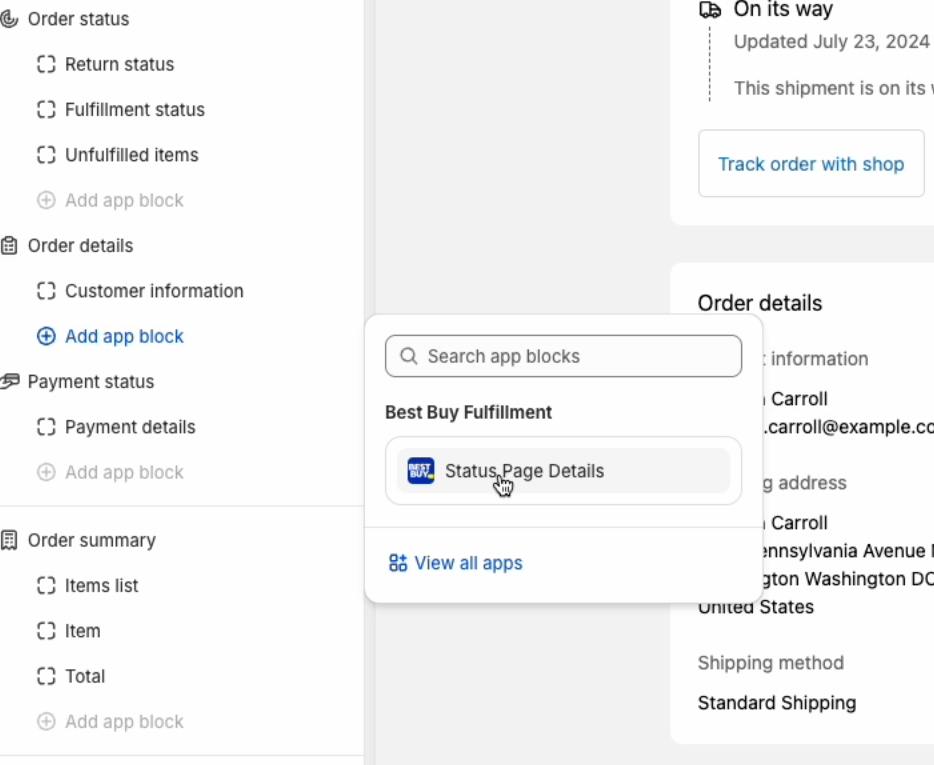
Navigate to Thank you from the top navigation inside Theme Editor.