Step 1: Create an App
Login to your NetSuite account as the Admin user. Navigate to the Setup > Integration > Manage Integrations > New section of your NetSuite account. You should see a list of any integrations you’ve previously created (if any).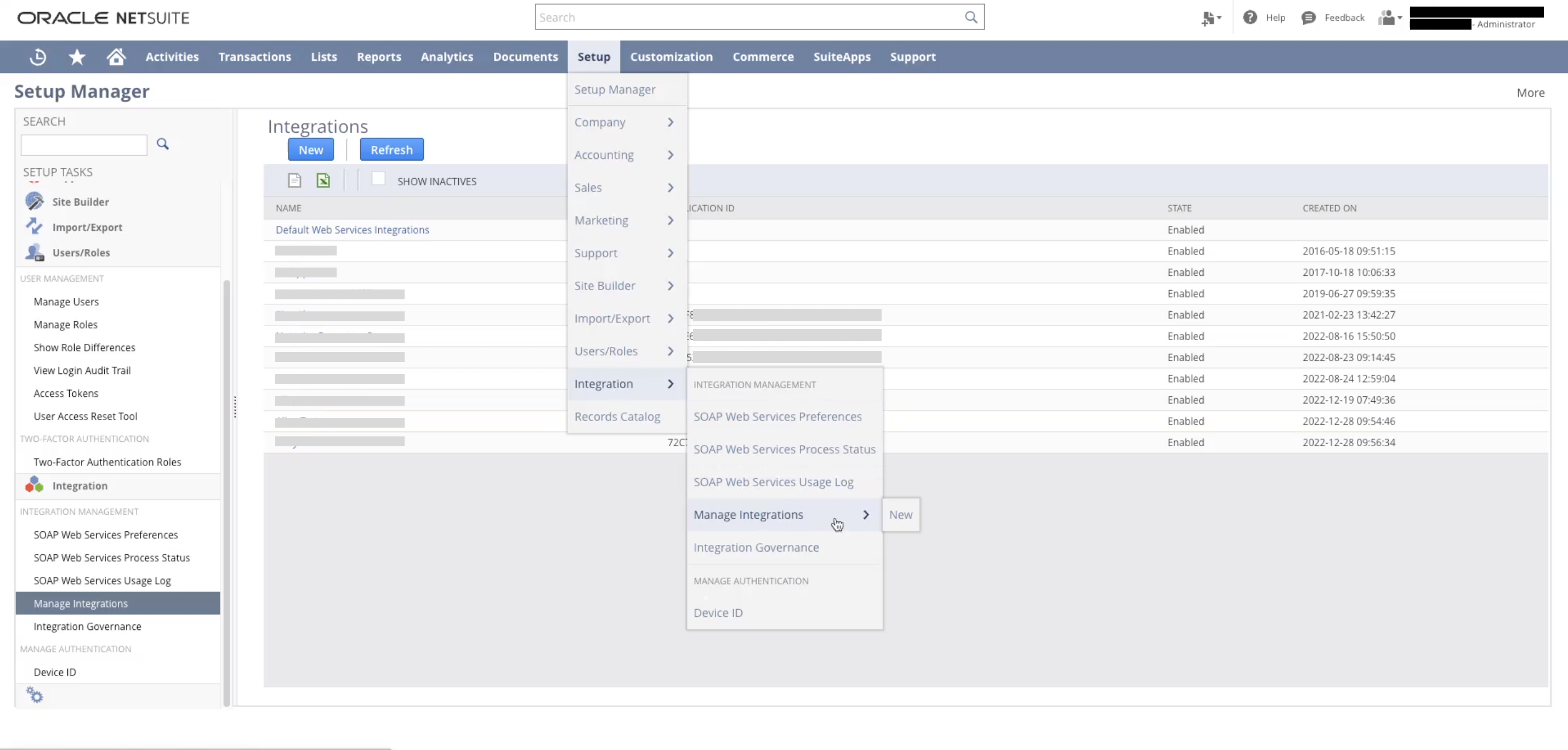
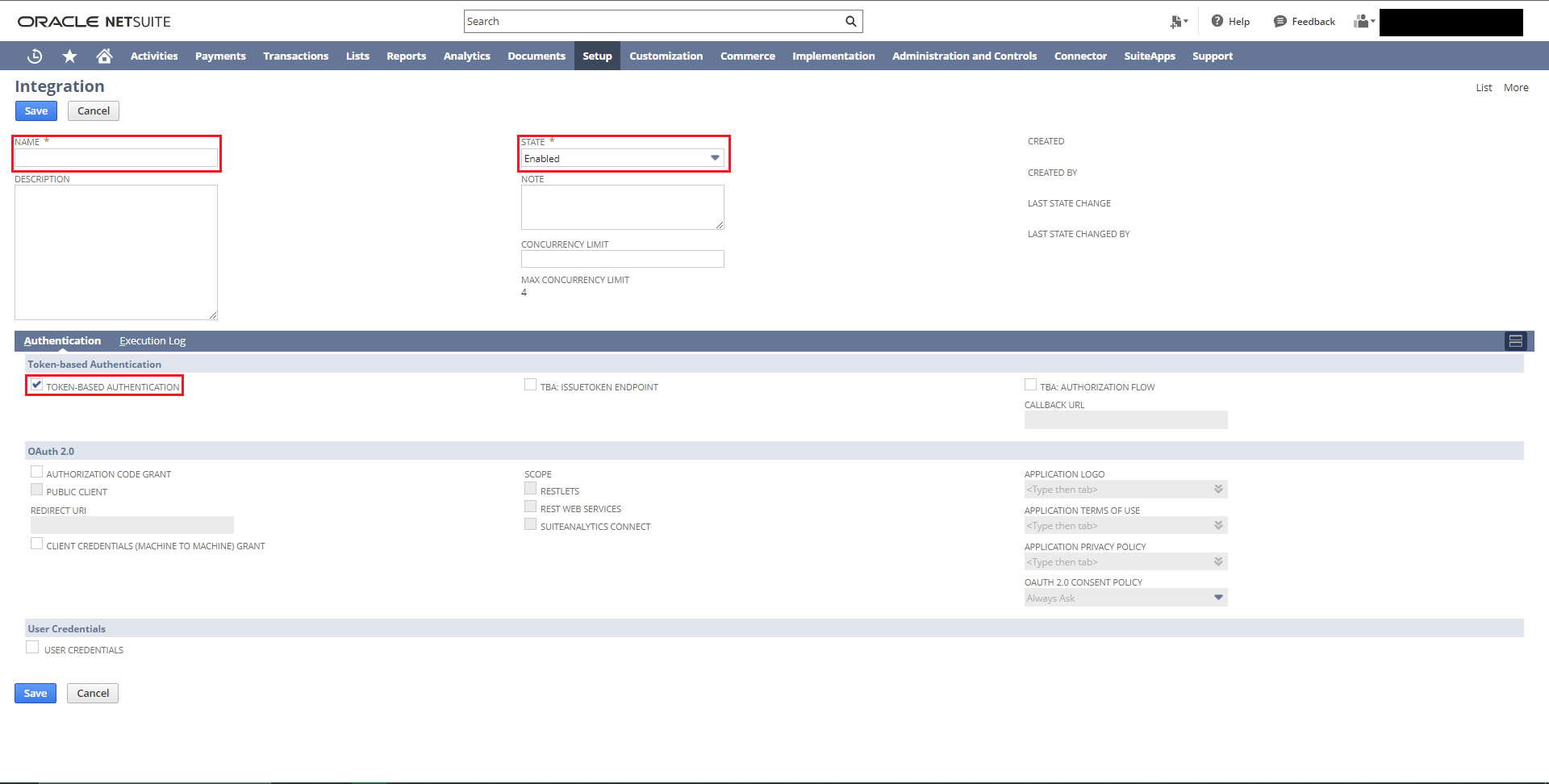
Step 2: Enable Web Services and Enable Token-Based Authentication
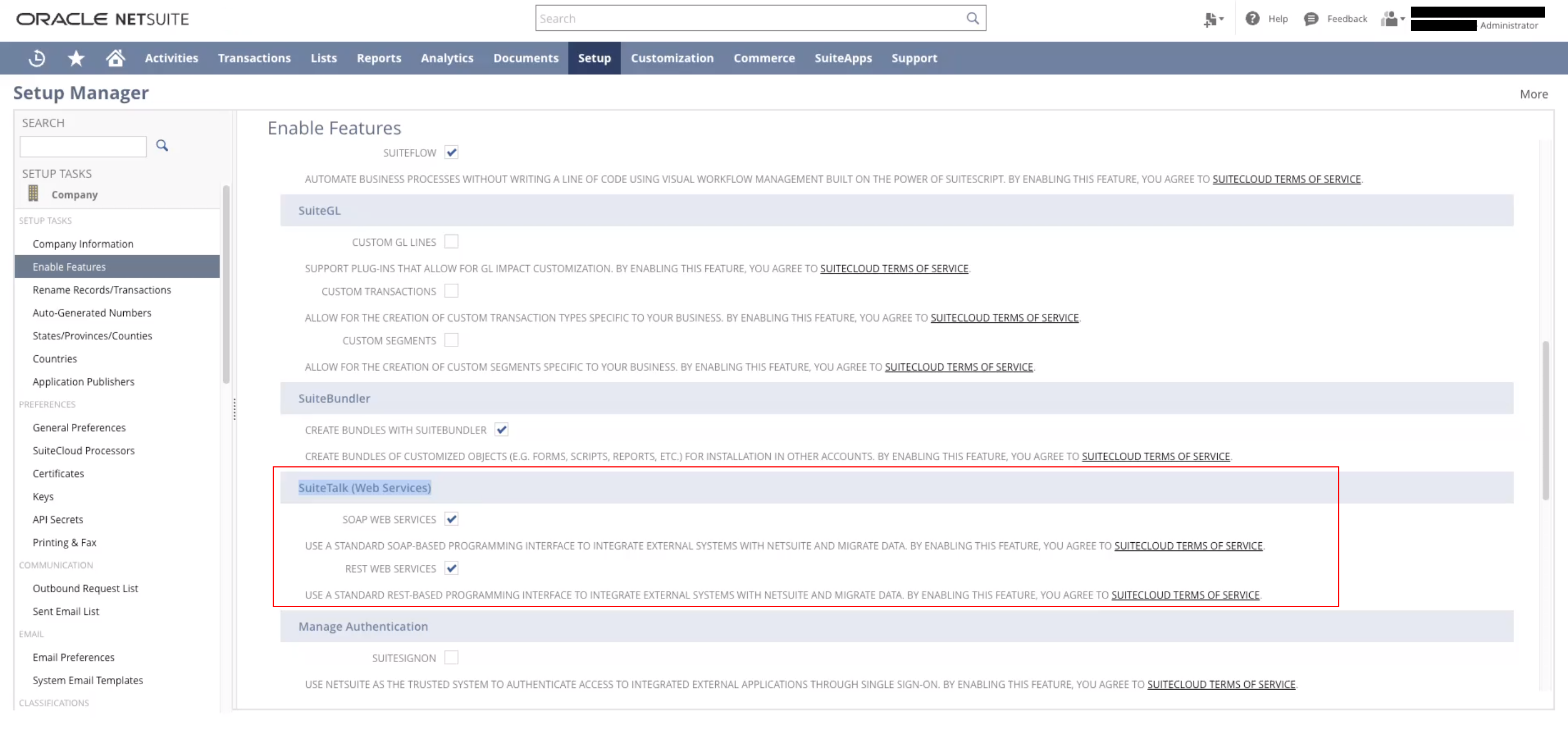
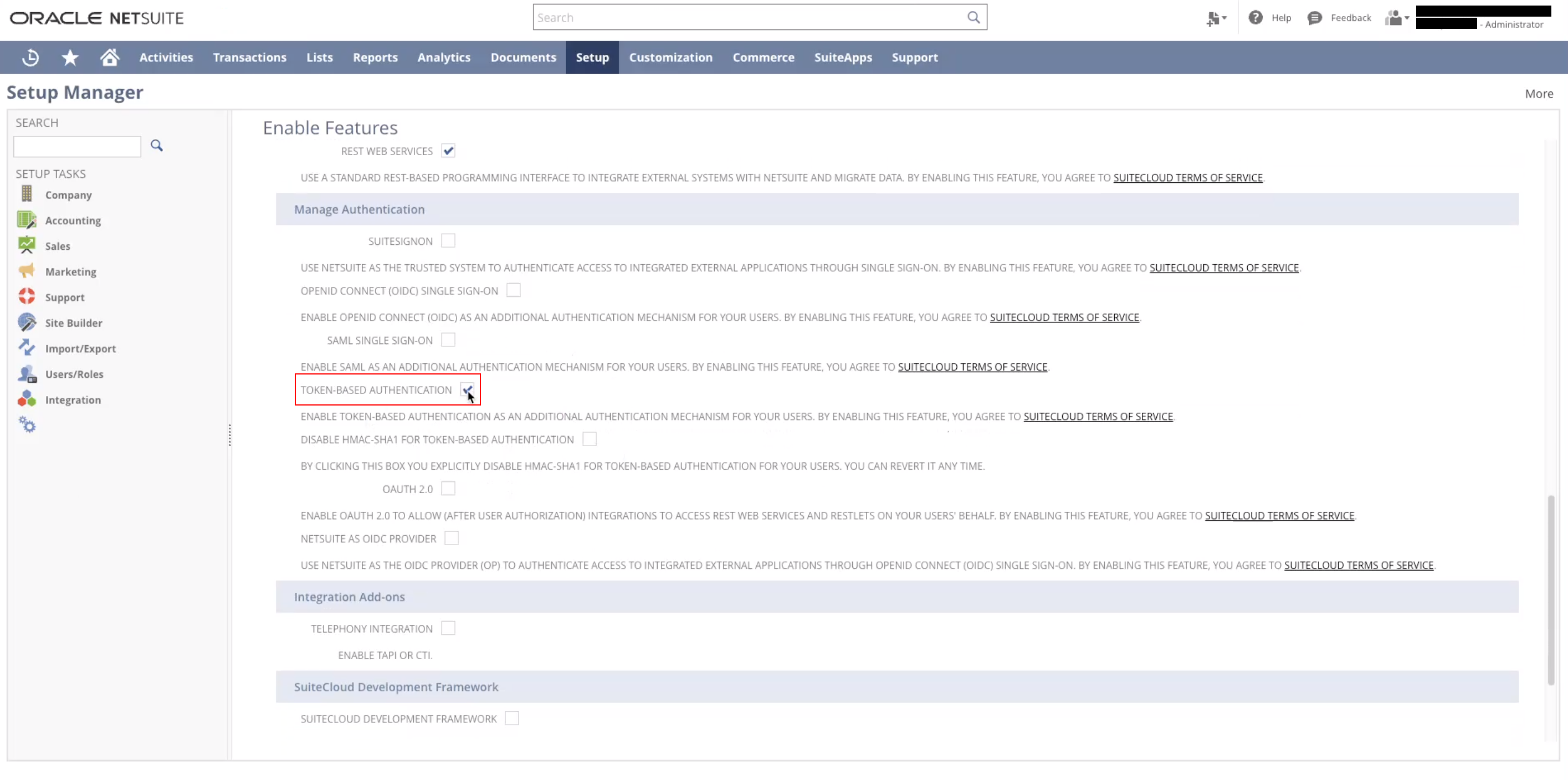
Next, you’ll need to enable Token-based Authentication in your NetSuite account. To do so, navigate to Setup > Company > Enable Features > **SuiteCloud **> then scroll down until you see SuiteTalk Web Services.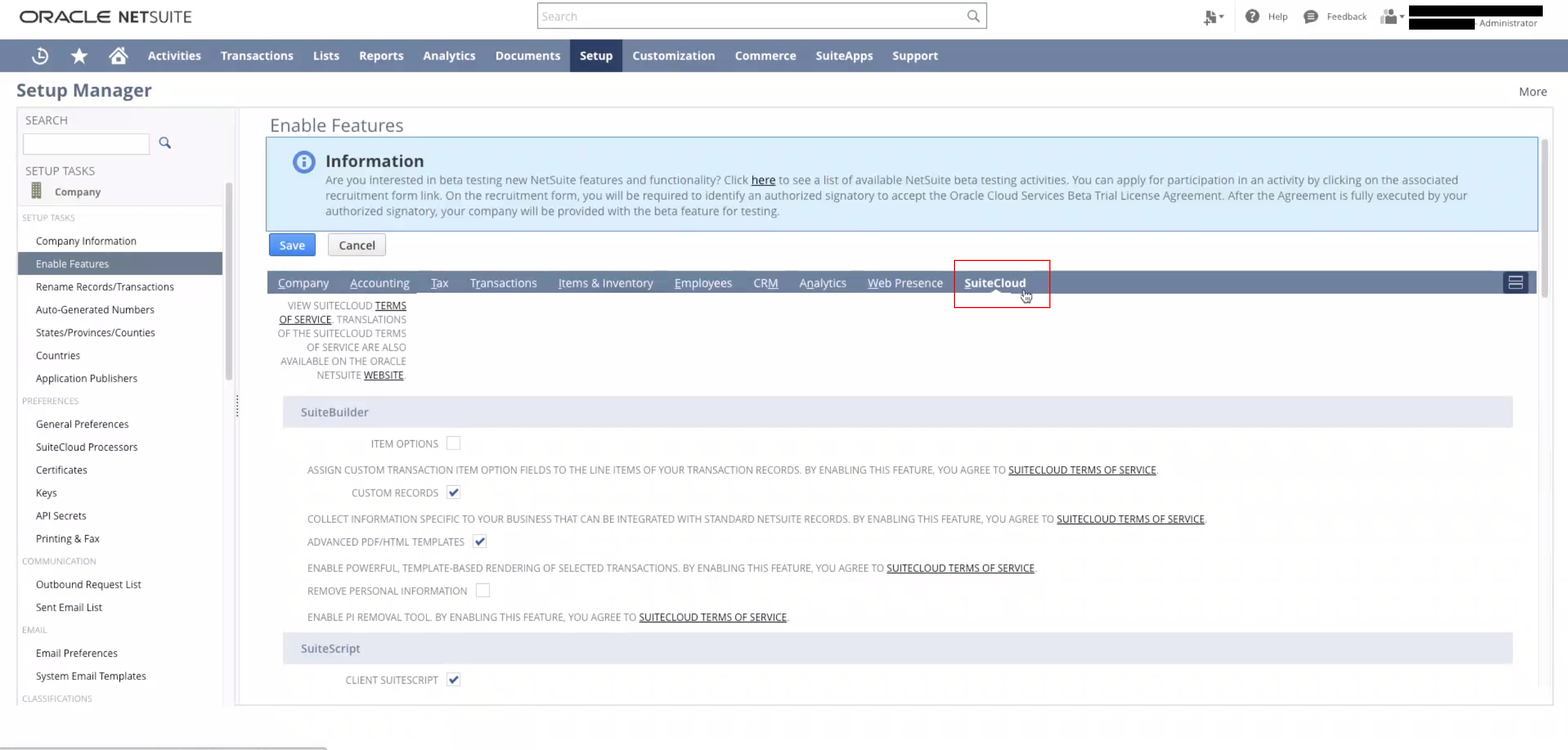
Step 3: Create a Token Role
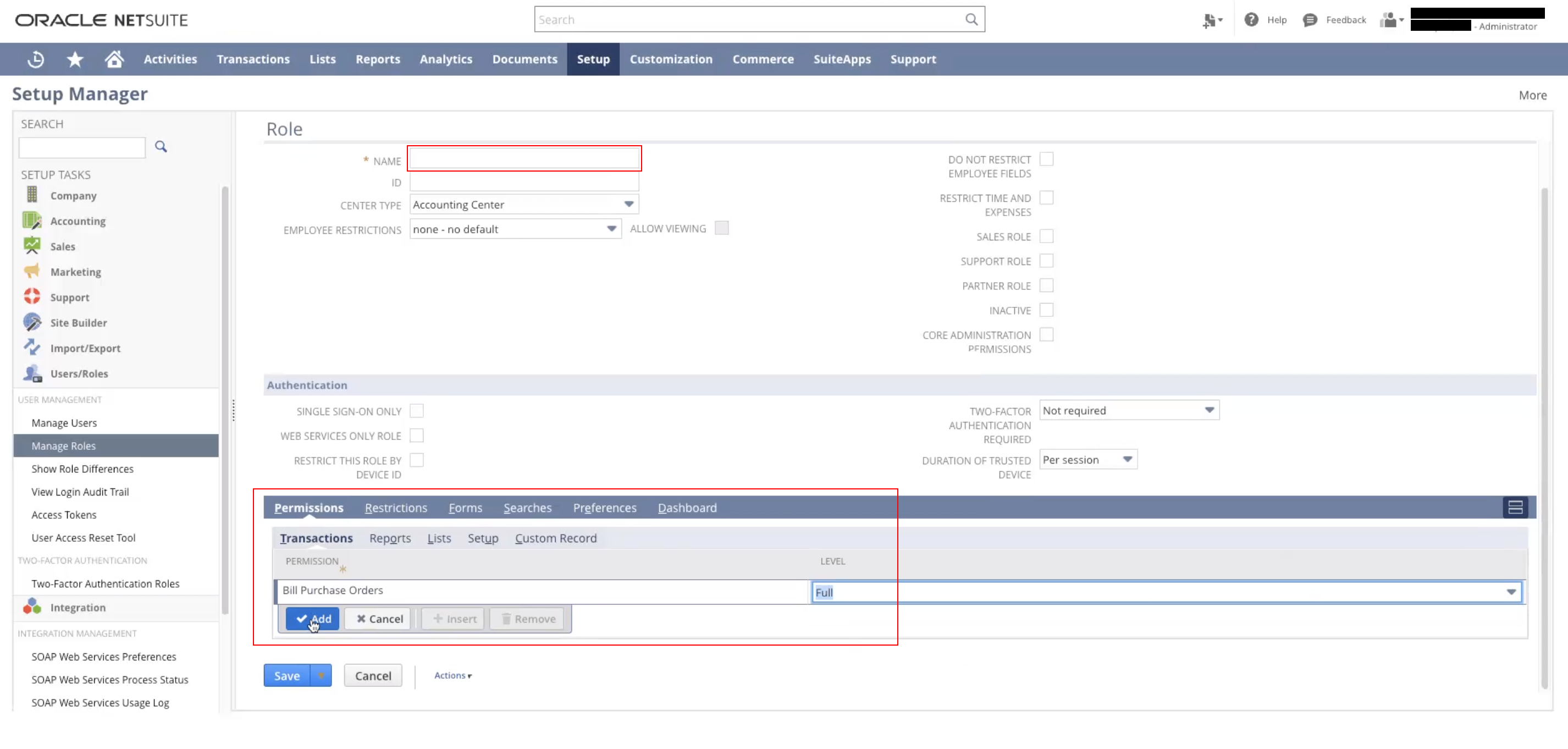
Now, you’ll need to actually give your token permissions so that Alloy can use this token to automate things in your NetSuite account. Once more, navigate to Setup > Users/Roles > Manage Roles> New From here, give your role a name and an Id. Then, navigate to Permissions Sublist > Setup and select Full for the following permissions:- Access Token Management
- Log in using Access Tokens
- Both API Web Services
- REST Web Services
- SOAP Web Services
- SuiteScript
- User Access Tokens
- Integration
- Inventory
- Sales
- Sales Order Reports
- SuiteAnalytics Workbook
- Items
- Perform Search
Step 4: Create Access Tokens
Lastly, navigate to Setup > Users/Roles > Access Tokens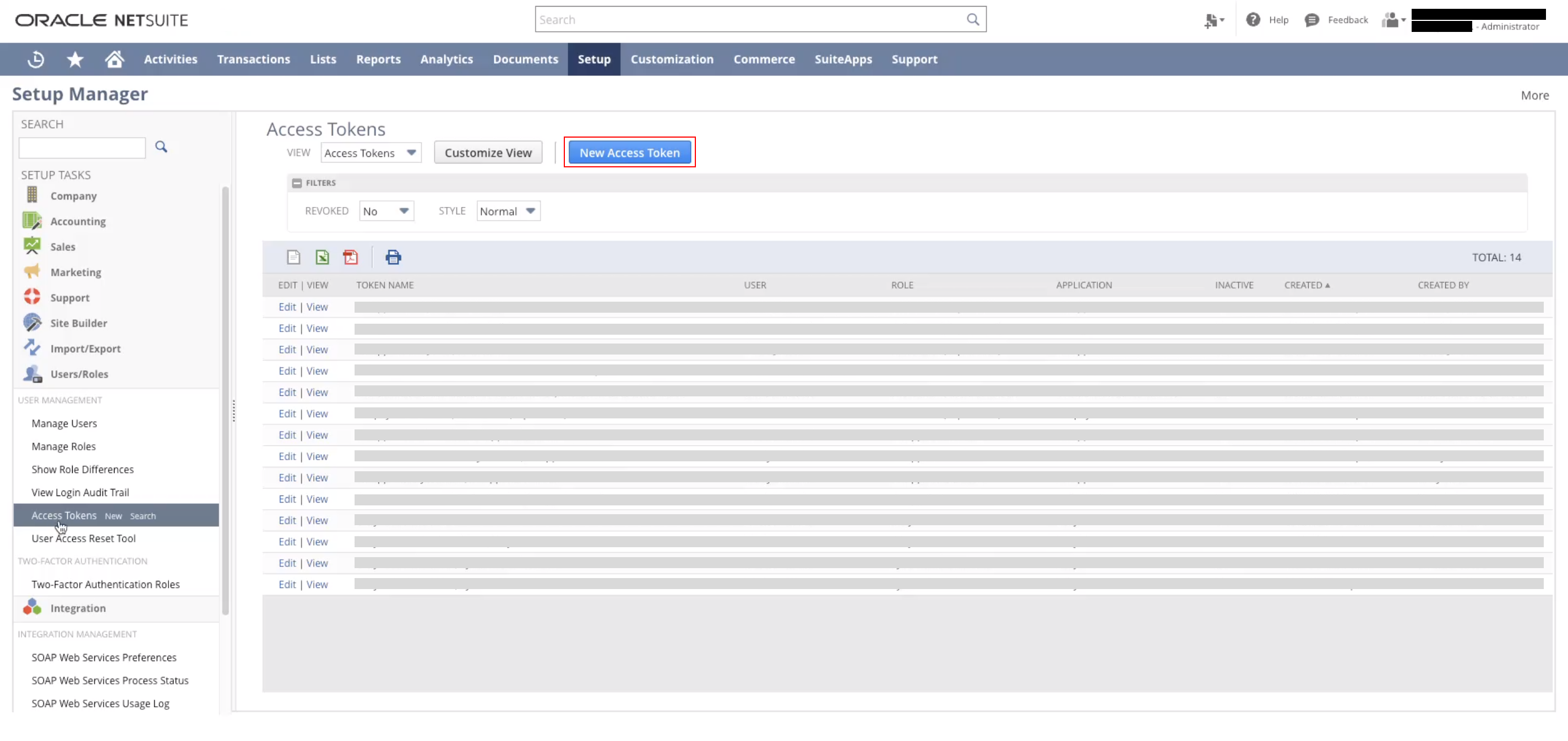
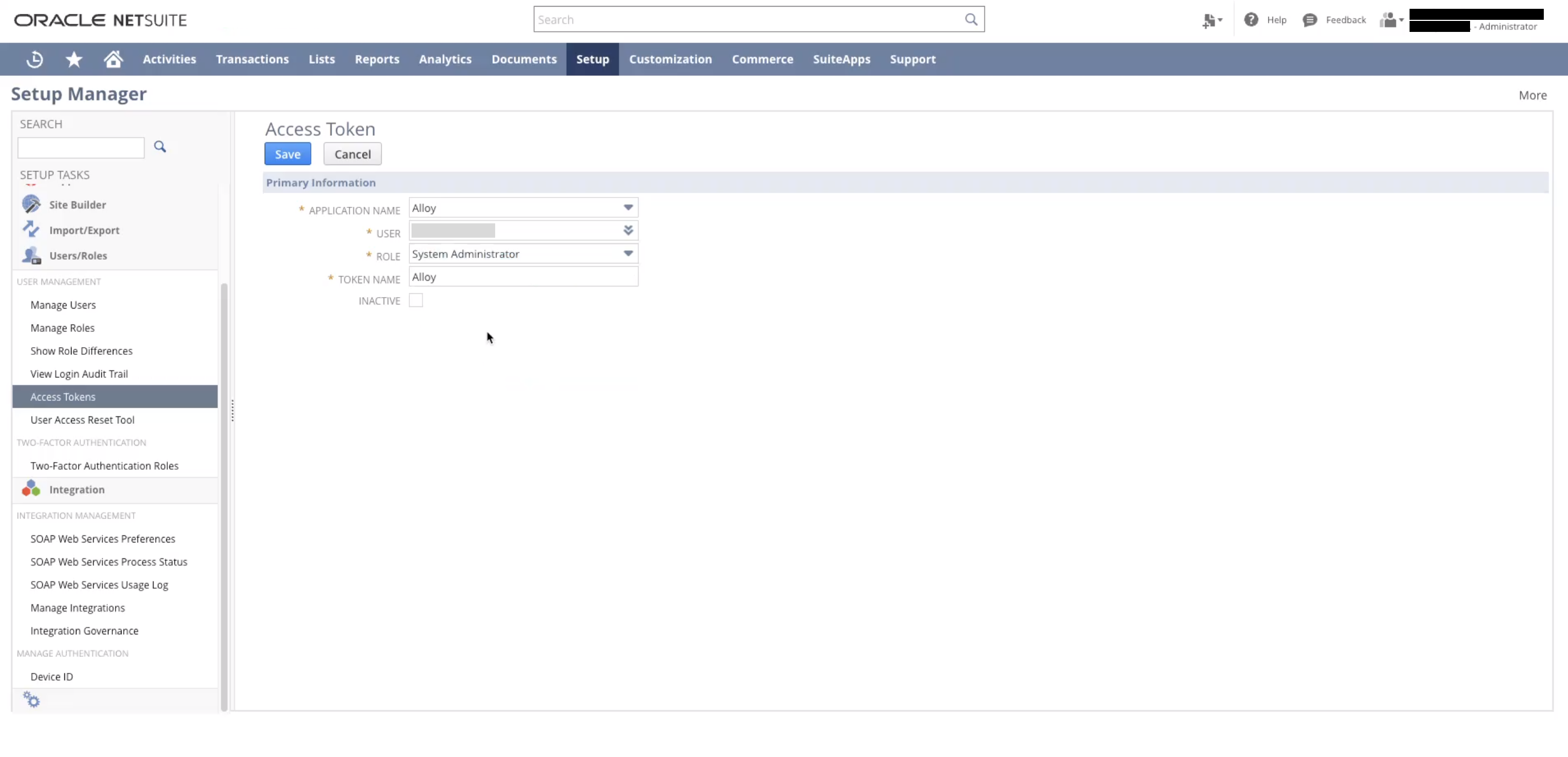
- Application Name: Select the integration created Step #1
- User: Select the employee you wish to grant access for
- Role: Select the specific role if you created one in Step #3
Wrapping Up
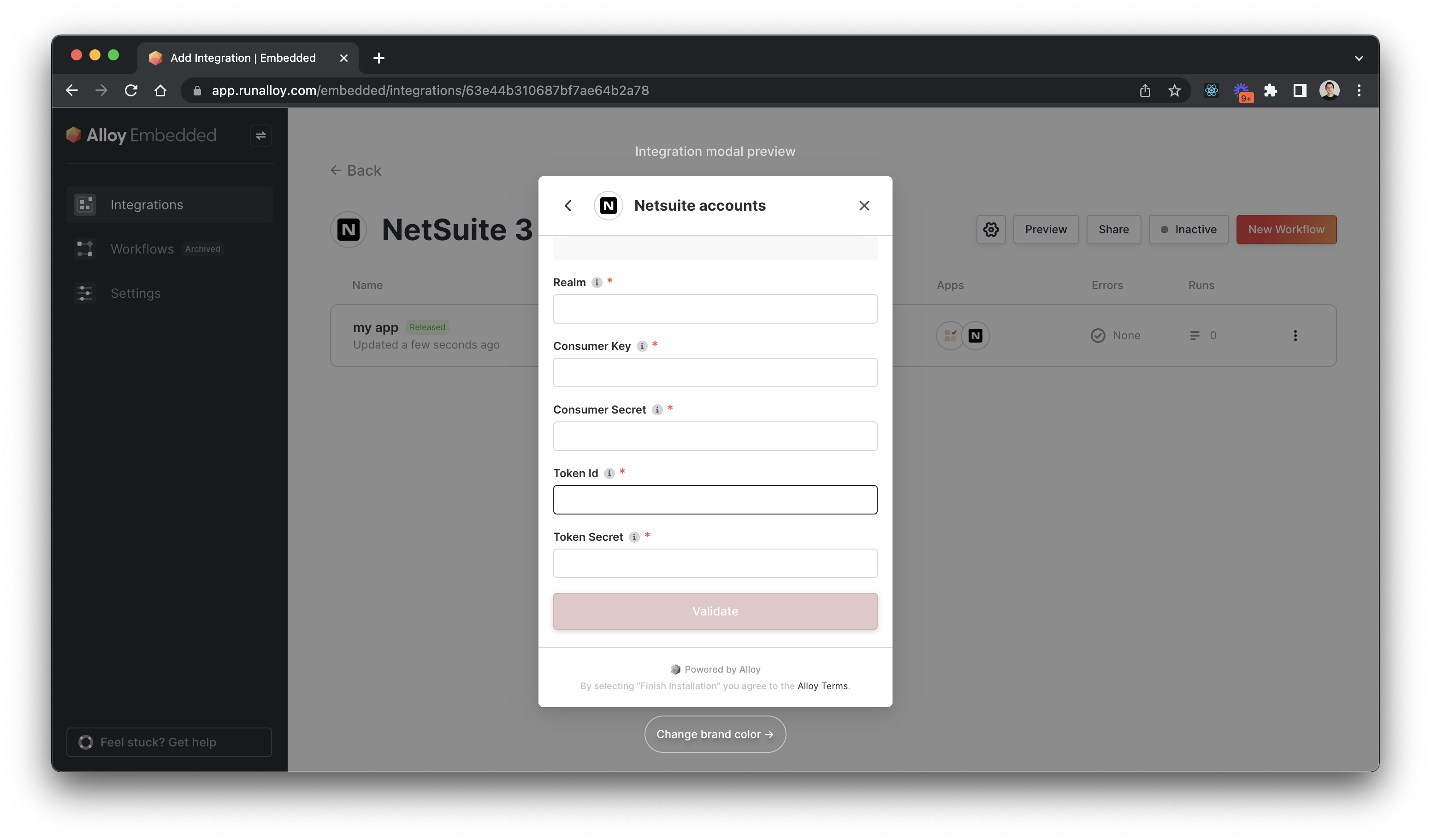
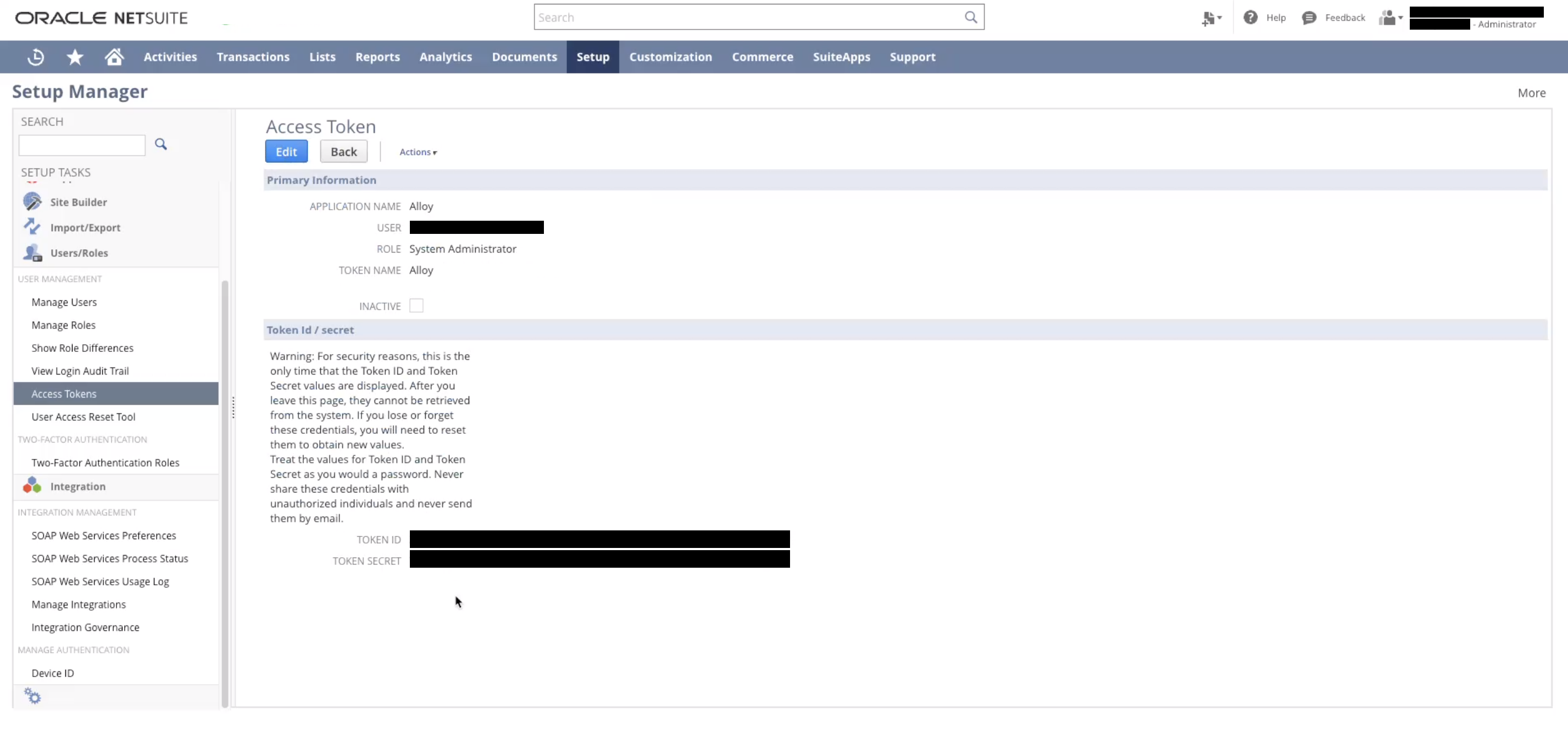
That’s a wrap! You’ll need these keys and the consumer secret and key from before. Use the keys you obtained from this tutorial when configuring NetSuite with Alloy. To get therealm you can locate the 6 digit number in the URL (it should prefix app.netsuite.com).
Once you’re ready, input the values in Alloy as seen below.